Task Page Guide
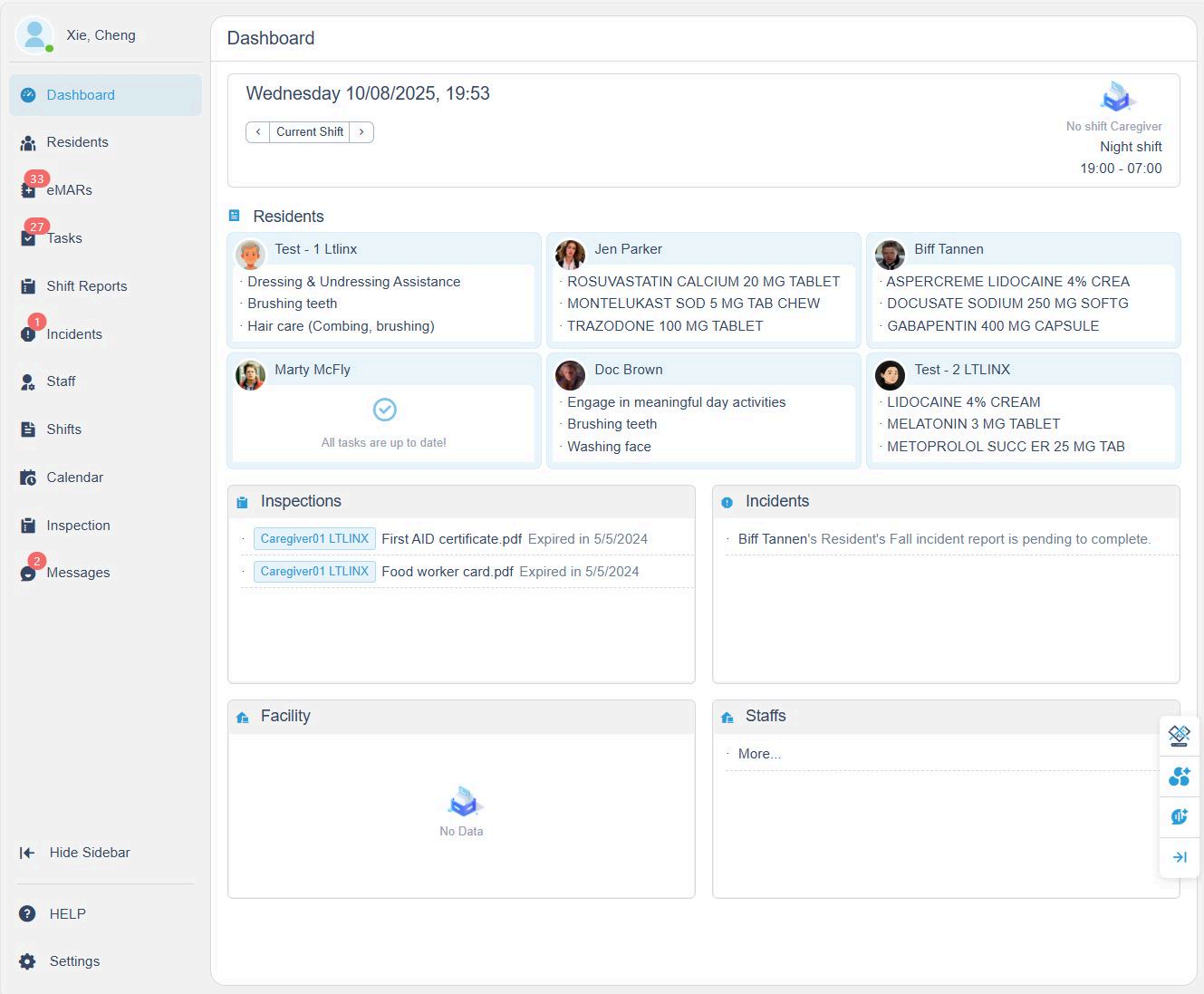
1. Dashboard Overview
- Overdue medications and tasks are displayed under each resident's name.
- Compliance issues with red flags are listed under Inspections.
- Pending incident reports for admin review are shown under Incidents.
- Pending facility tasks from shift reports appear under Facility.
- Staff leave requests are listed under Staff.
The dashboard provides a quick overview of your facility's daily operations and highlights any areas that need attention.
2. Task Page Overview
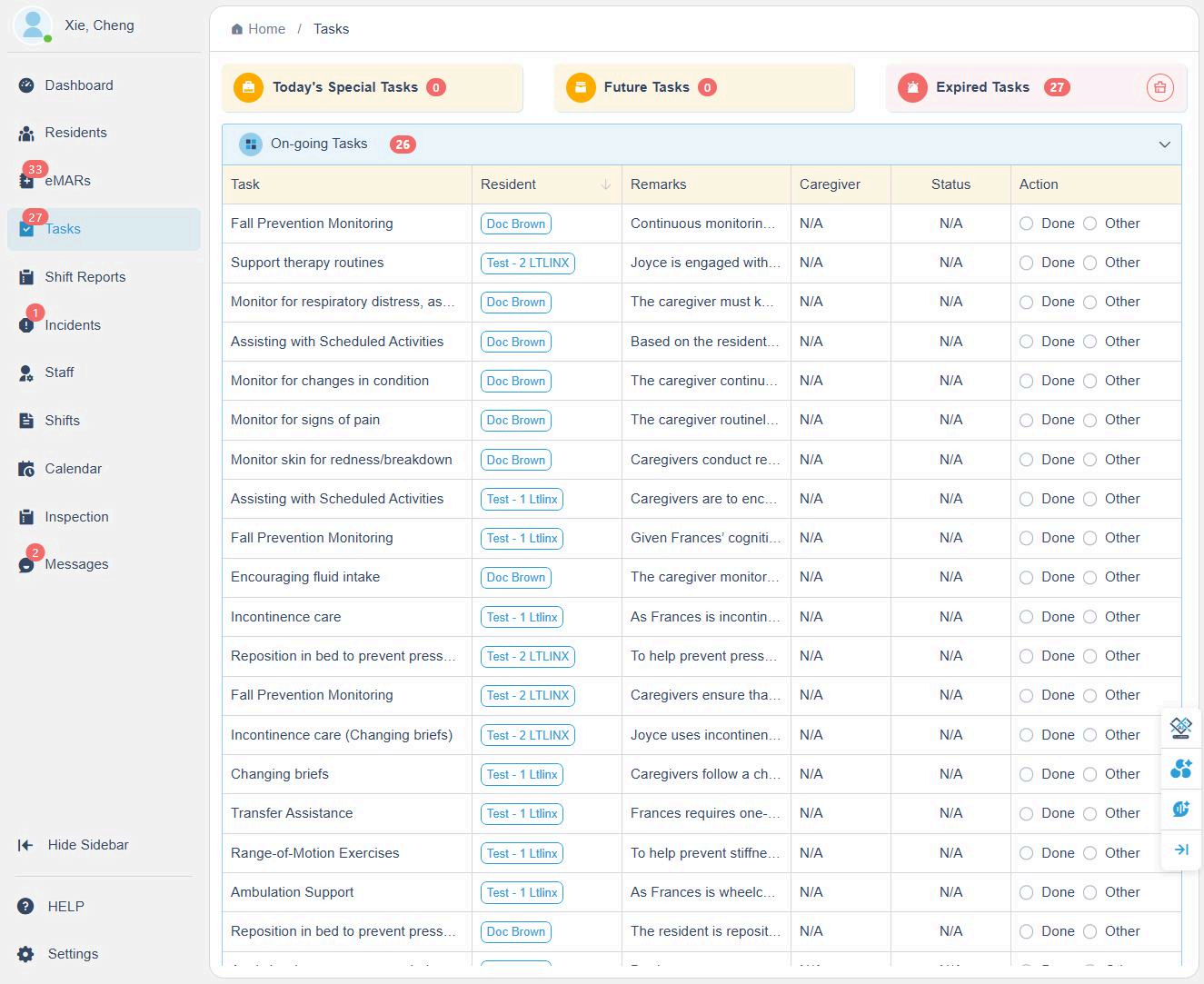
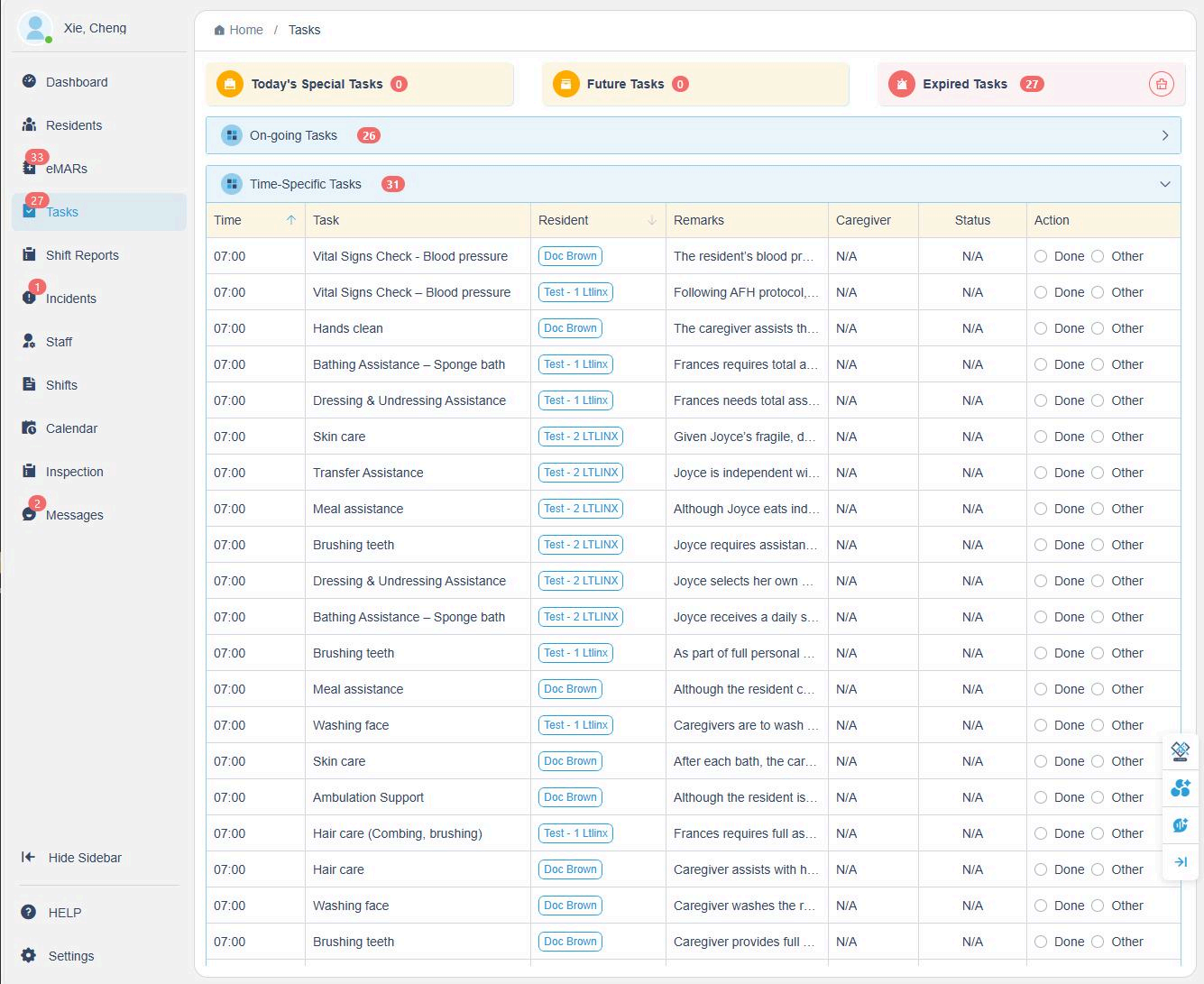
The Task Page is divided into six sections:
- Today's Special Tasks: Tasks scheduled for the current day from the resident's calendar.
- Future Tasks: Tasks scheduled for the next 7 days from the resident's calendar.
- Ongoing Tasks: Tasks from the Care Plan with a frequency set to "As Needed," which do not have specific due times.
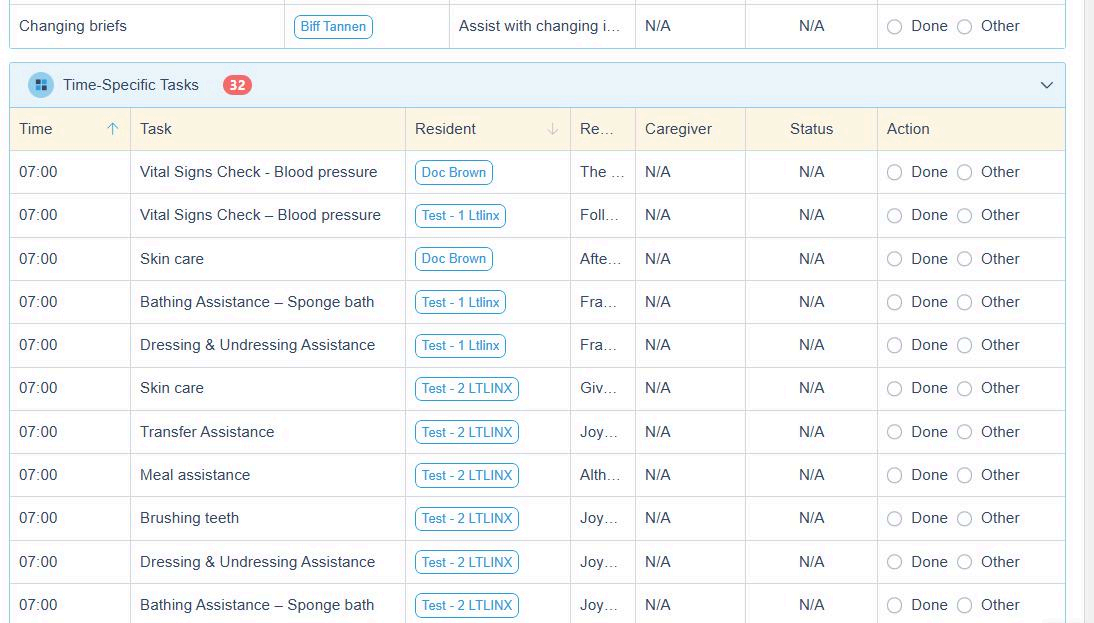
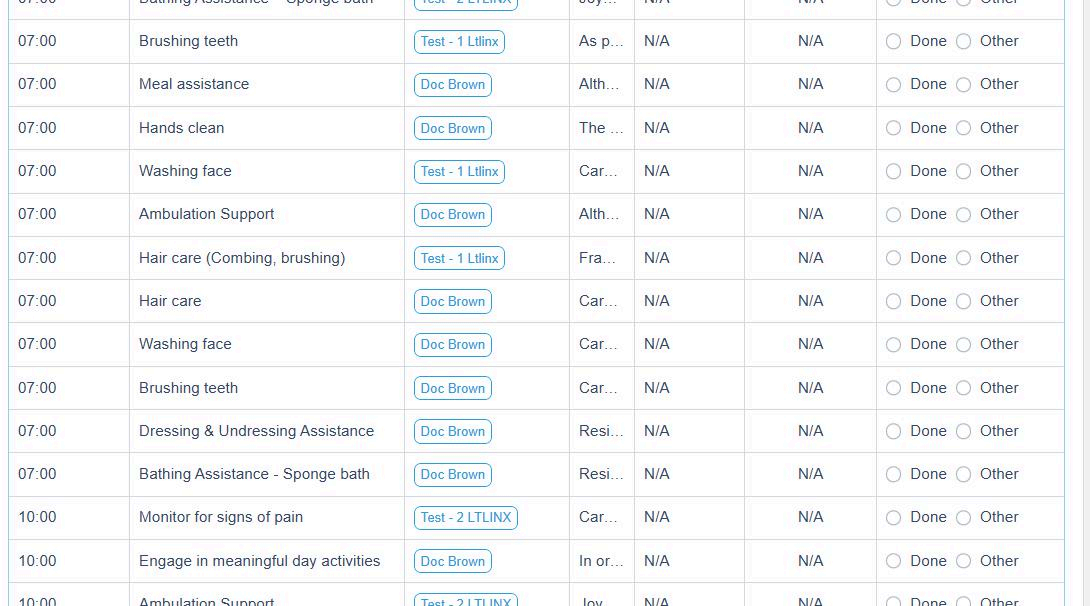
- Time-Specific Tasks: Tasks from the Care Plan that include both a specific time and a frequency.
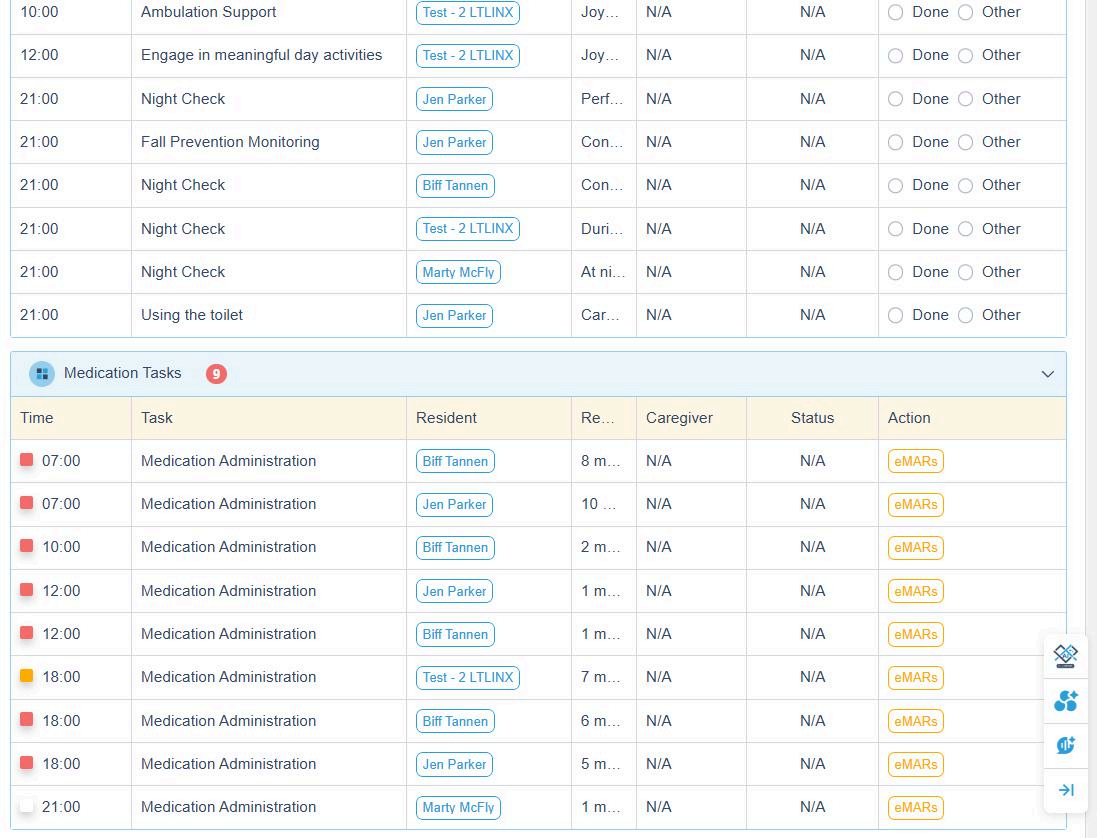
- Medication Tasks: All tasks related to medication administration.
- Expired Tasks: Tasks that are overdue and have not yet been completed.
Each task category helps caregivers stay organized and ensures all required actions are recorded and monitored efficiently.
3. Task Recording Rules
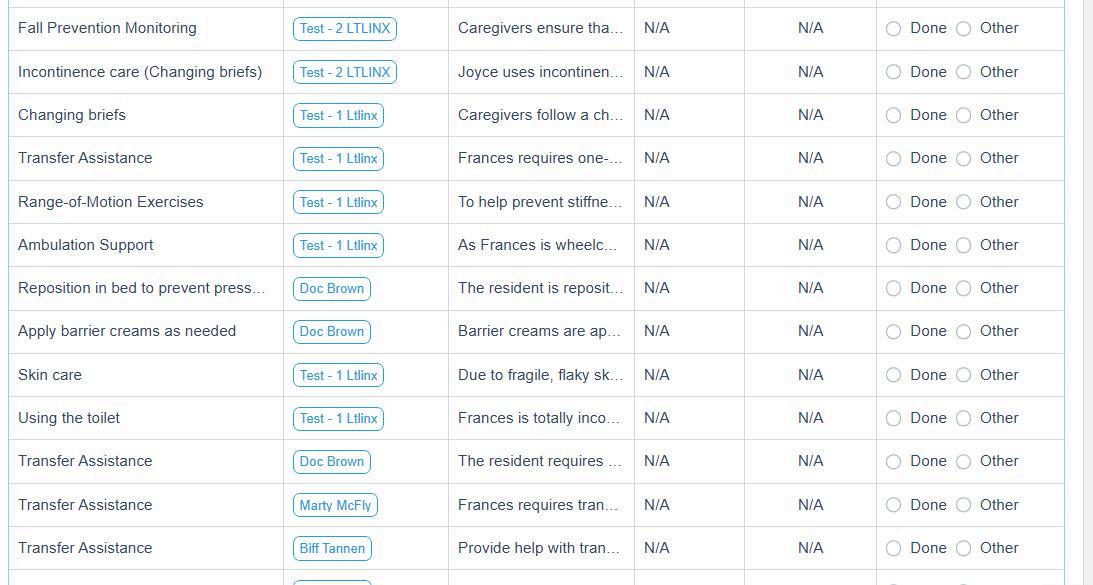
- On-going tasks do not expire and can be recorded multiple times per day.
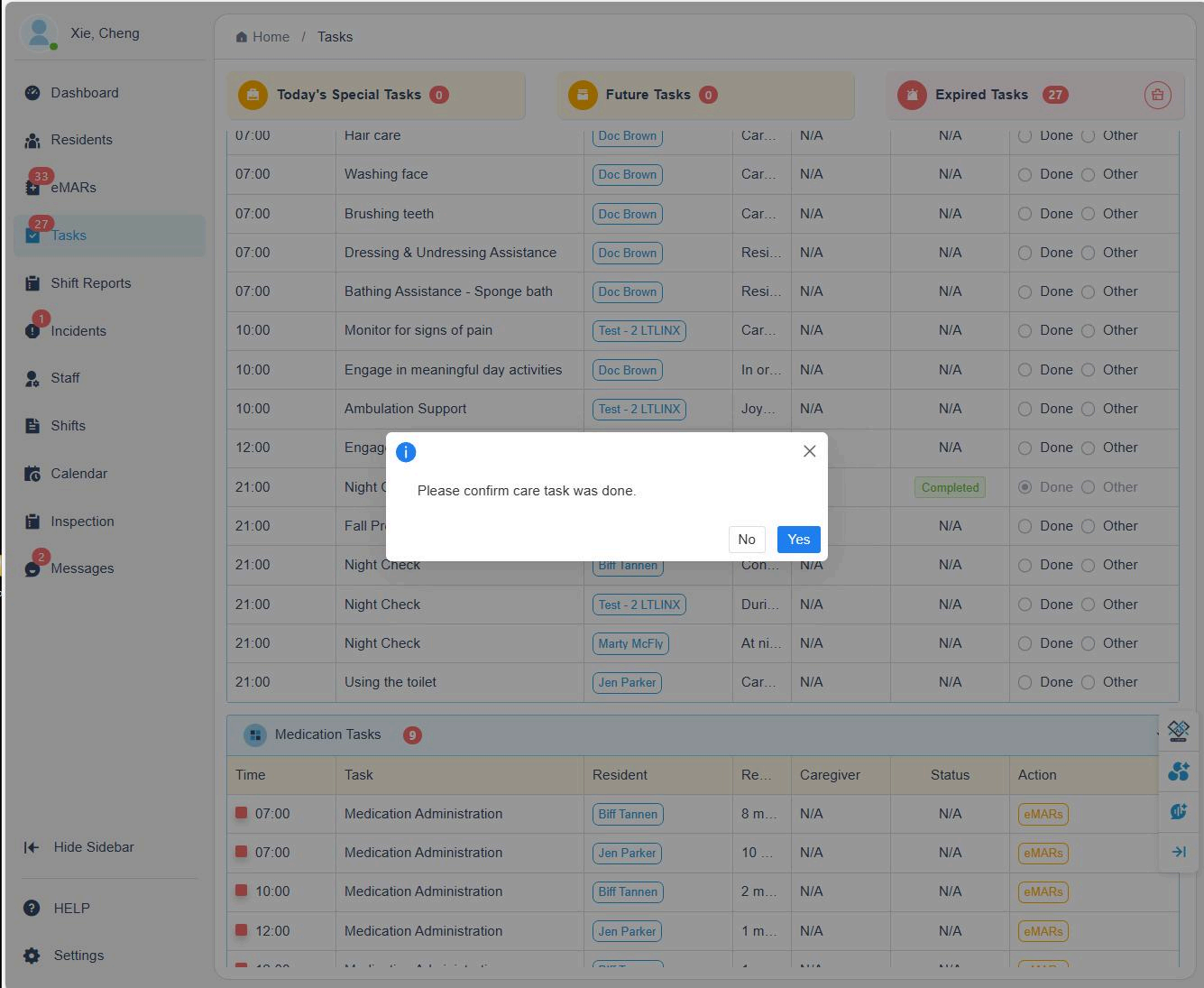
- Time-specific tasks can be marked as Done within a 2-hour window (1 hour before and 1 hour after the scheduled time).
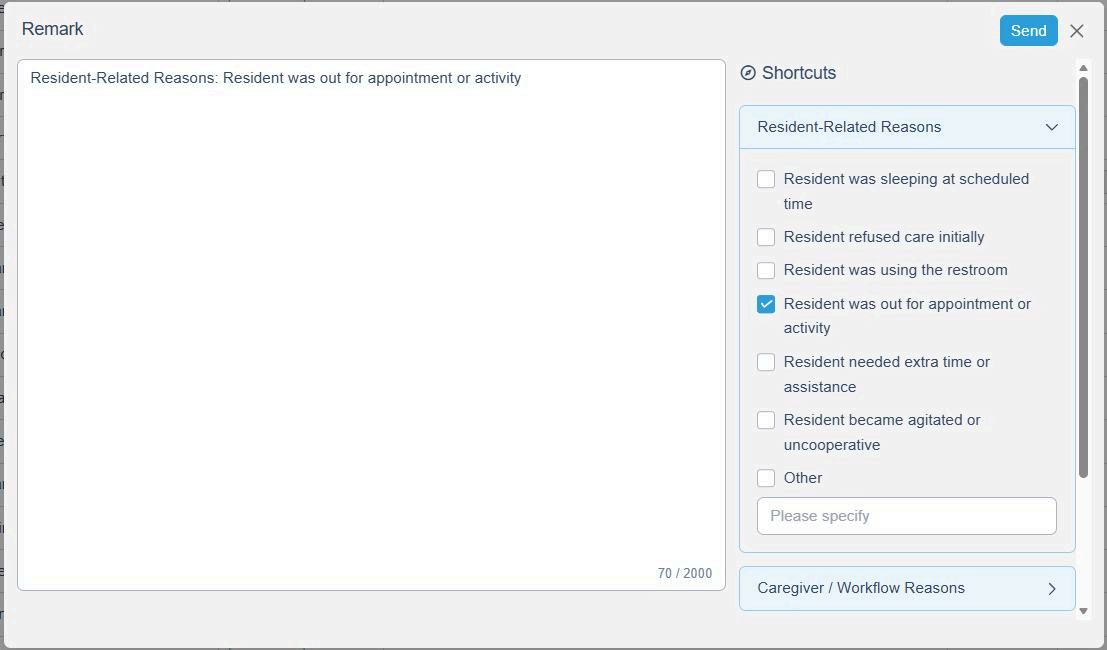
- If a task is recorded outside the 2-hour window, the system will require you to enter a remark before saving.
- Shortcut remark options appear on the right side for quick documentation.
Example: A staff member marks "Skin Care" done at 9:15 when it was scheduled for 7:00 — the system will prompt for an explanation.
4. Medication Tasks
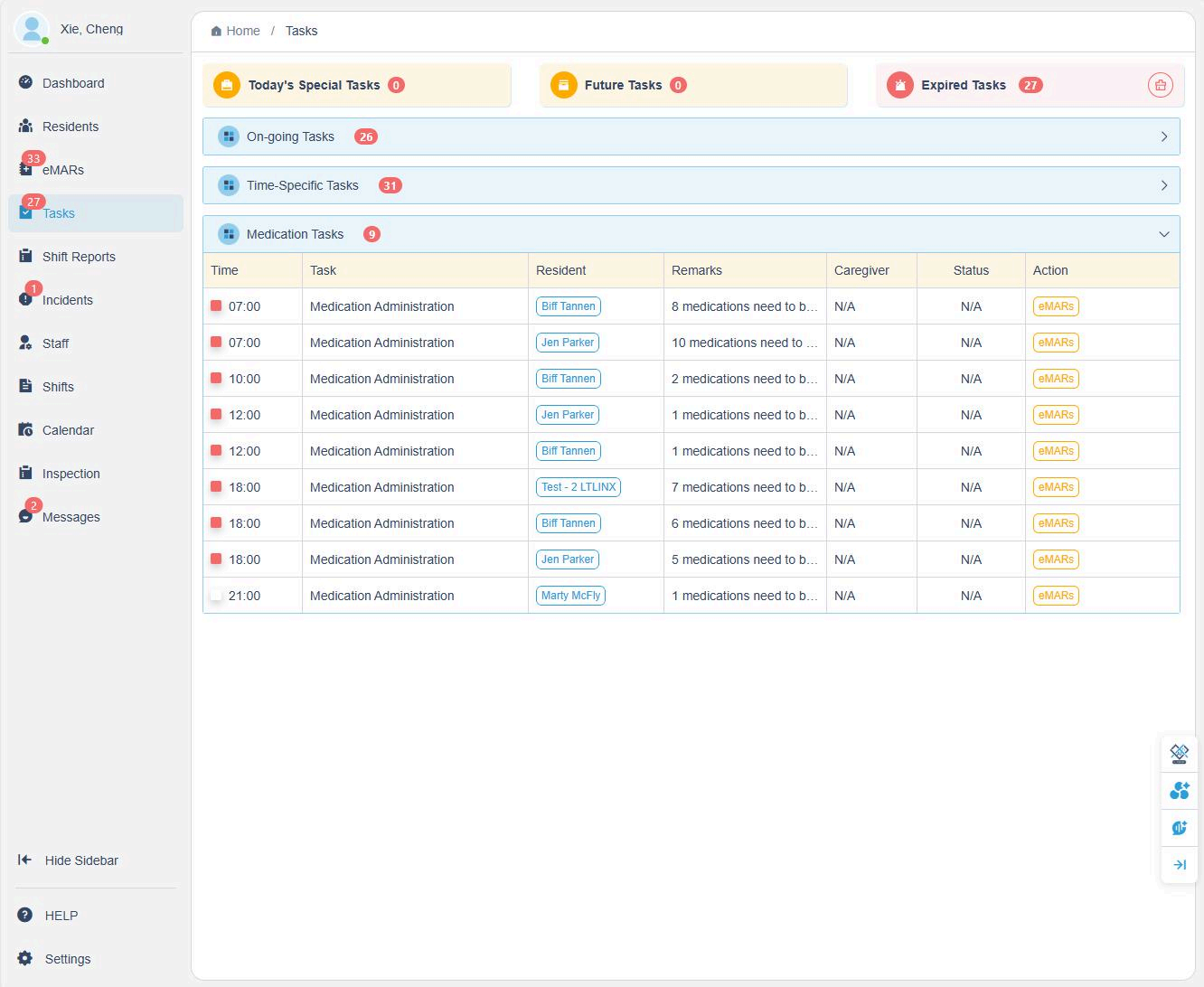
- All medication-related tasks are recorded under the eMAR module.
- On the Task Page, only the total number of medications assigned to each resident will appear.
- For detailed medication entries, click into the eMARs section.
This separation ensures medication records remain compliant and easily traceable while keeping the Task Page focused on daily care activities.
5. Managing Expired Tasks
To view and manage overdue tasks:
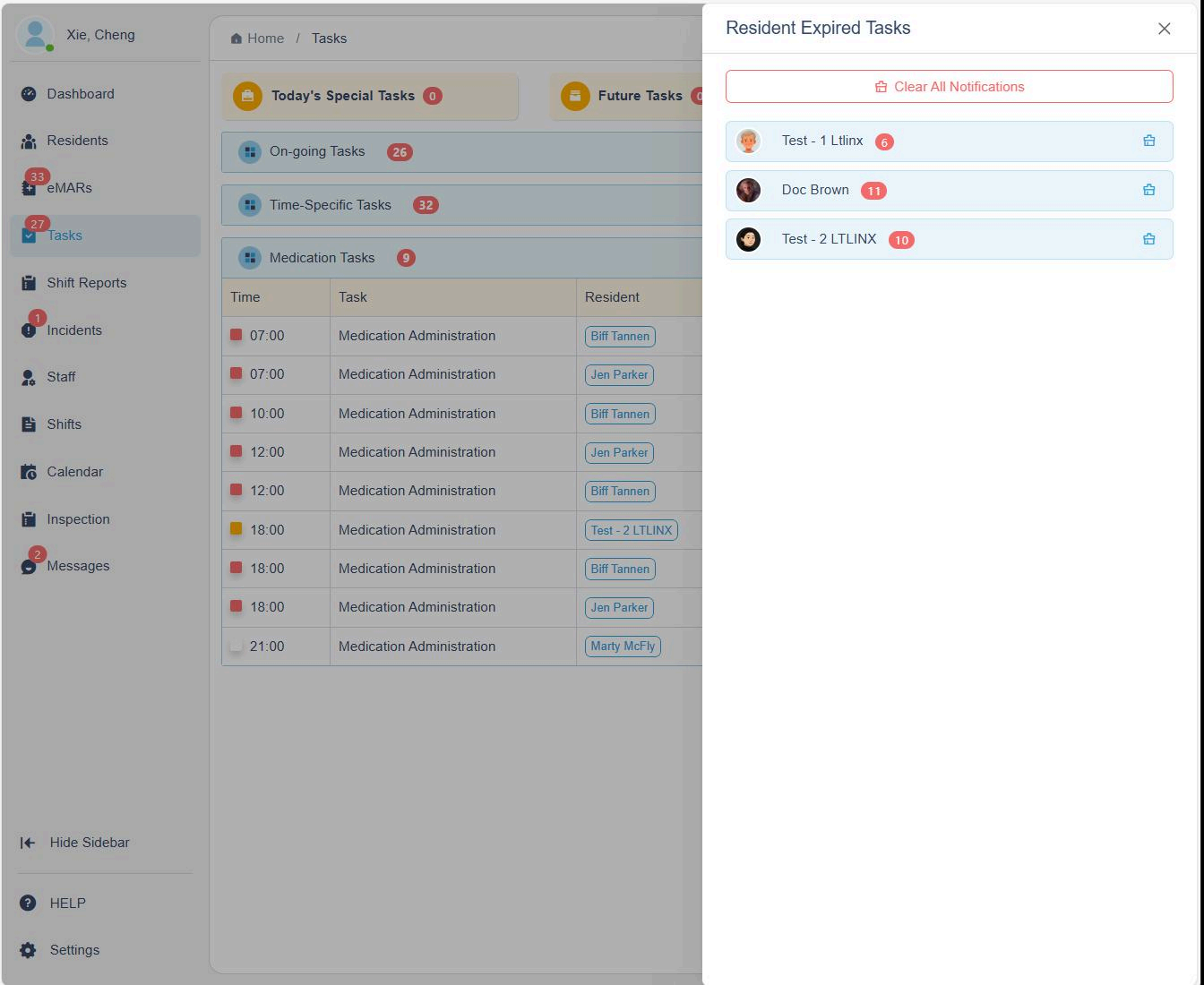
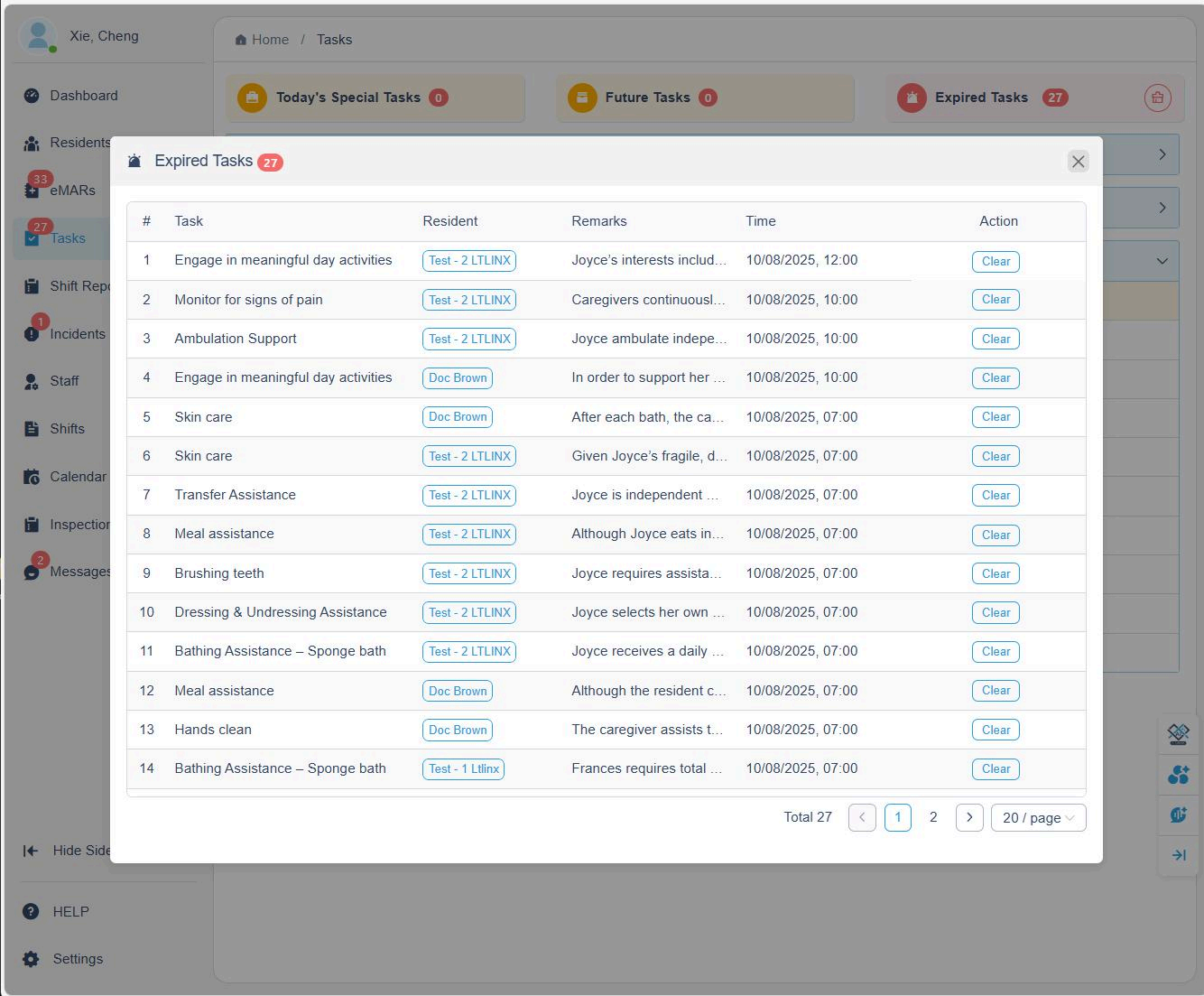
- Click the number displayed on the Expired Tasks tab.
- A list of all expired tasks will appear.
- Click Clear beside any task to remove it from the overdue list.
You can clear outdated daily care or monitoring tasks after verifying that they have been addressed and documented.
6. Admin Group Clear Option
- Click the trash bin icon located in the Expired Tasks section.
- A summary window will appear, displaying the total number of overdue tasks per resident.
- The Admin user can then perform a group clear for all residents or a selection of residents.
This feature saves time and ensures a clean task record after overdue items have been reviewed.