Getting Started
Registration
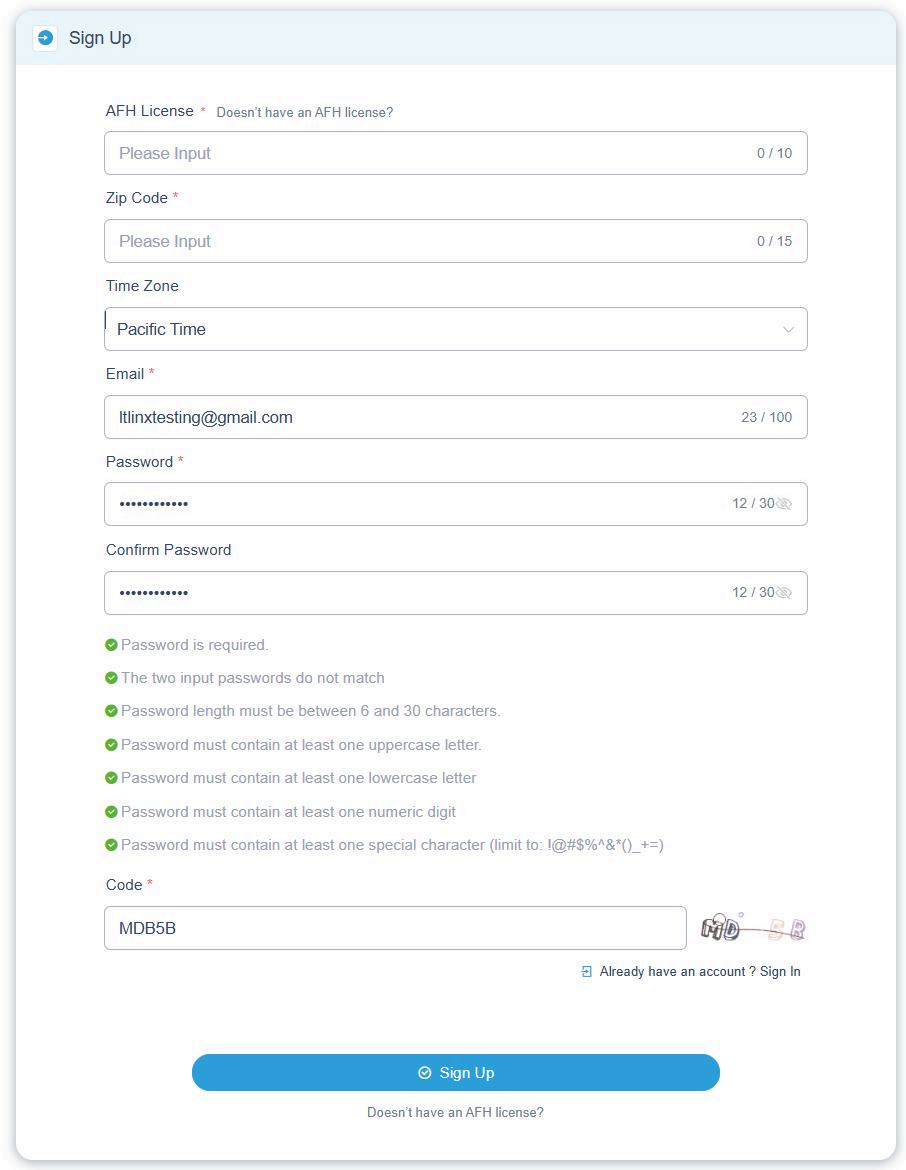
Step 1: Complete the Registration Form
- Fill out all required fields on the Sign Up page.
- Make sure your AFH License Number and Zip Code match your official state licensing information.
- If your facility does not have an AFH License number, click the button labeled "Doesn't have an AFH license?" at the bottom of the page (highlighted in the screenshot).
You will also be required to:
- Create a password that meets all password rules shown on the page.
- Enter the verification Code displayed on the right side (case sensitive).
Sign Up Form Screenshot Description:
- Fields: AFH License (with "Doesn't have an AFH license?" button), Zip Code, Time Zone (default Pacific Time), Email, Password, Confirm Password.
- Password rules: Required, match confirmation, 6-30 characters, at least one uppercase, one lowercase, one numeric digit, one special character (limit to !@#$%^&*()_+-=).
- Code field with displayed code (e.g., MDBS).
- Buttons: Sign Up, and link to "Already have an account? Sign In".
Step 2: Check Your Email for Verification
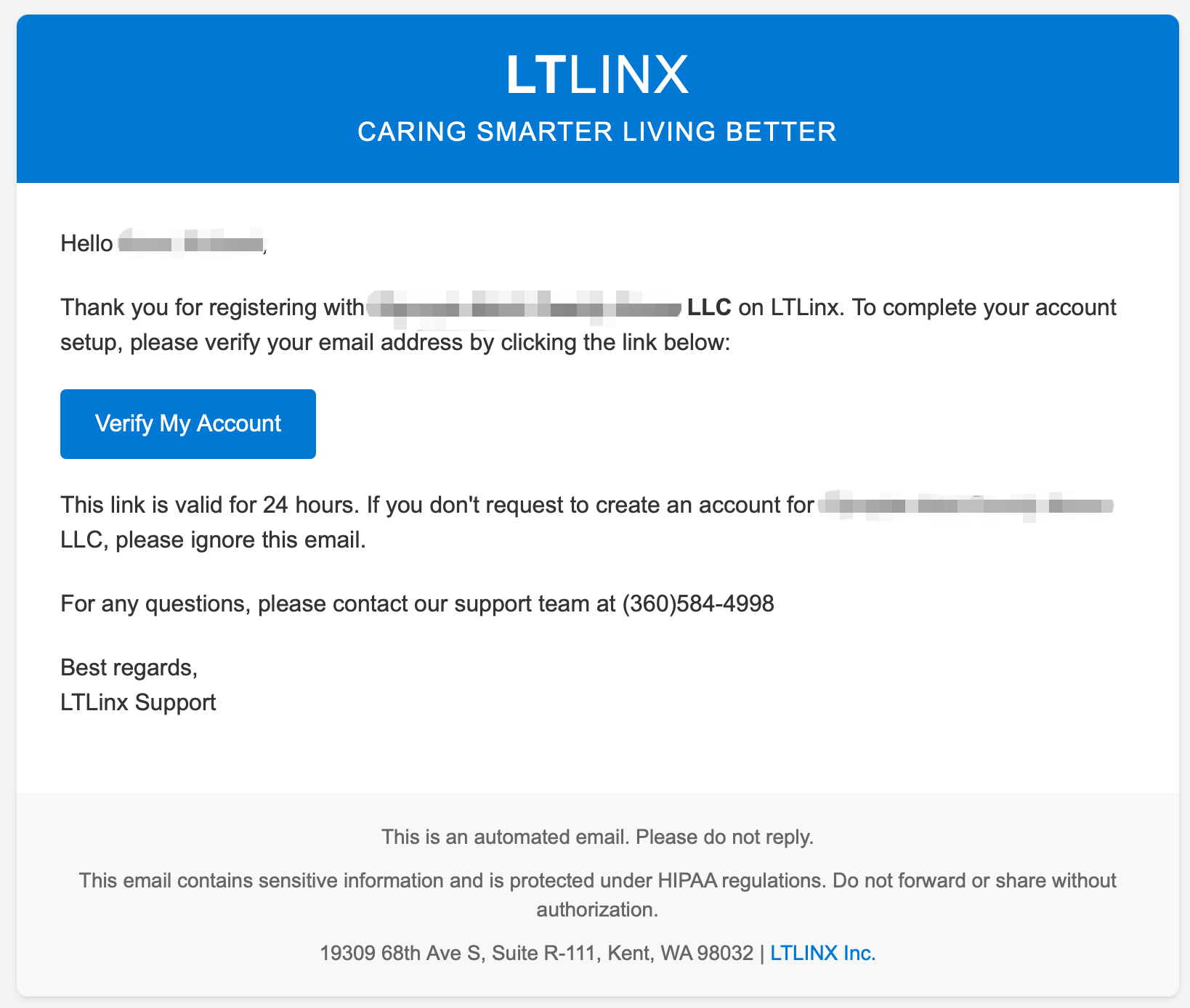
After submitting the registration form, you will receive an email from no-reply@ltlinx.com.
- Look for an email titled "Verify My Account".
- Click the Verify My Account button to proceed.
Tips
- The email usually arrives within 2 minutes.
- If you don't see it, check your Spam or Junk folder.
- If you still don't receive the email after 10 minutes, call our support team at (360) 584-4998.
Step 3: Complete the Robot Verification
After clicking the email link, you will see a flashing verification code on the screen.
- Carefully type the code into the input box exactly as shown.
- Uppercase and lowercase letters must match.
- When entered correctly, you will see a message confirming your email verification.
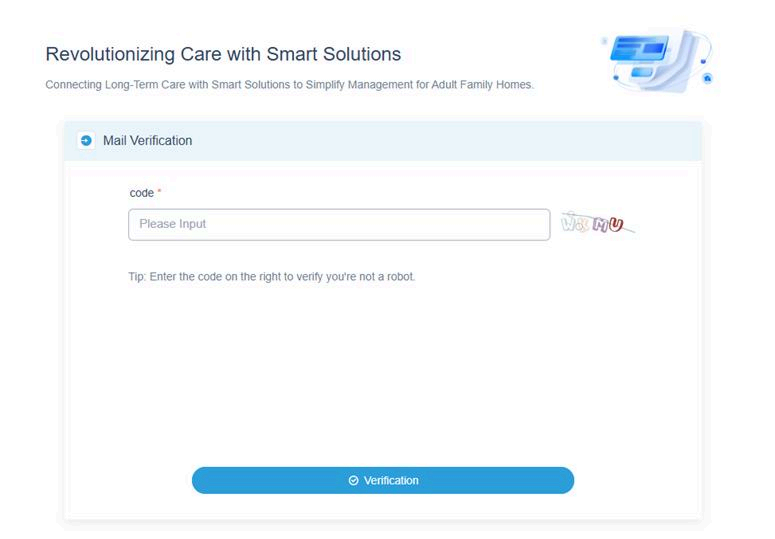
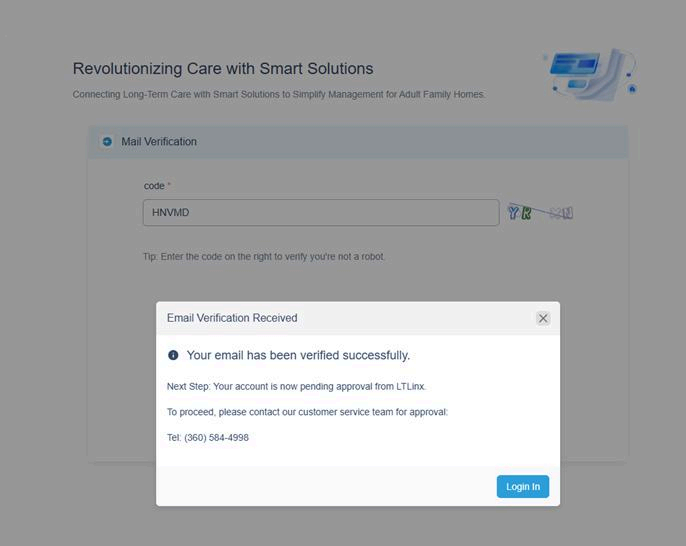
Once you enter the code, your email is now verified!
Step 4: Wait for Account Approval
After your email is verified:
- LT LINX support team will get your info, review and approve your account.
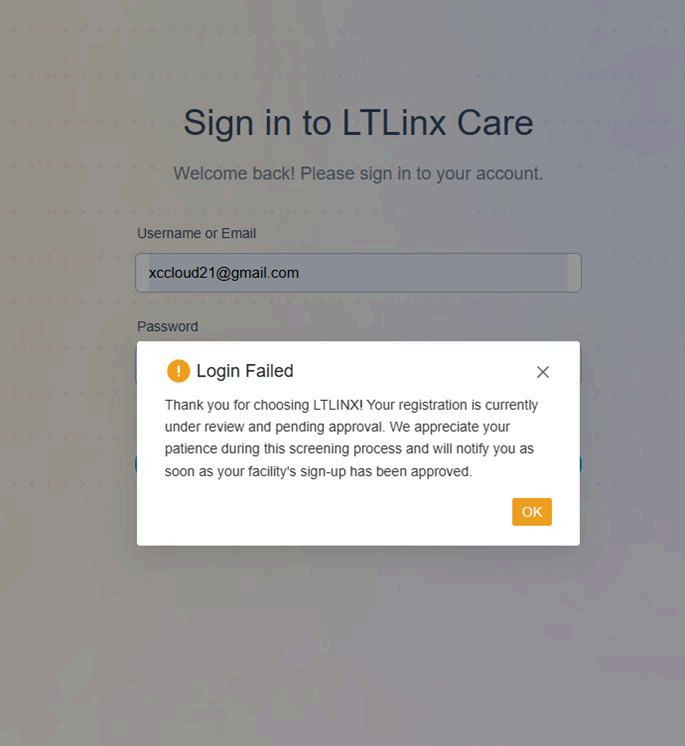
- If you try to log in before your account is approved, you'll see a message that says your account is not yet active.
What to do: Please contact our support team at (360) 584-4998 to approve your account.
Step 5: Receive the Approval Email
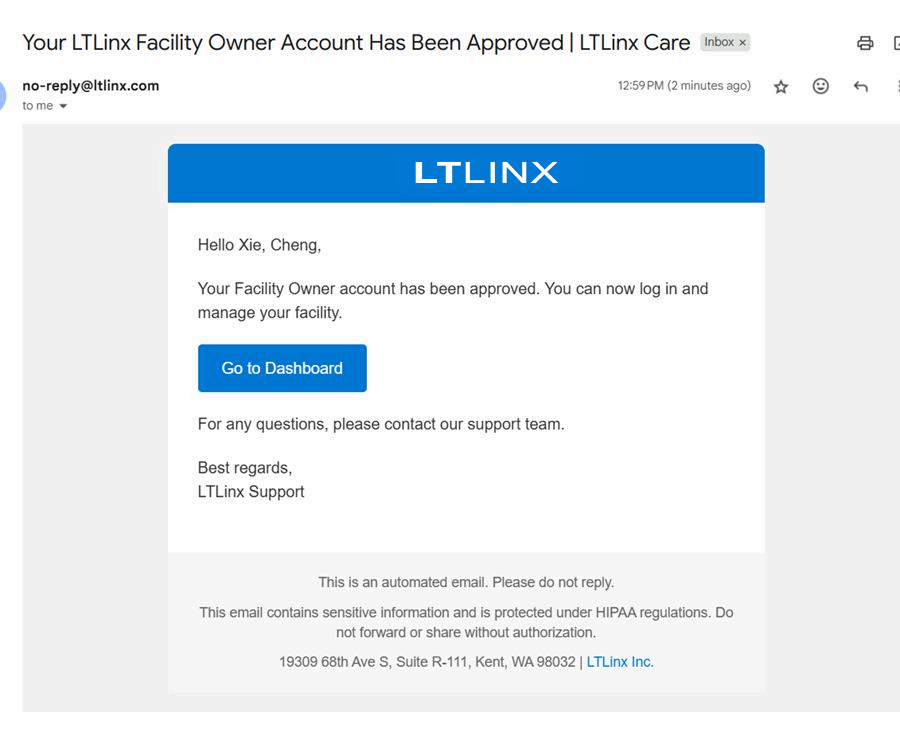
After your account is approved, you'll receive an email titled "Your LTLinx Facility Owner Account Has Been Approved."
- Click the Go to Dashboard button in that email.
- You can now log in and begin managing your facility.
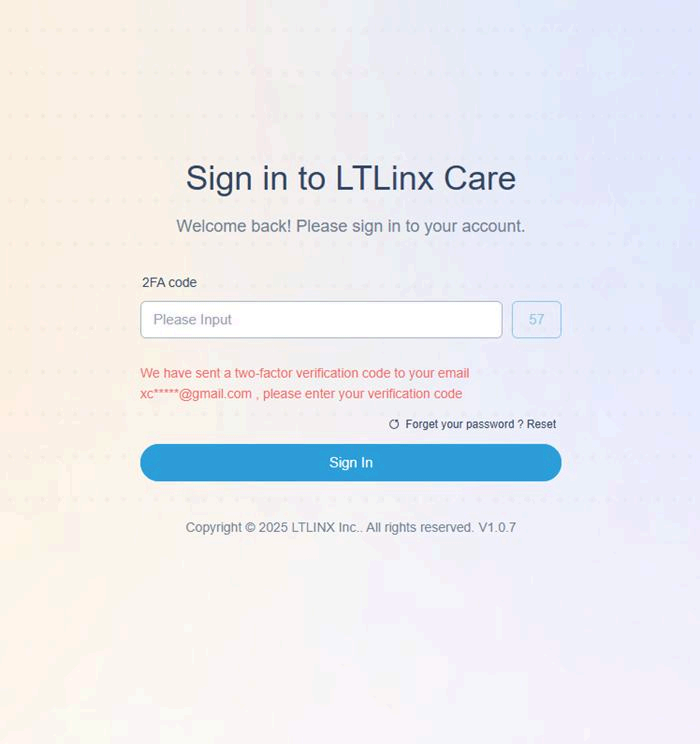
Step 6: Log In with Your Two-Factor Authentication Code
For security purposes, the first time you log in from a device, you will complete a 2FA (Two-Factor Authentication) check.
- After you enter your email and password, click Send Code to receive your verification code.
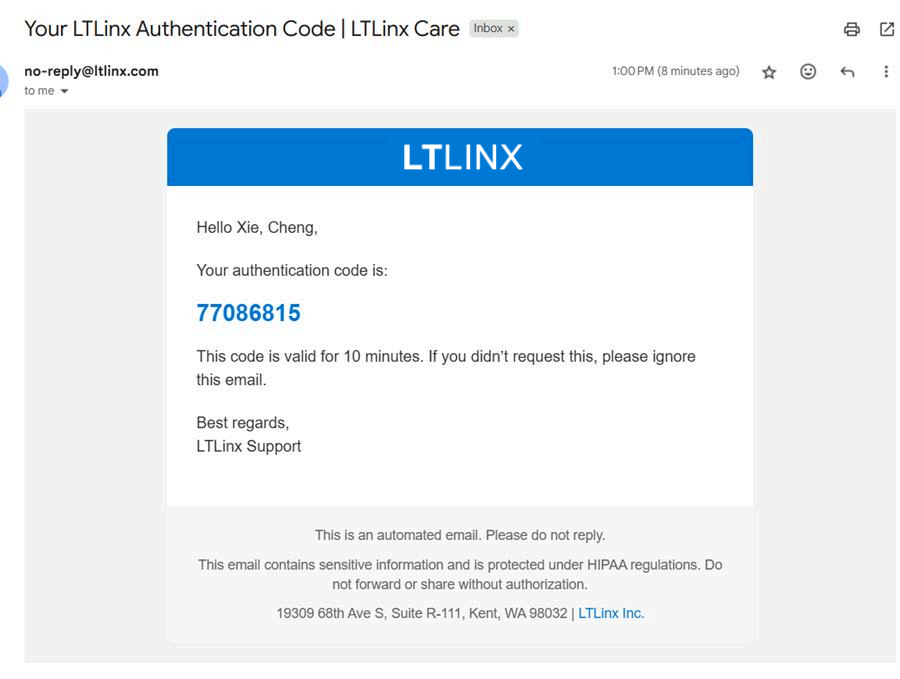
- Check your email for a message titled "Your LTLinx Authentication Code".
- Enter the 6-digit code into the 2FA Code box on the login page.
Tips
- The 2FA code is valid for 10 minutes.
- Do not click Send Code repeatedly — one time is enough.
You're all set! Welcome to LTLinx AI CareSuite!