Setup Guide
Shift Scheduling Guide
1. Set Up Caregiver Accounts
Before creating shift schedules, make sure you have added all your caregivers to the system.
Each caregiver must have:
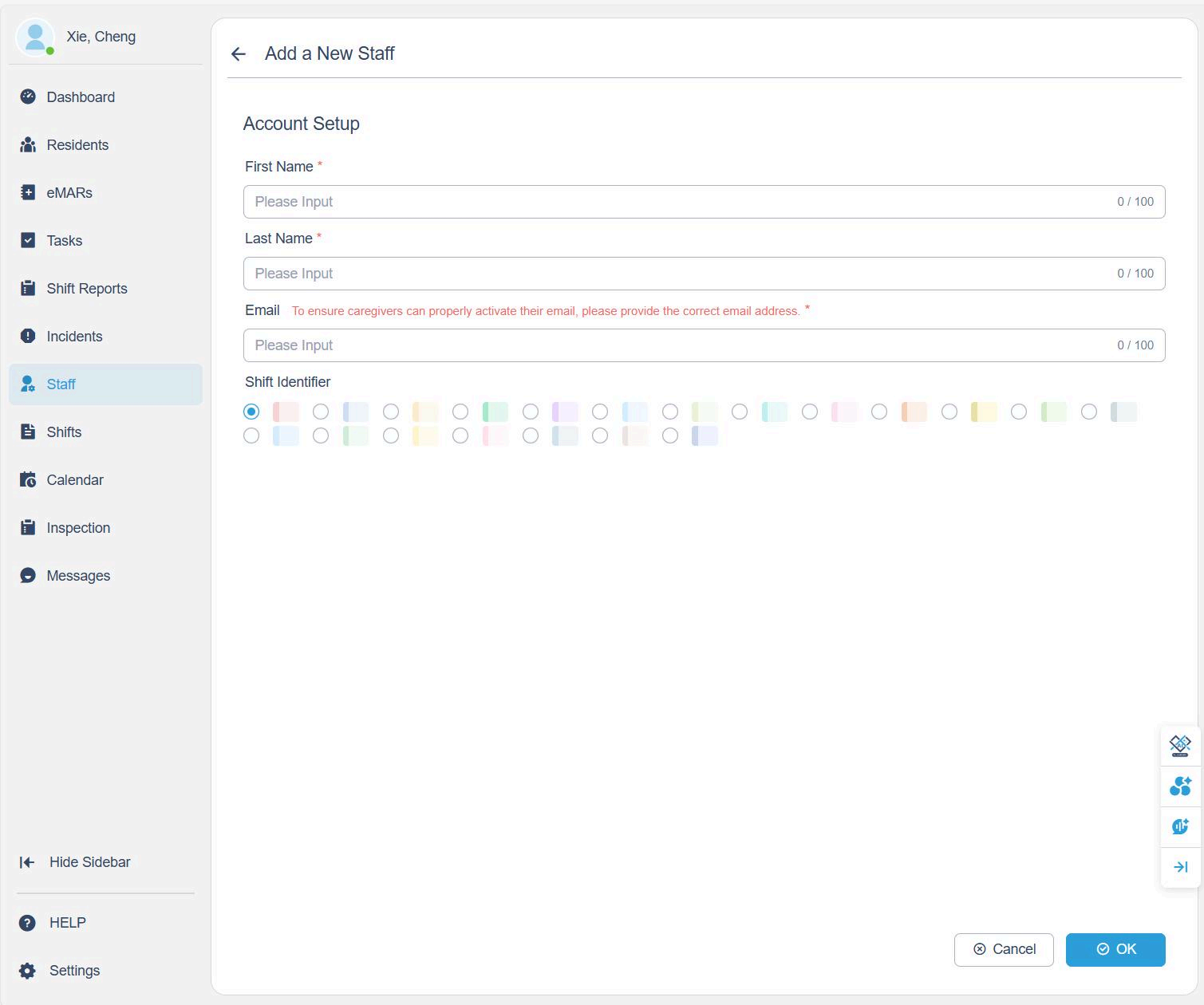
- First Name
- Last Name
- Email Address (ensure accuracy so caregivers can activate their accounts)
- Shift Identifier Color — assign a unique color for each caregiver. This color will appear on the calendar to help you identify caregivers quickly.
Once the caregiver account is created, they will receive an activation email. Ask the caregiver to check their inbox and follow the instructions to activate their account.
2. Create a New Shift Schedule
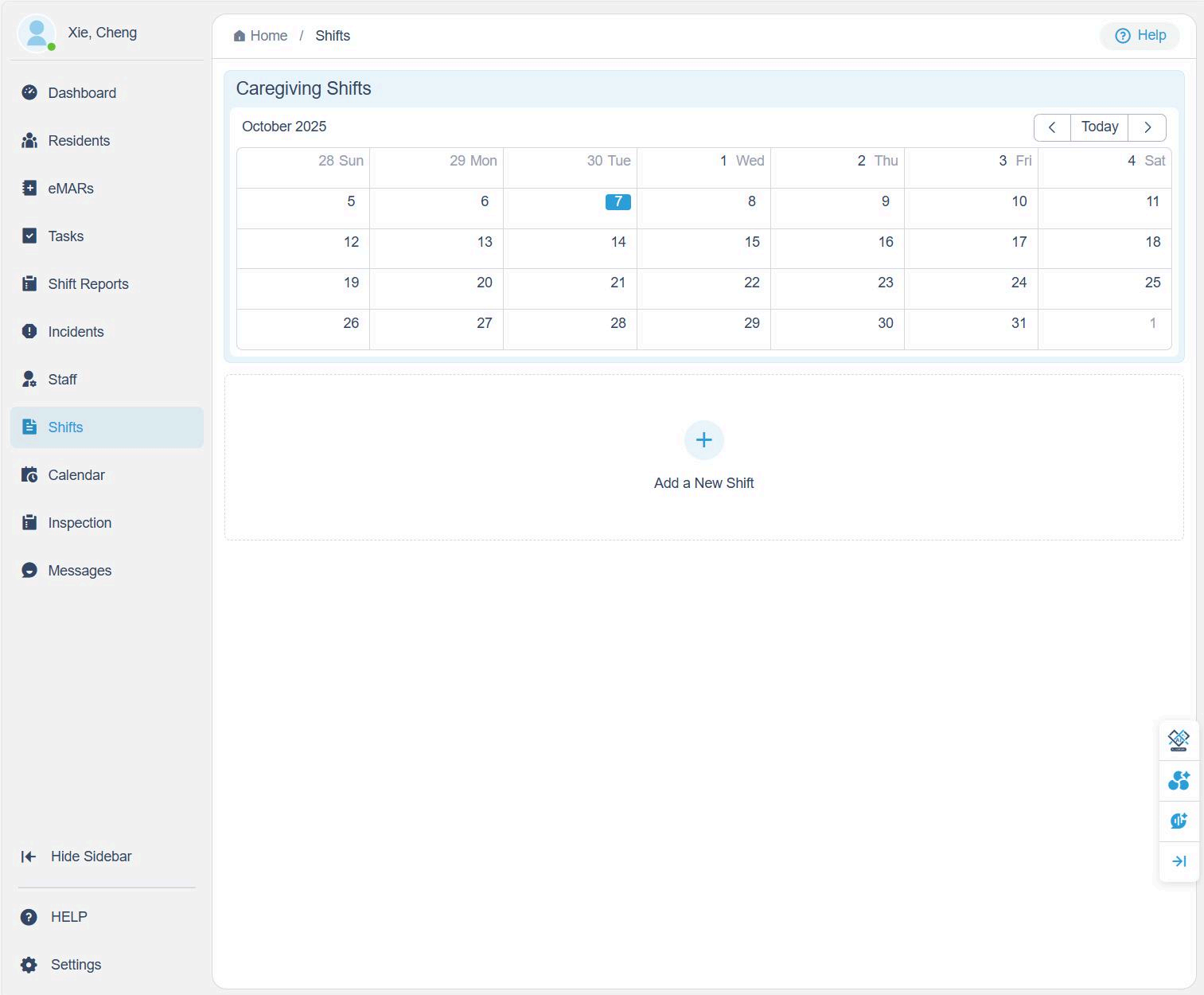
- Click Shifts from the left sidebar.
- On the Caregiving Shifts calendar page, click + Add a New Shift.
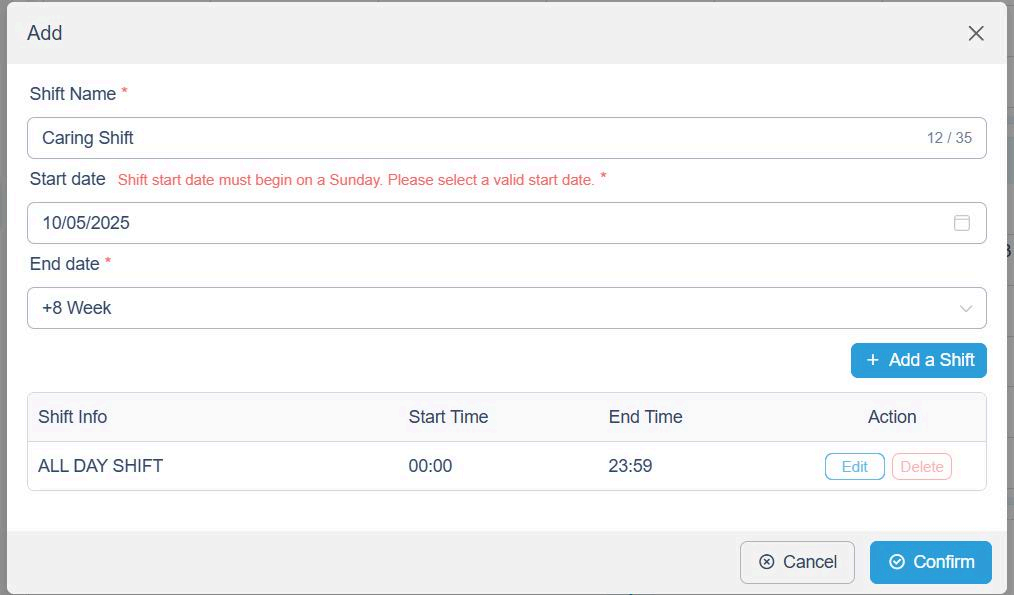
- Enter:
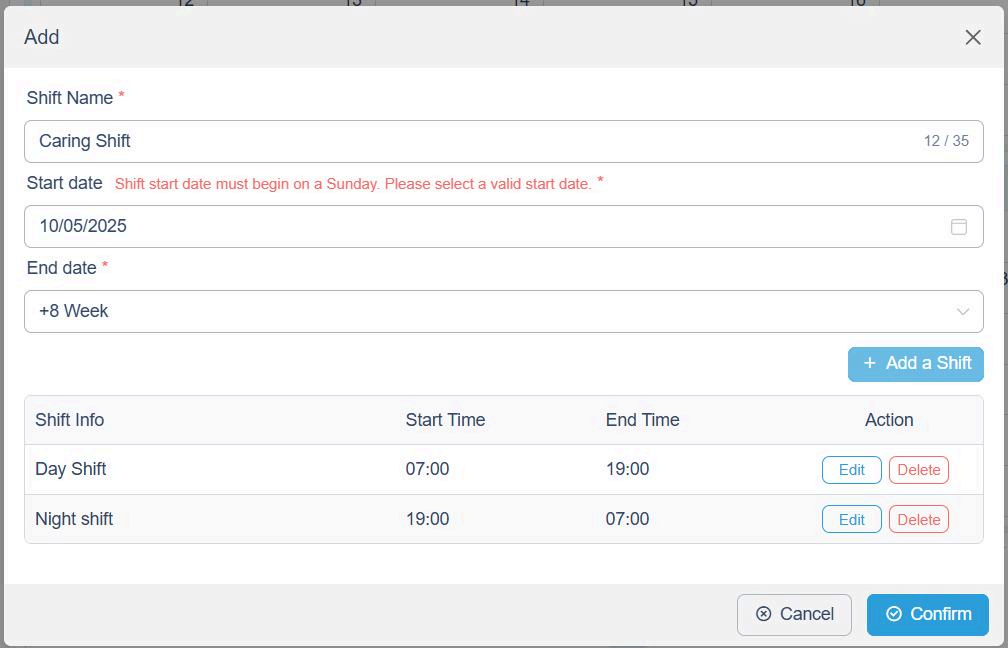
- Shift Name (e.g., "Caring Shift")
- Start Date and End Date
- Note: The shift start date must begin on a Sunday.
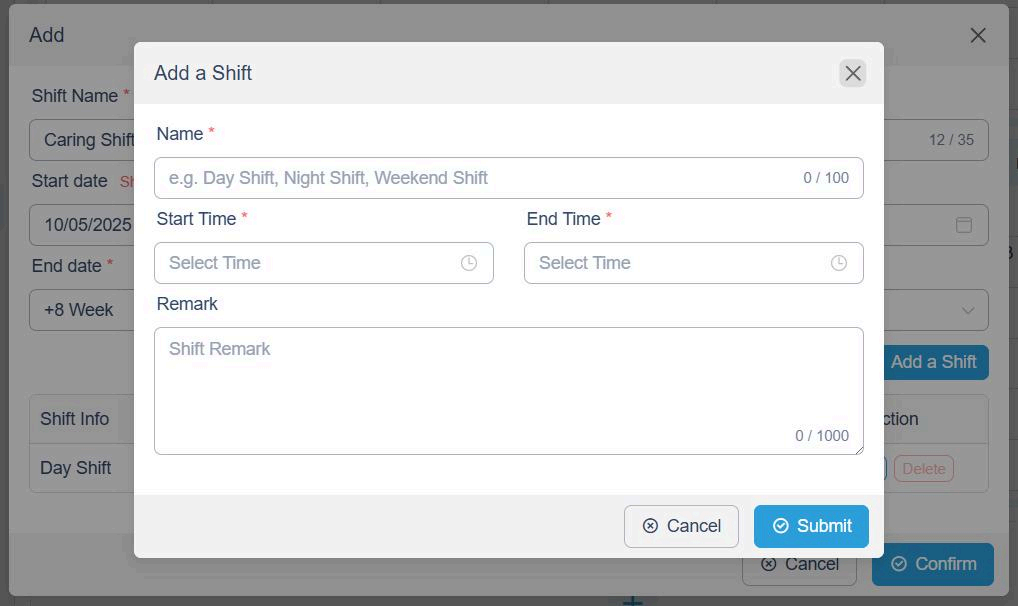
- Click + Add a Shift to define specific time periods.
3. Add Multiple Shifts per Day
If you have more than one shift each day (e.g., Day and Night Shifts):
- Click + Add a Shift again.
- Define the Start Time and End Time for each shift.
- Example:
- Day Shift: 7:00 AM – 7:00 PM
- Night Shift: 7:00 PM – 7:00 AM
- Example:
- Once finished, click Confirm.
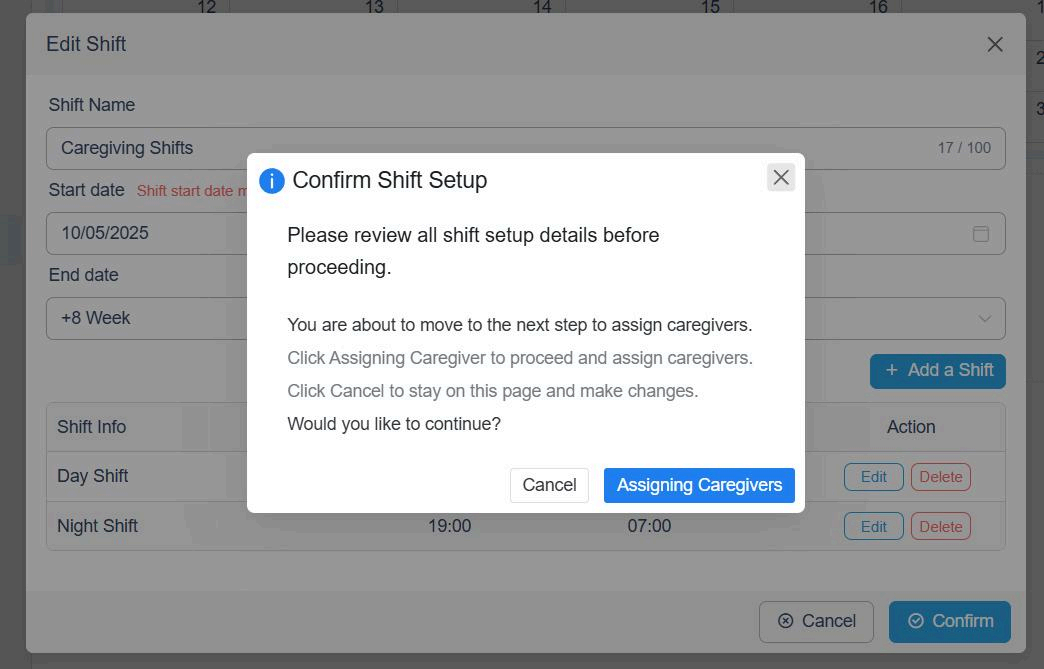
You'll then see a prompt to review all shift details. Click Assigning Caregivers to continue.
4. Assign Caregivers to Shifts
There are two ways to assign caregivers:
Option 1 – Drag and Drop:
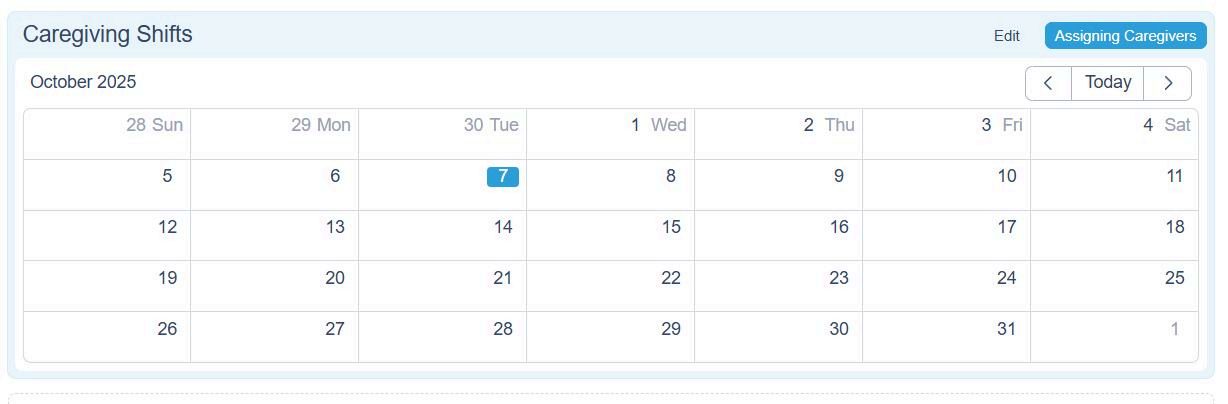
- Drag a caregiver's name from the list and drop it into the desired time slot on the schedule.
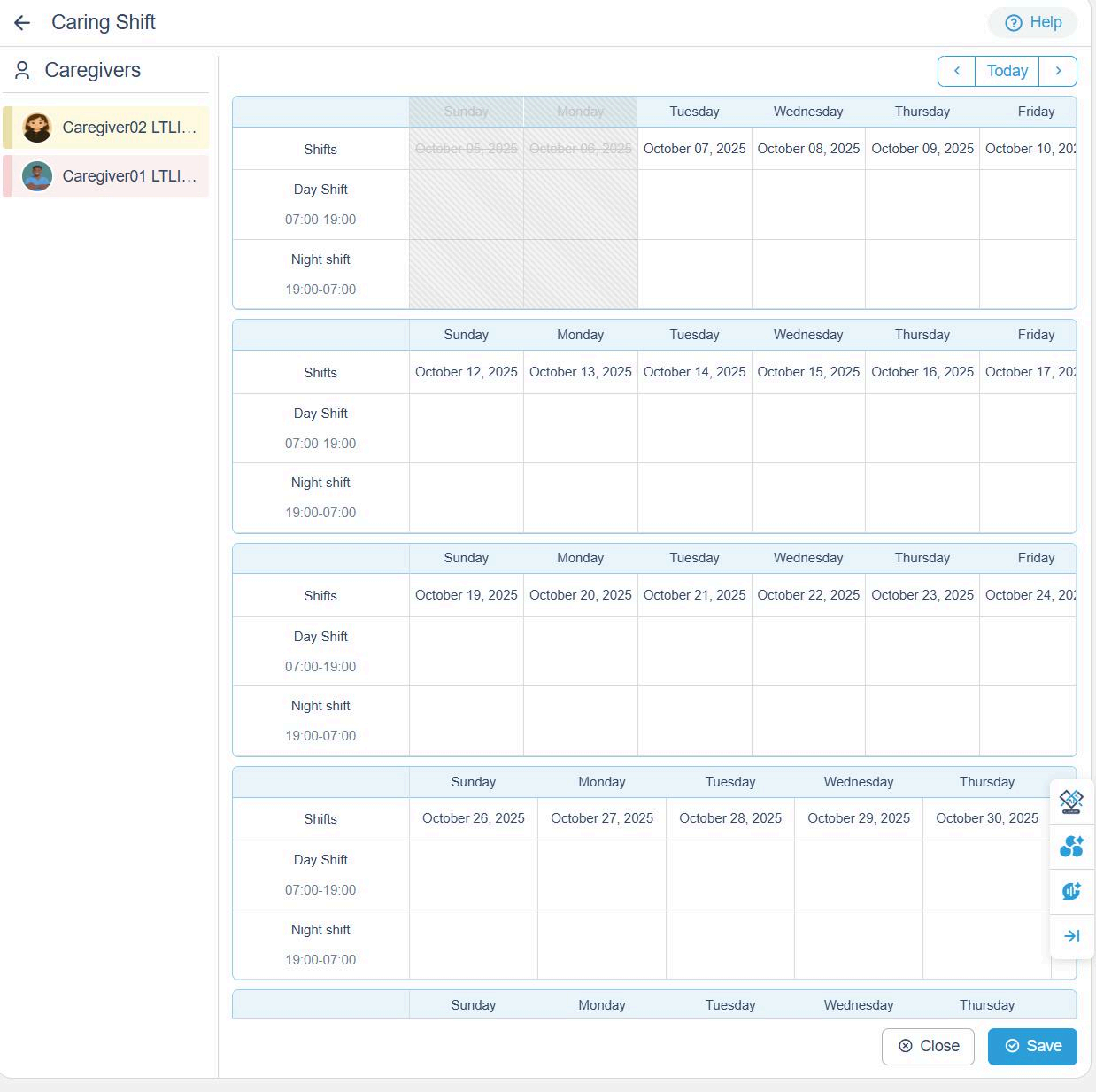
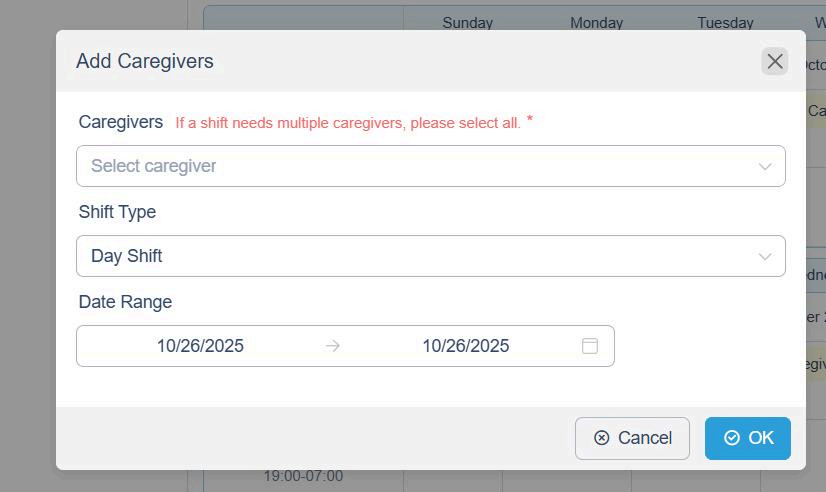
Option 2 – Manual Setup:
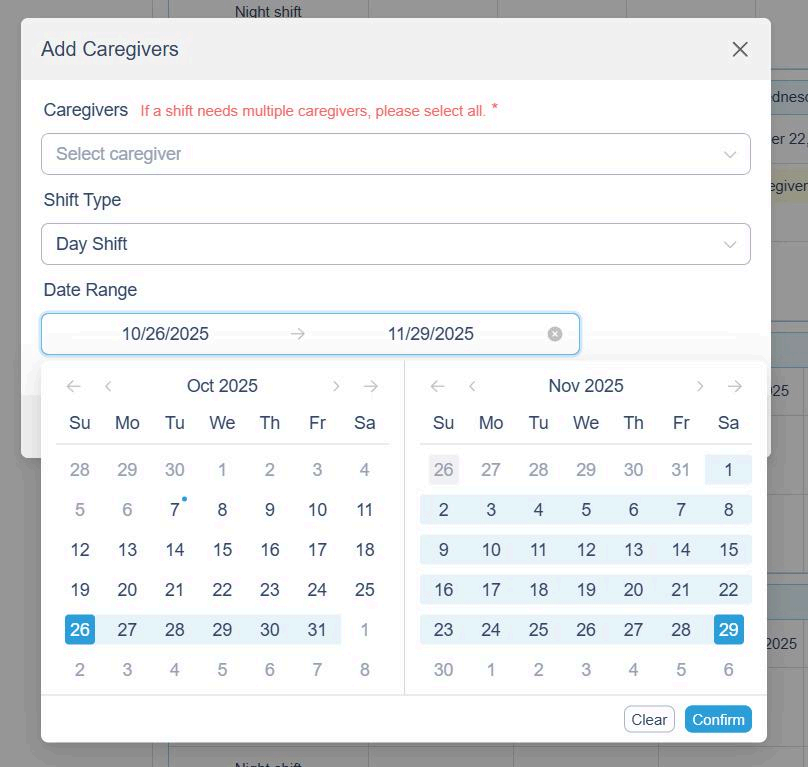
- Click any blank area on the schedule and fill in:
- Caregiver Name
- Shift Type (Day/Night)
- Date Range
- Click OK to save your assignment.
5. Edit or Delete a Caregiver from a Shift
If you need to make changes:
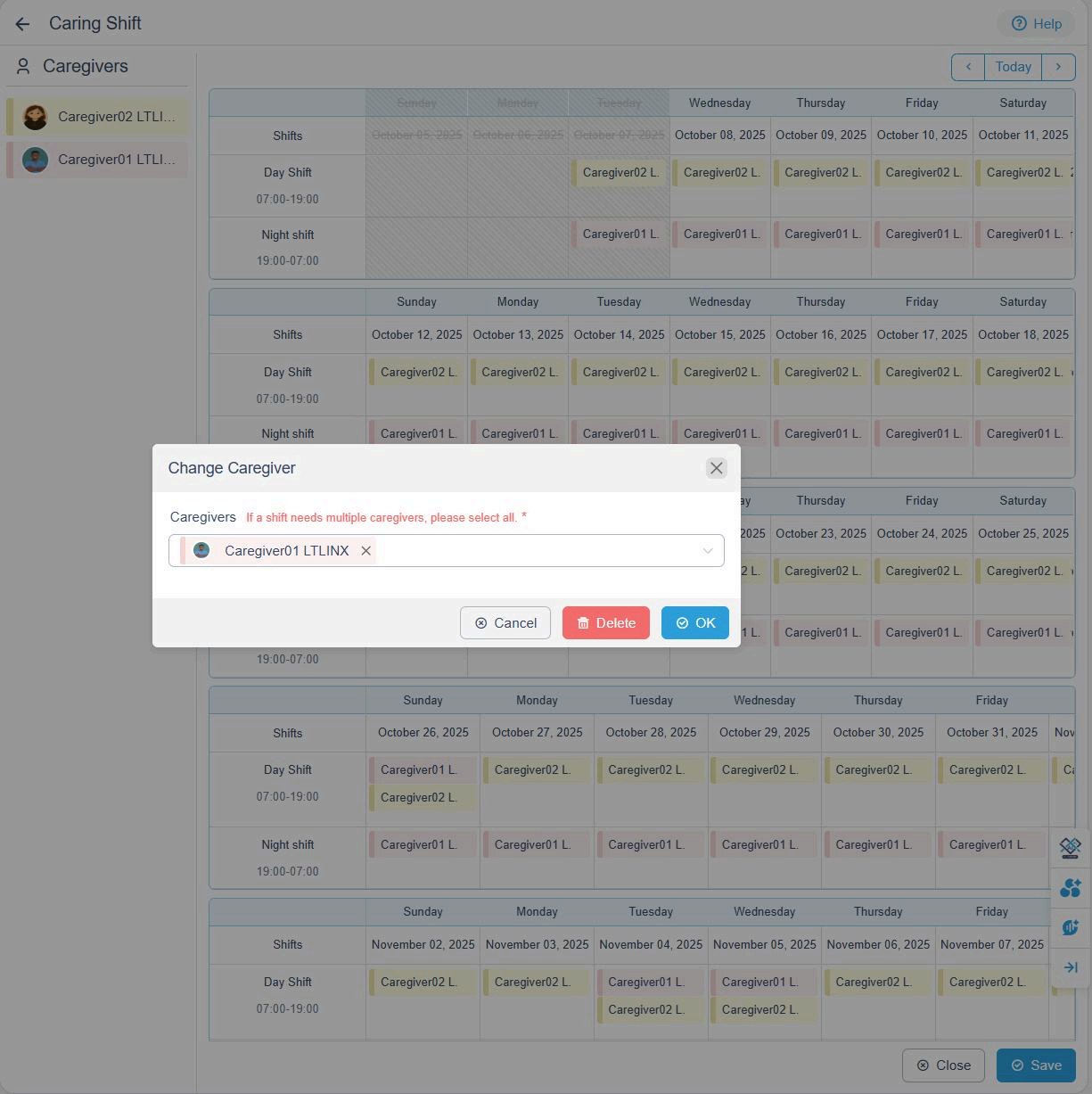
- Click the caregiver's name directly on the schedule.
- You can either:
- Edit the assigned caregiver, or
- Delete them from the shift.
- Click OK to confirm your changes.
6. Notifications and Auto Reminders
Once a new shift schedule is posted:
- All caregivers will automatically receive a message from Staff Management message notifying them of the new schedule.
- Two days before a shift cycle ends, the system will send a reminder to renew or update the schedule.
This helps ensure continuity of care and prevents missed scheduling updates.
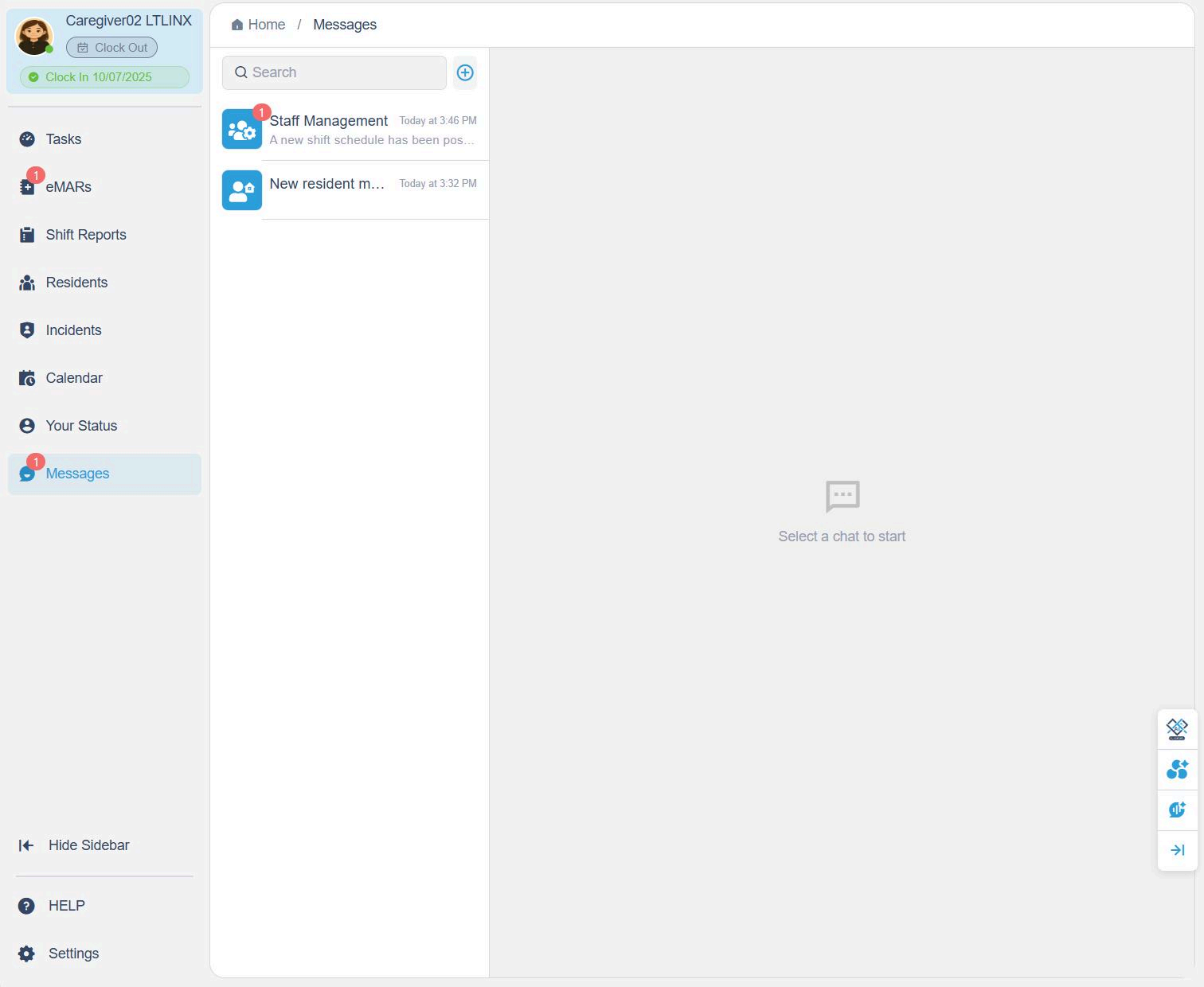
7. Caregiver View
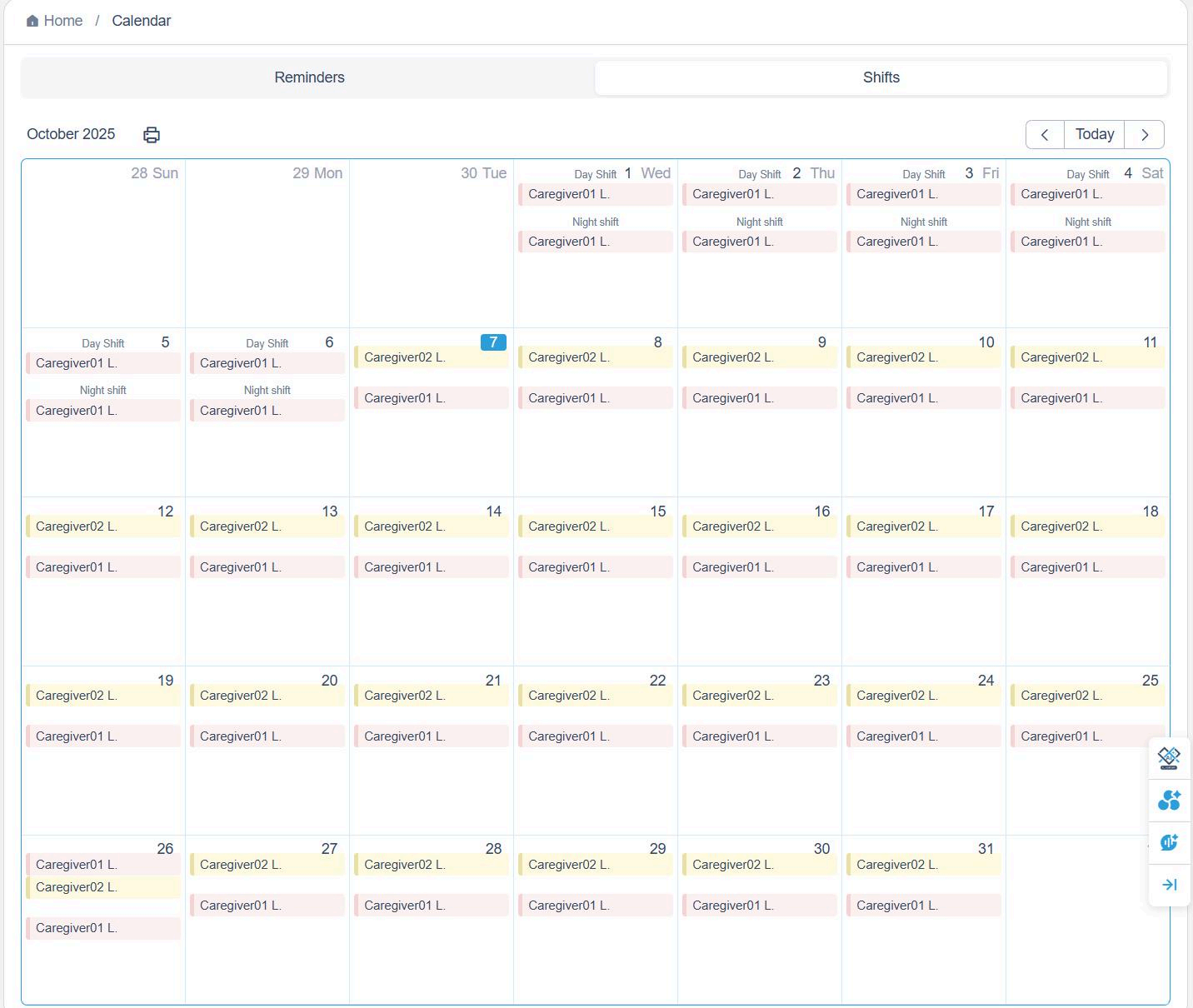
- Caregivers can view their assigned shifts in their personal calendar.
- Each shift is color-coded according to the caregiver's Shift Identifier Color, making it easy to distinguish between team members.