Caregiver's User Guide
Shift Report Guide
1. Creating an End-of-Shift Report
⚠️ To create a new report:
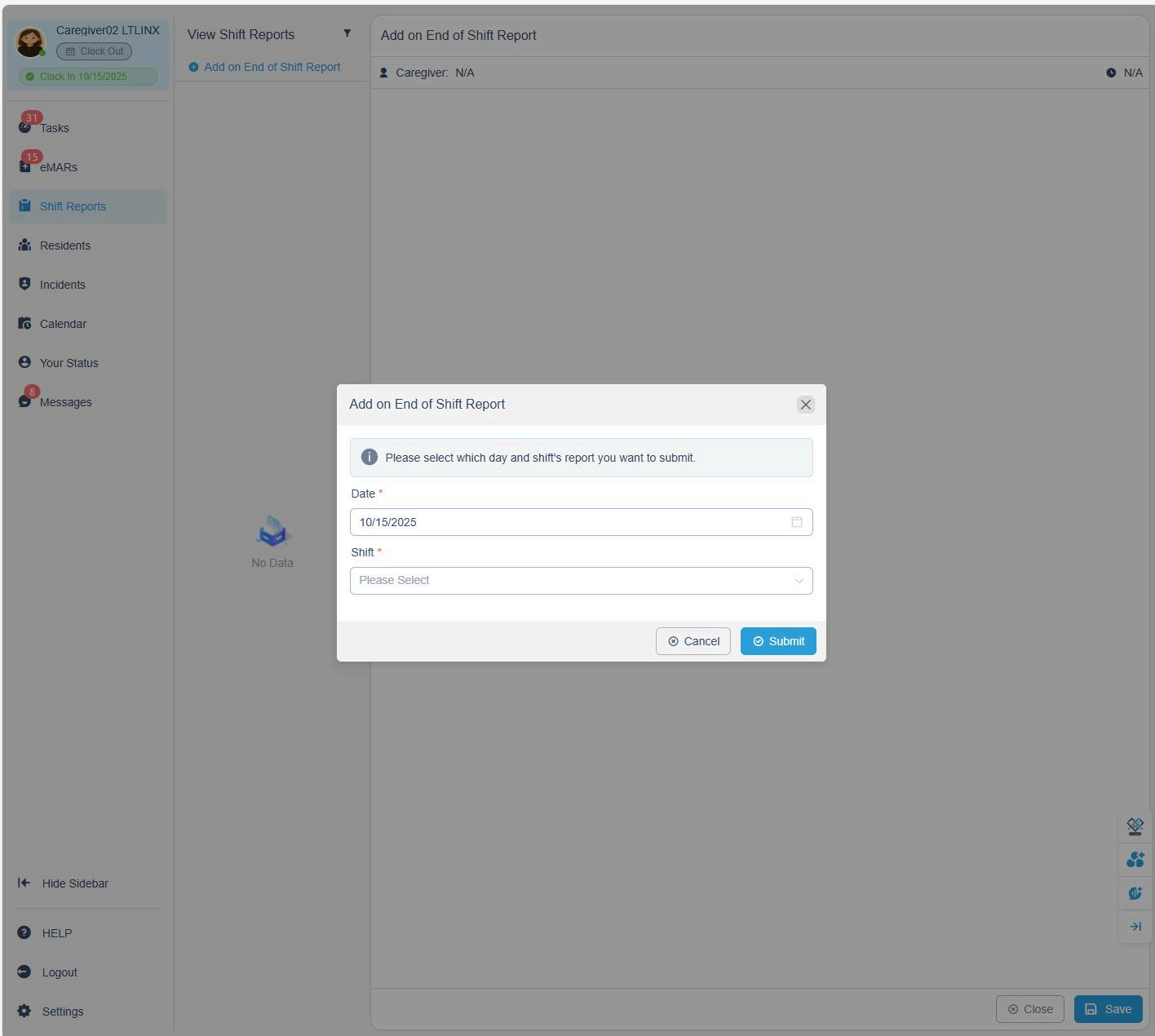
- Click + Add an End of Shift Report.
- Select the Date and Shift you want to record.
Only reports from the past two days can be recorded.
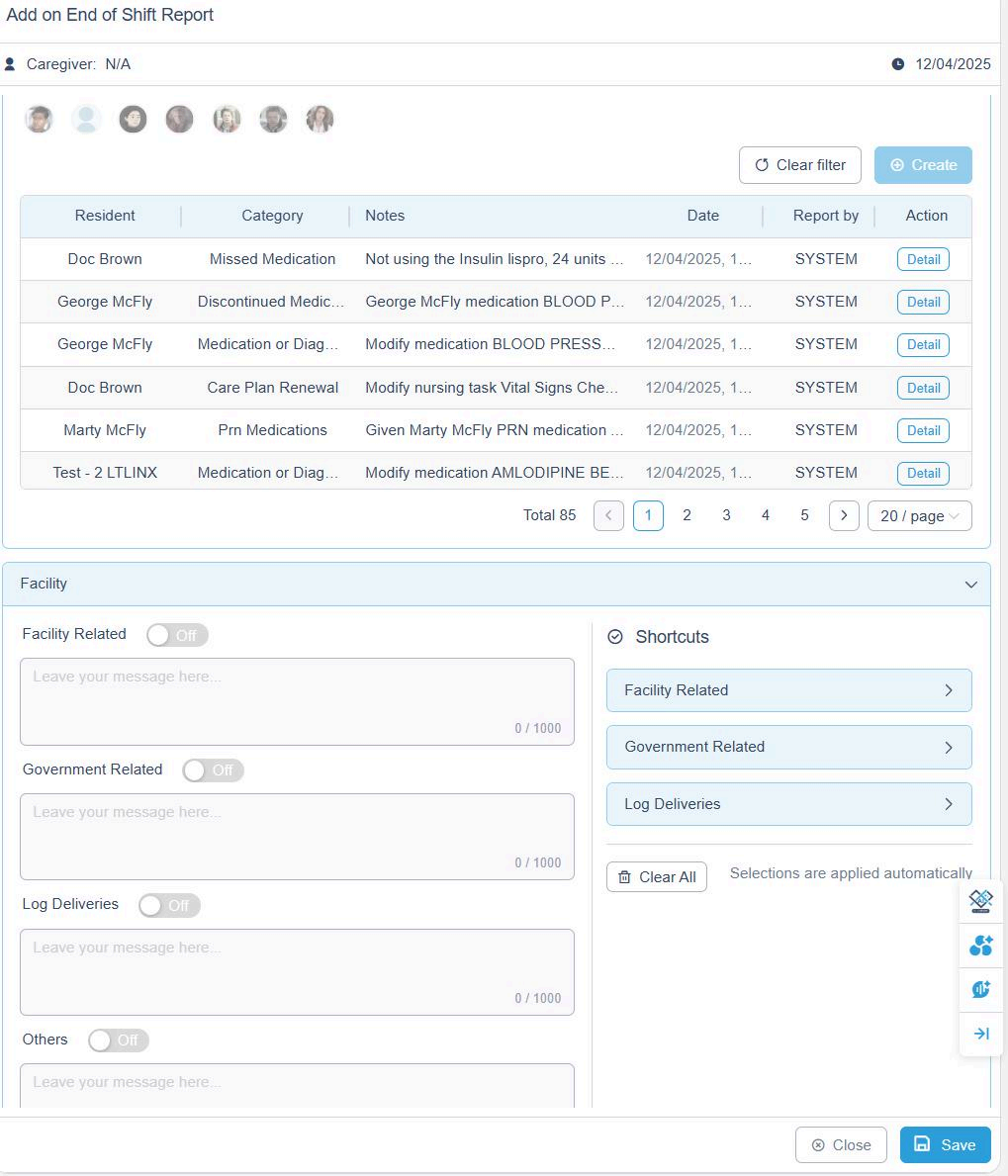
✅ All late medications, late tasks, and other issues will be automatically logged by the system, ensuring that no details are missed.
2. Recording Progress Notes (Optional)
If you wish to include Progress Notes directly within the shift report:
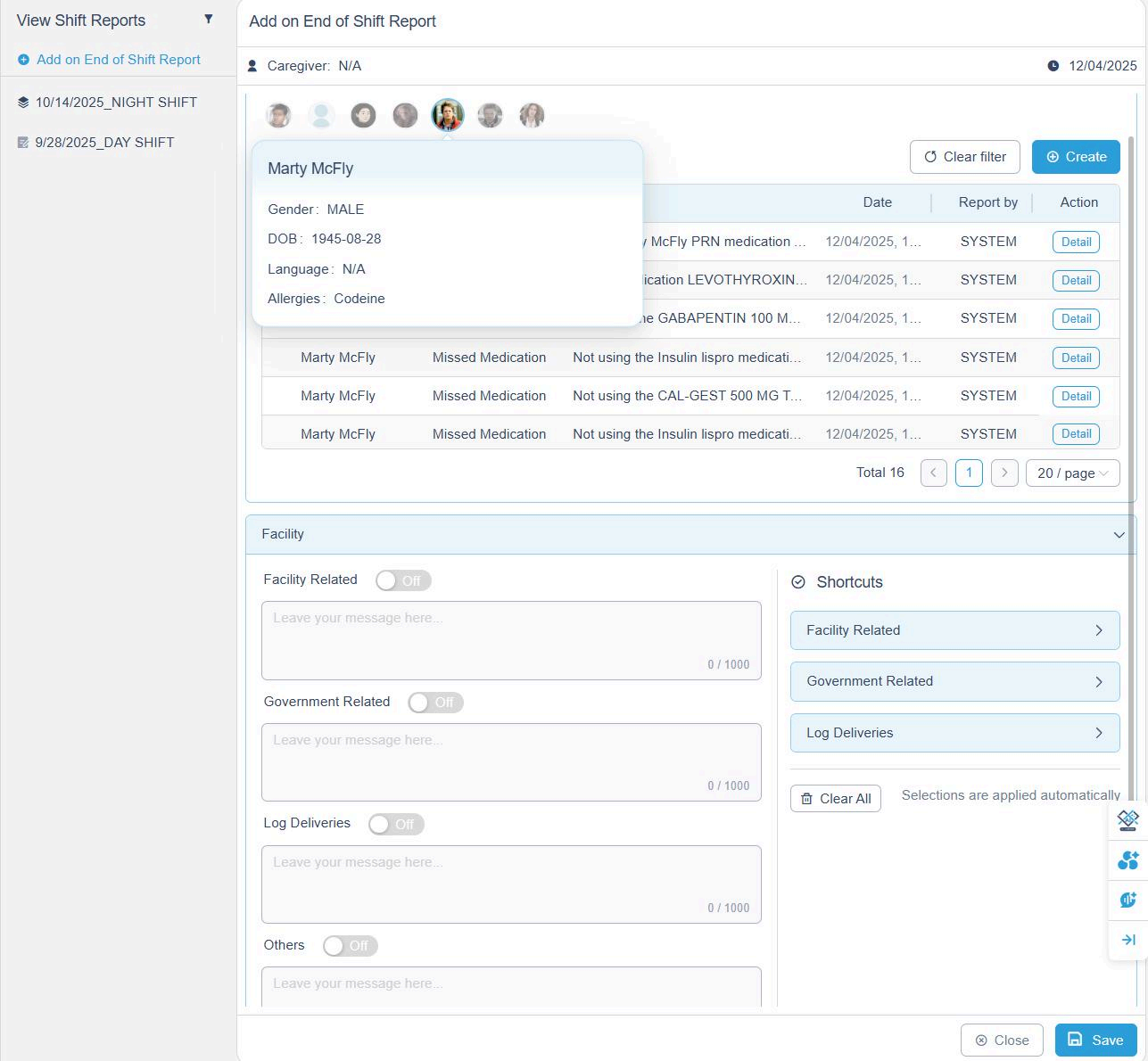
- Select the Resident first.
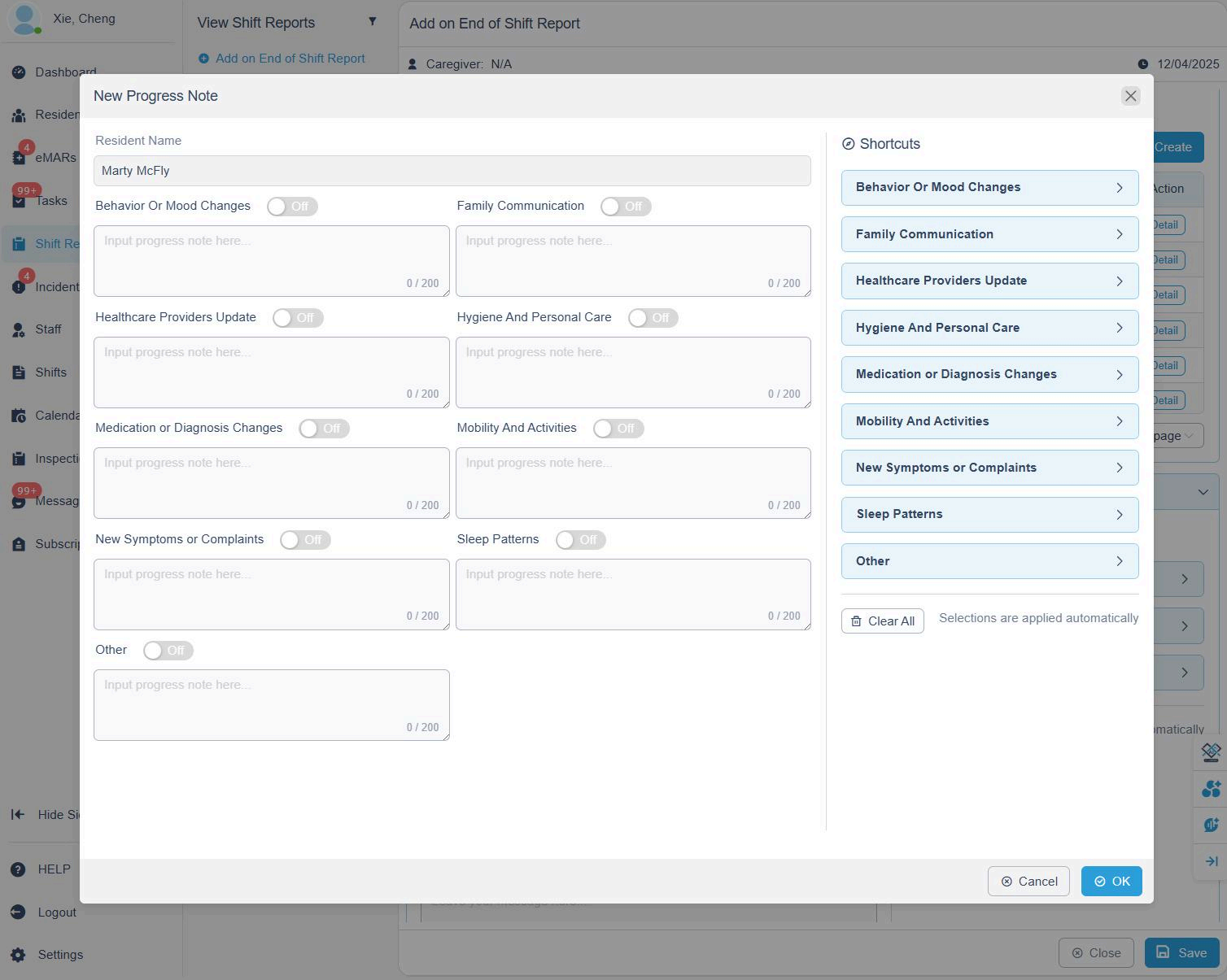
- Click + Create to open the progress note form.
- Record the relevant observations under the appropriate categories, such as:
- Behavior or Mood Changes
- Family Communication
- Healthcare Provider Updates
- Mobility and Activities
- New Symptoms or Complaints
- Sleep Patterns
- Other
Example: "Resident slept poorly — woke up three times during the night complaining of pain in the right shoulder."
3. Facility Notes and Pending Tasks
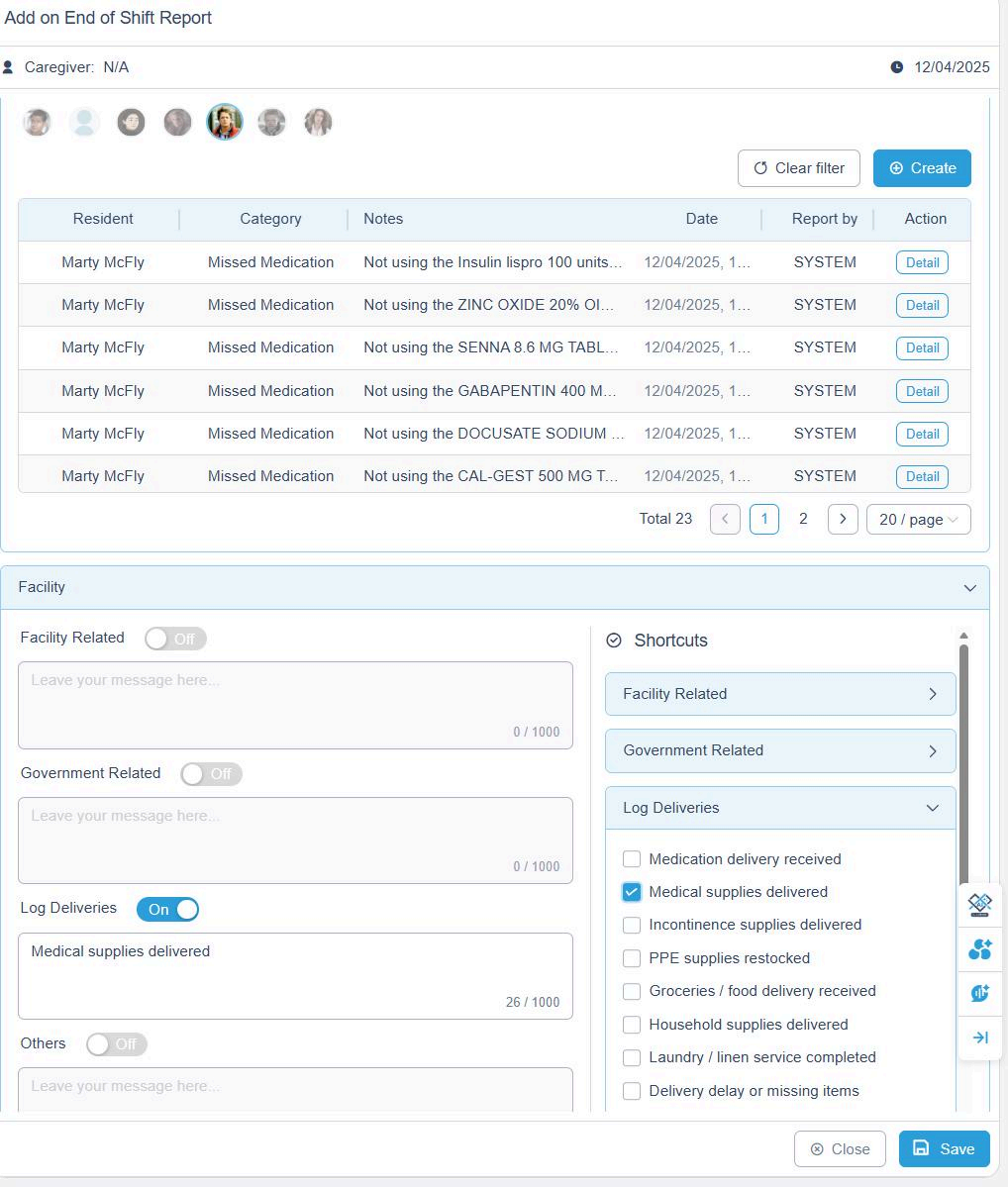
In addition to resident notes, you can document facility-related updates and pending issues.
Facility Section:
Use this section to report:
- Facility maintenance issues (e.g., plumbing, heating, power outages)
- Government-related updates or communications
- Delivery records (e.g., food, supplies, medication delivery logs)
- Other administrative observations
Pending Tasks Section:
Click + Create to list any unfinished tasks that the next caregiver or admin should be aware of.
4. Saving and Submitting the Report
- Click Save to keep your report as a draft.
- You can continue editing it later before submitting.
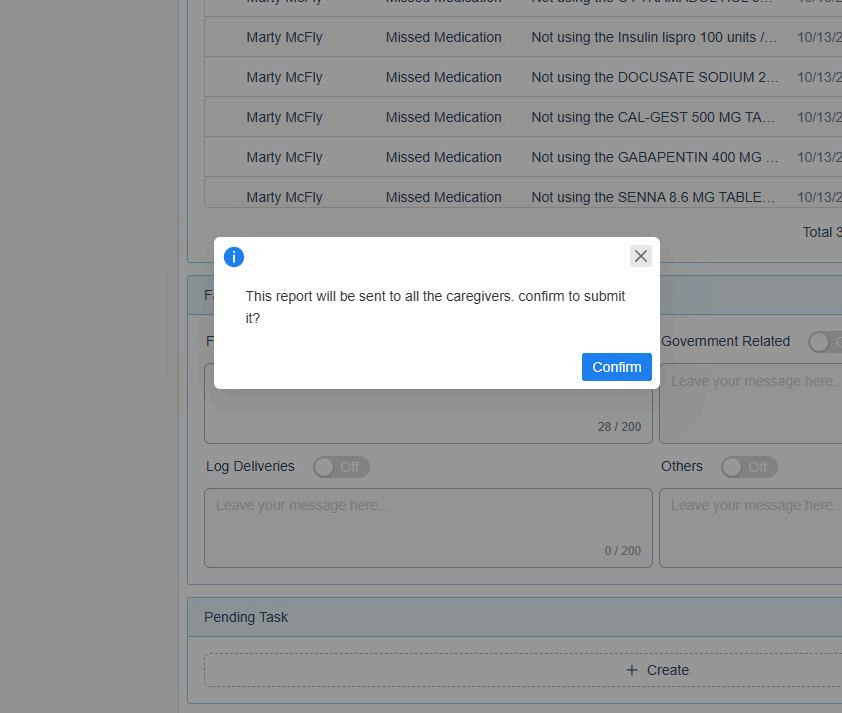
- When ready, click Submit to finalize the report.
Once submitted:
- The report is automatically sent to the Admin.
- Caregivers can no longer edit the report.