eMAR User's Guide
1. Color Codes in the eMAR System
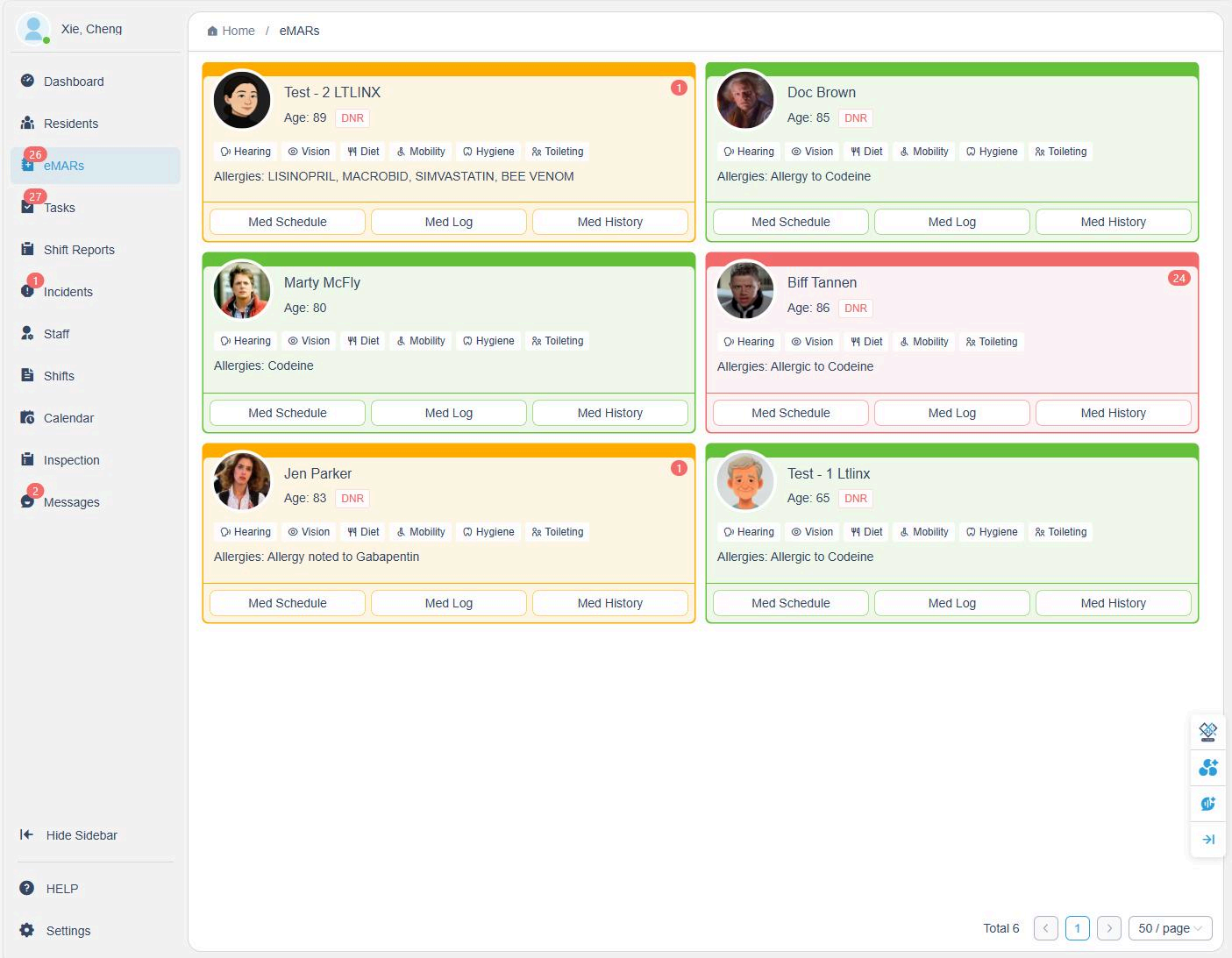
The eMAR dashboard uses color indicators to help caregivers and administrators quickly identify medication statuses:
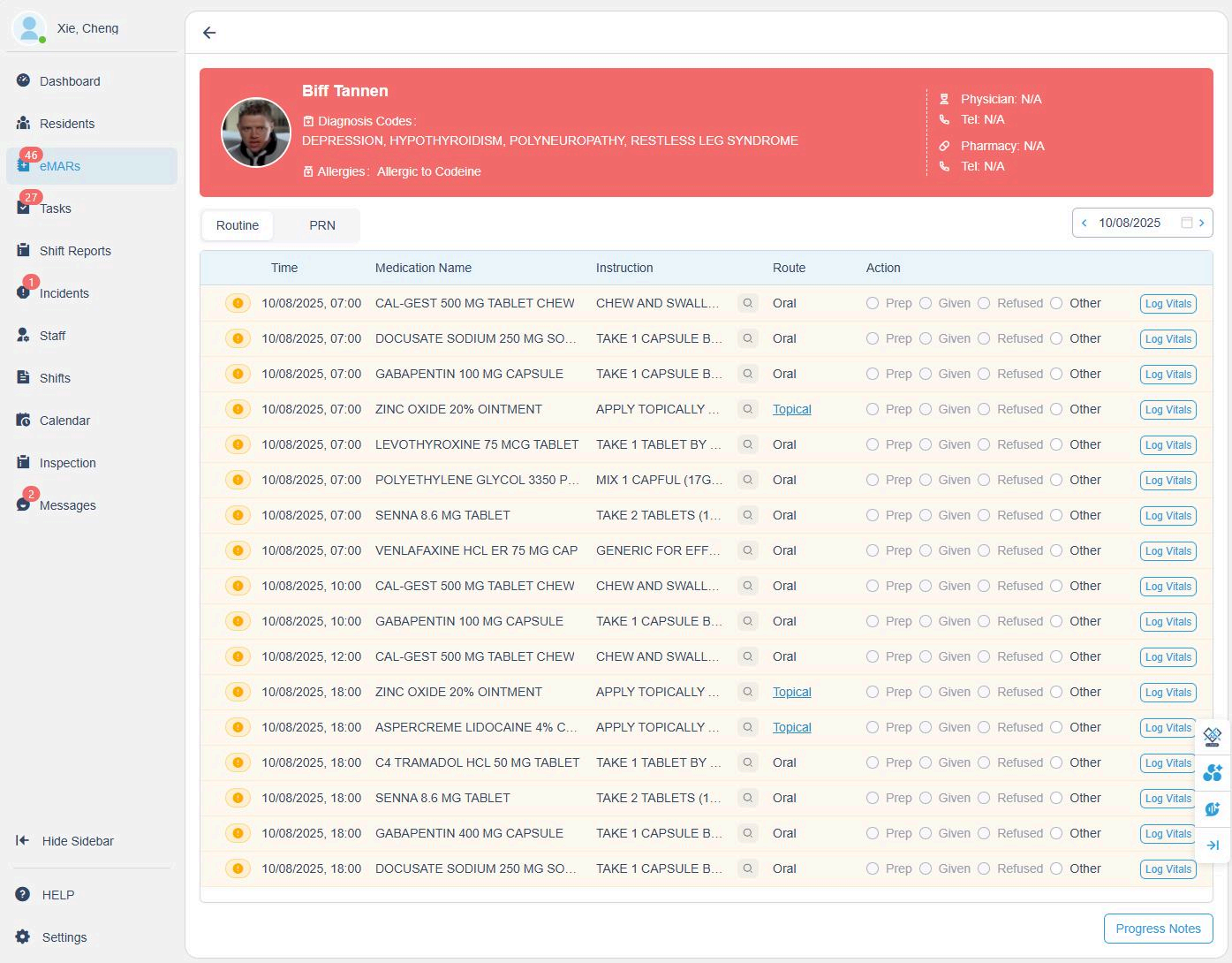
- 🟩 Green – All medications have been administered on time.
- 🟨 Yellow –
a. Indicates the 2-hour medication window (1 hour before and 1 hour after the scheduled time).
b. Appears when a PRN (as-needed) medication has been given and is awaiting an effectiveness check. - 🟥 Red –
a. Indicates overdue medications, or
b. PRN medications that are still pending effectiveness documentation after one hour window.
The red number in the top-right corner of a resident's card displays:
- The number of overdue or pending PRN medications, or
- The count of incomplete or incorrect medication records.
These visual indicators help caregivers prioritize actions and maintain compliance at a glance.
2. Automatic Notifications for Overdue Medications
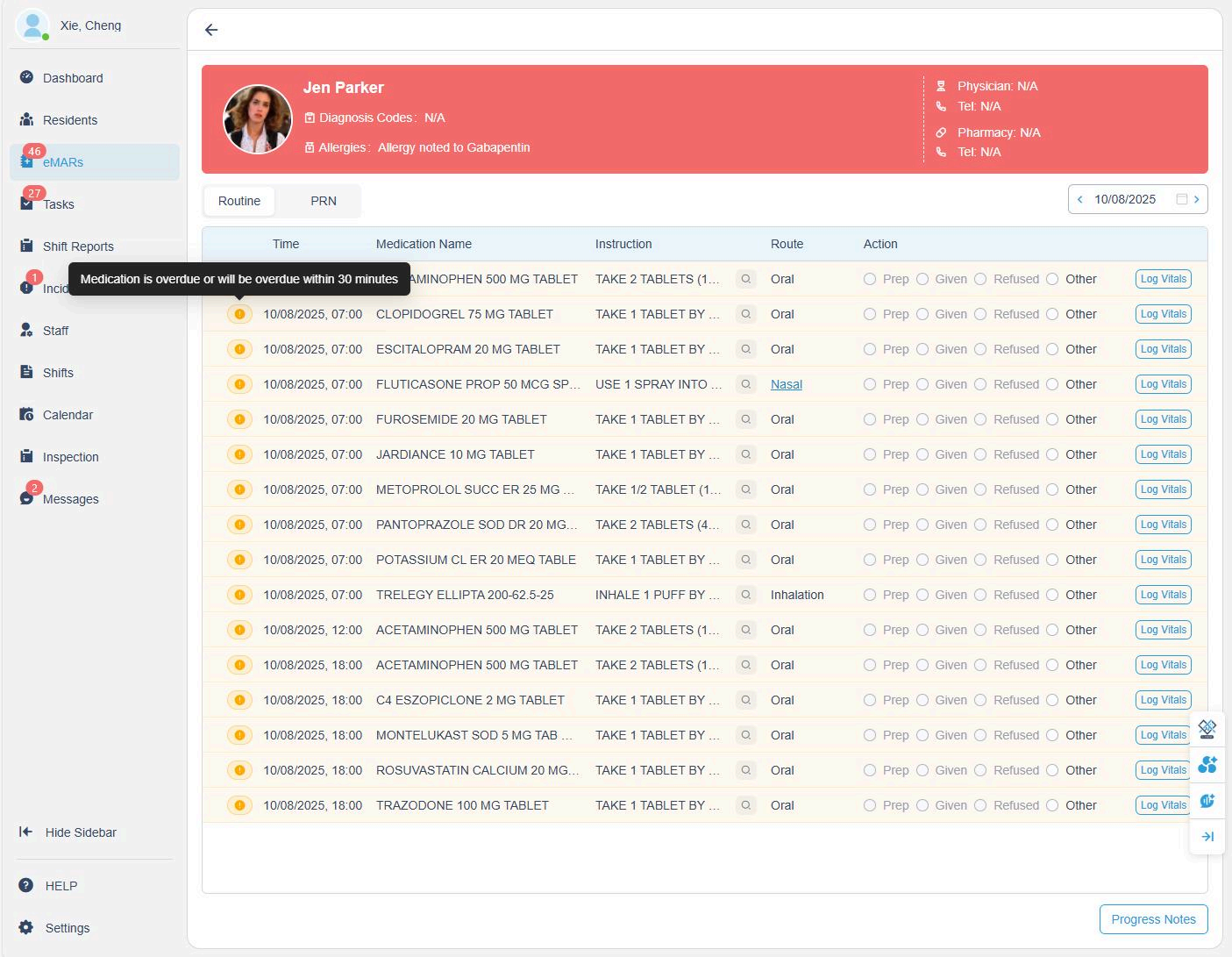
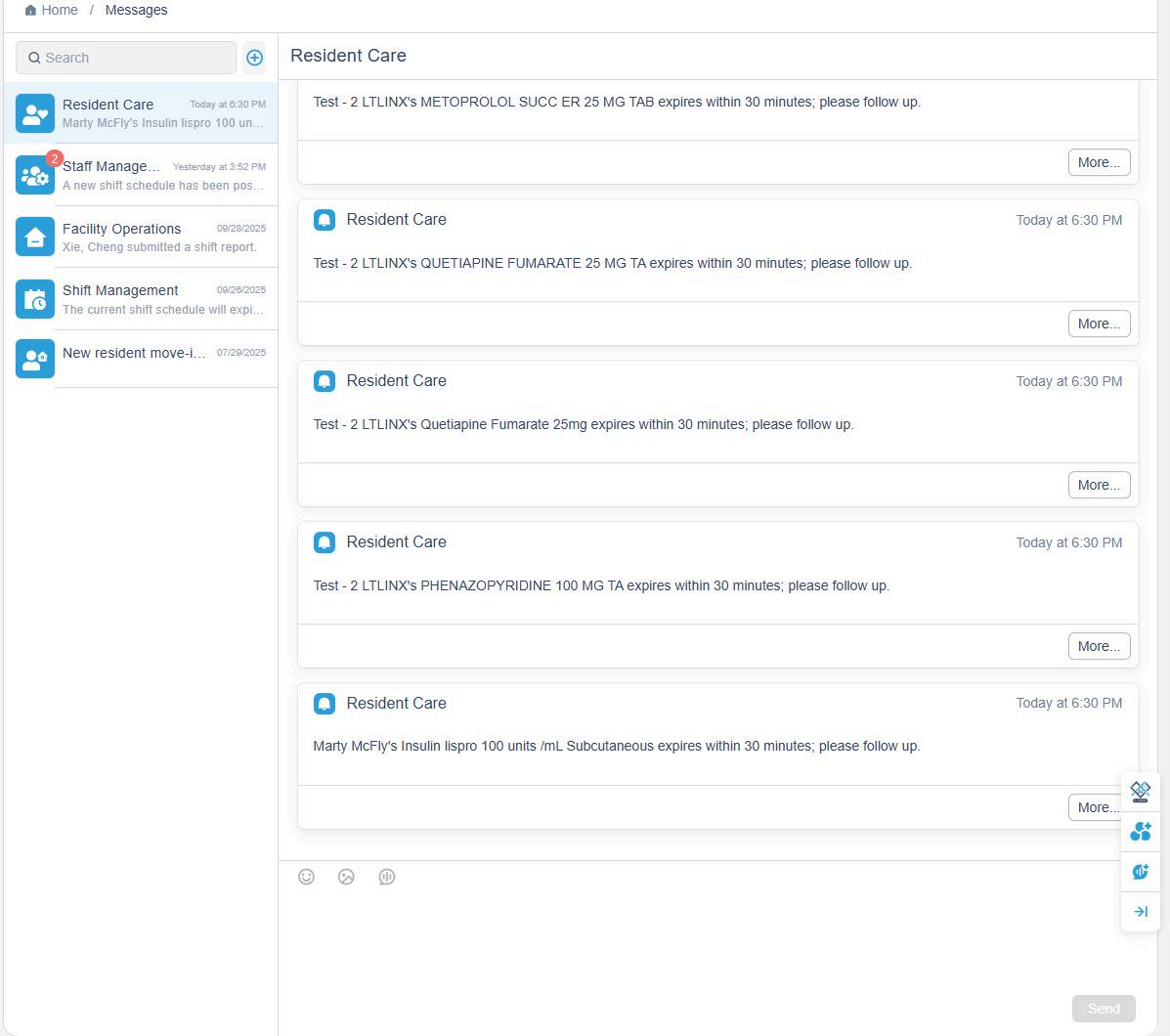
When a medication is 30 minutes away from being overdue, the system automatically sends a notification to the Messages section.
This alert includes:
- The resident's name,
- The specific medication, and
- The scheduled time for administration.
All caregivers in the facility receive the notification simultaneously, ensuring timely administration and reducing missed doses.
3. Med Schedule - Icons on the Med Schedule
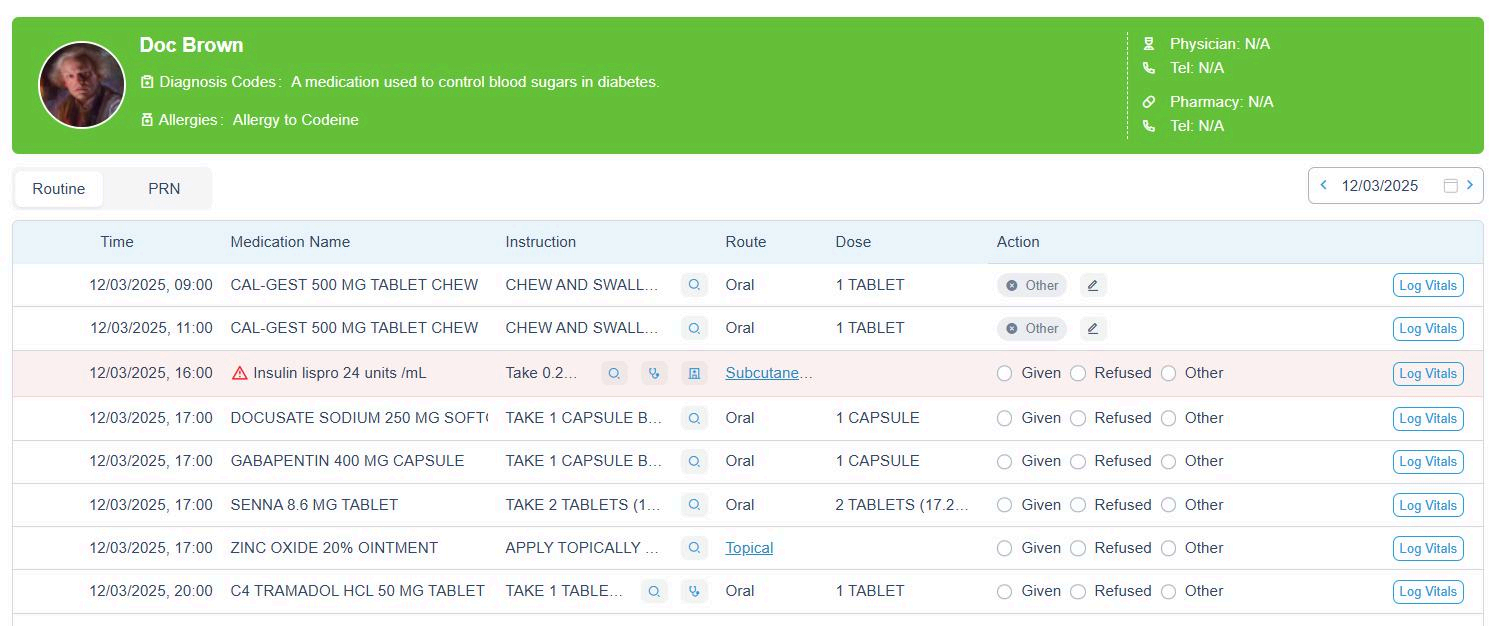
The Med Schedule includes icons to help staff quickly understand medication requirements.
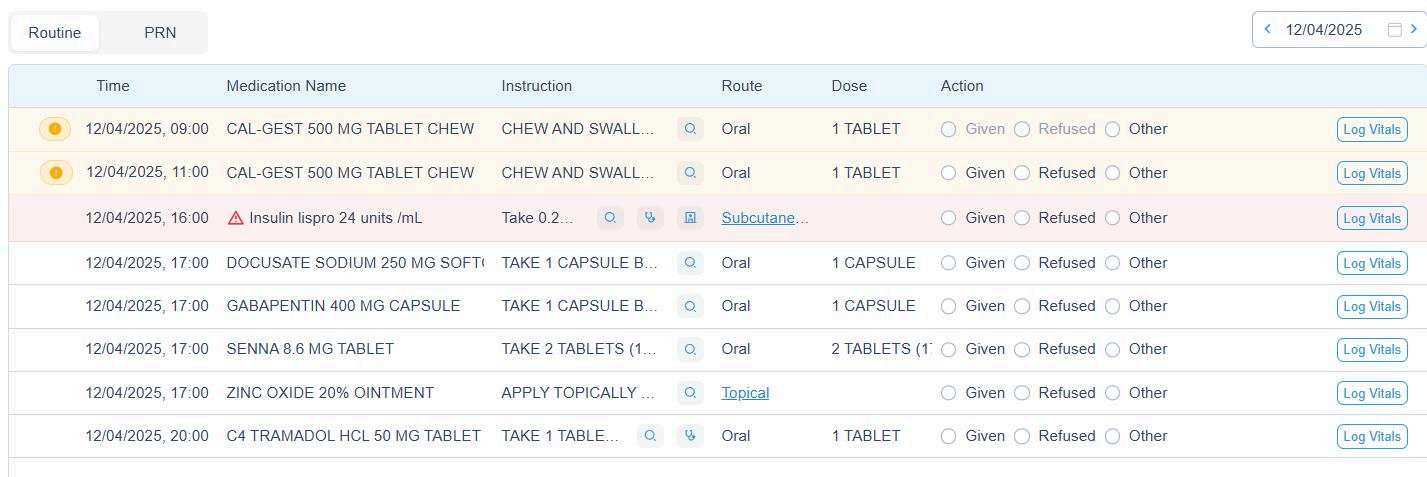
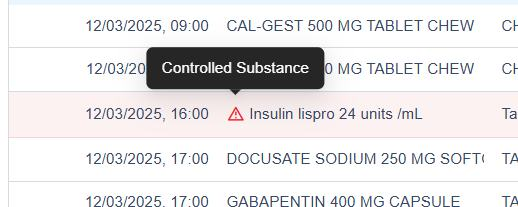
 Controlled Substance
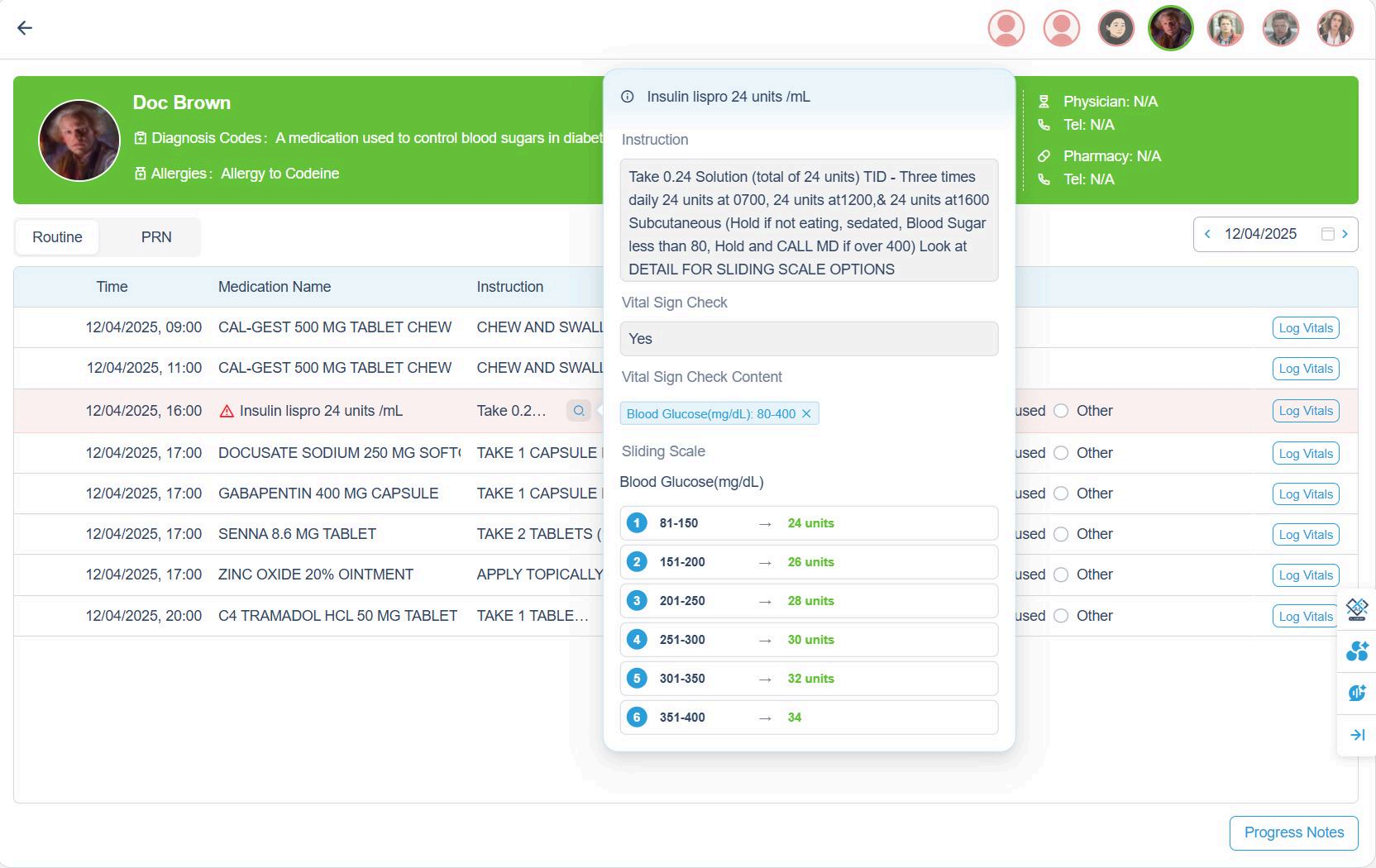
 Instruction, including the sliding scale details
 Vital sign check required
 Nurse delegation required
Controlled Substance
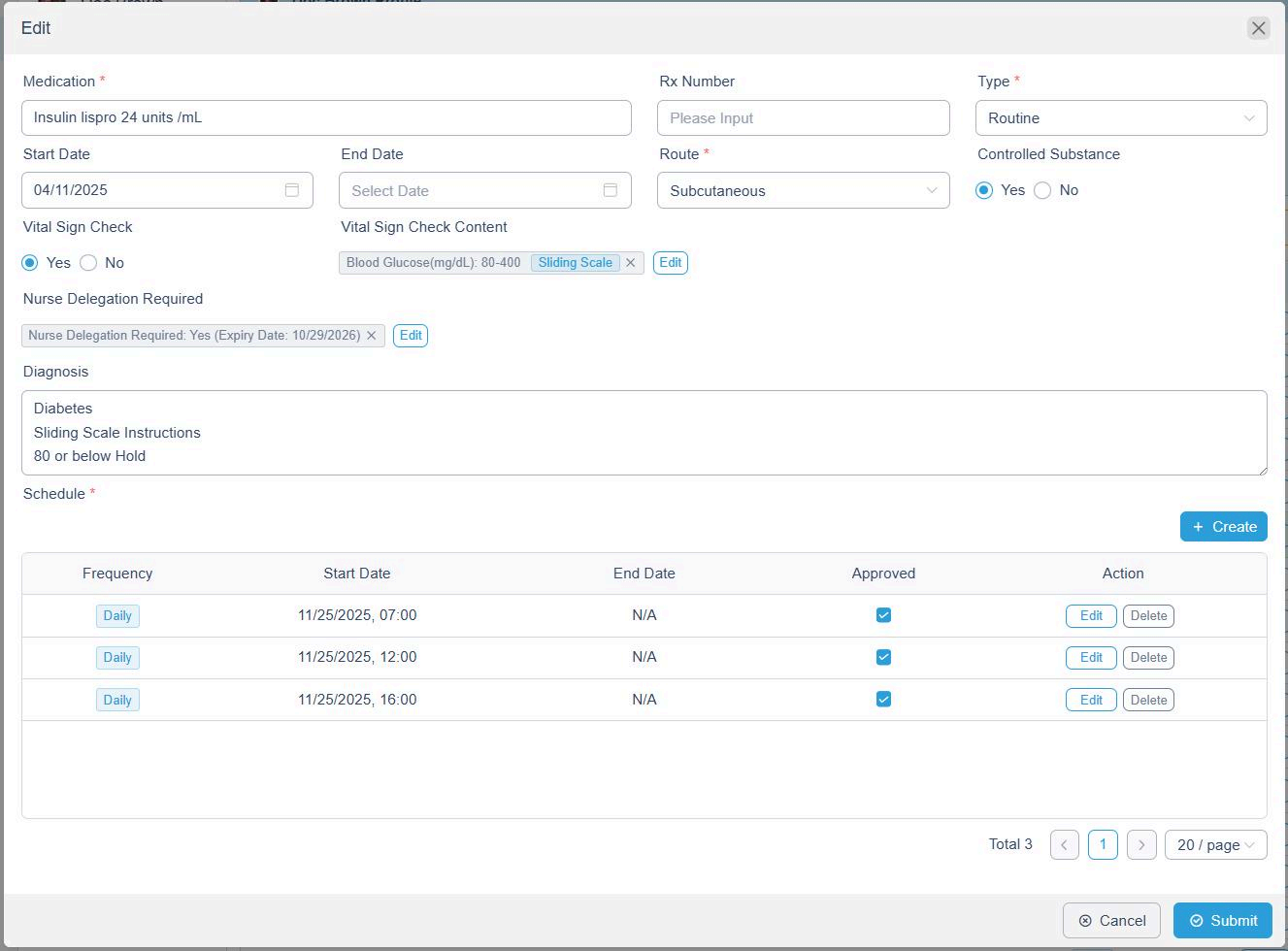
When a medication is marked as a Controlled Substance during setup:
- A icon appears next to the medication on the Med Schedule.
- This improves visibility for medications requiring additional handling or tracking.
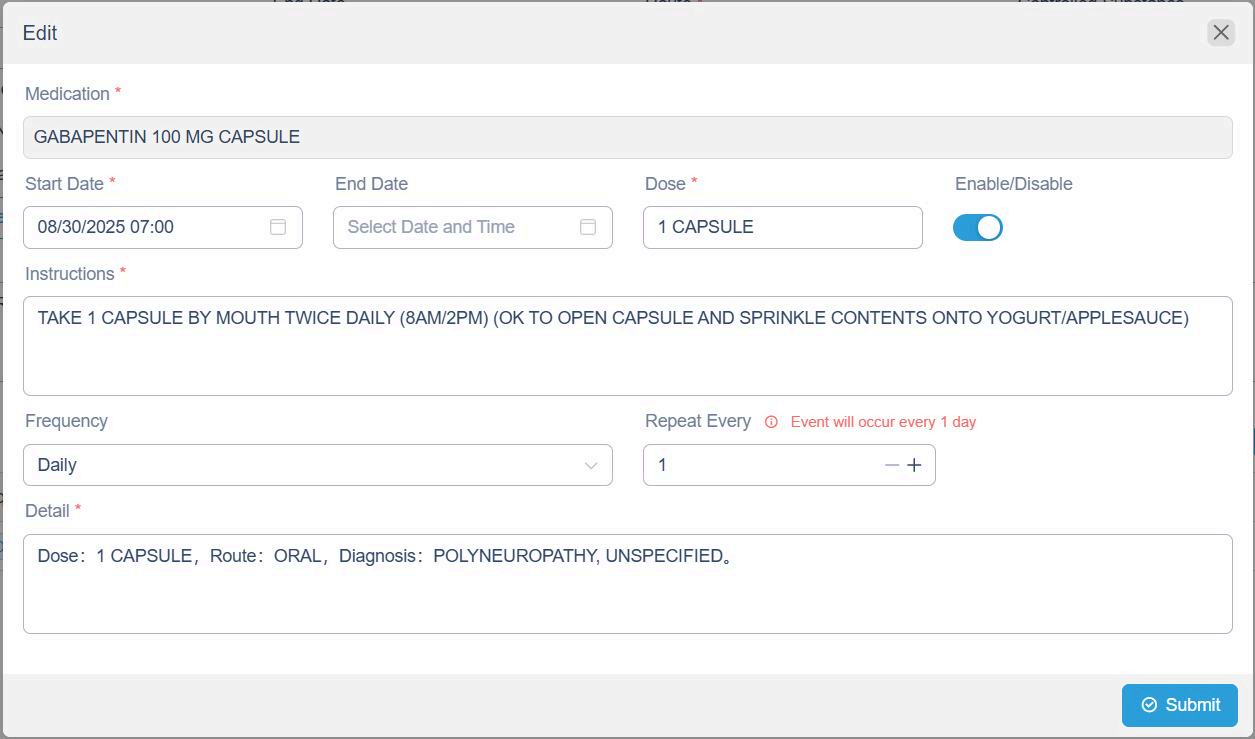
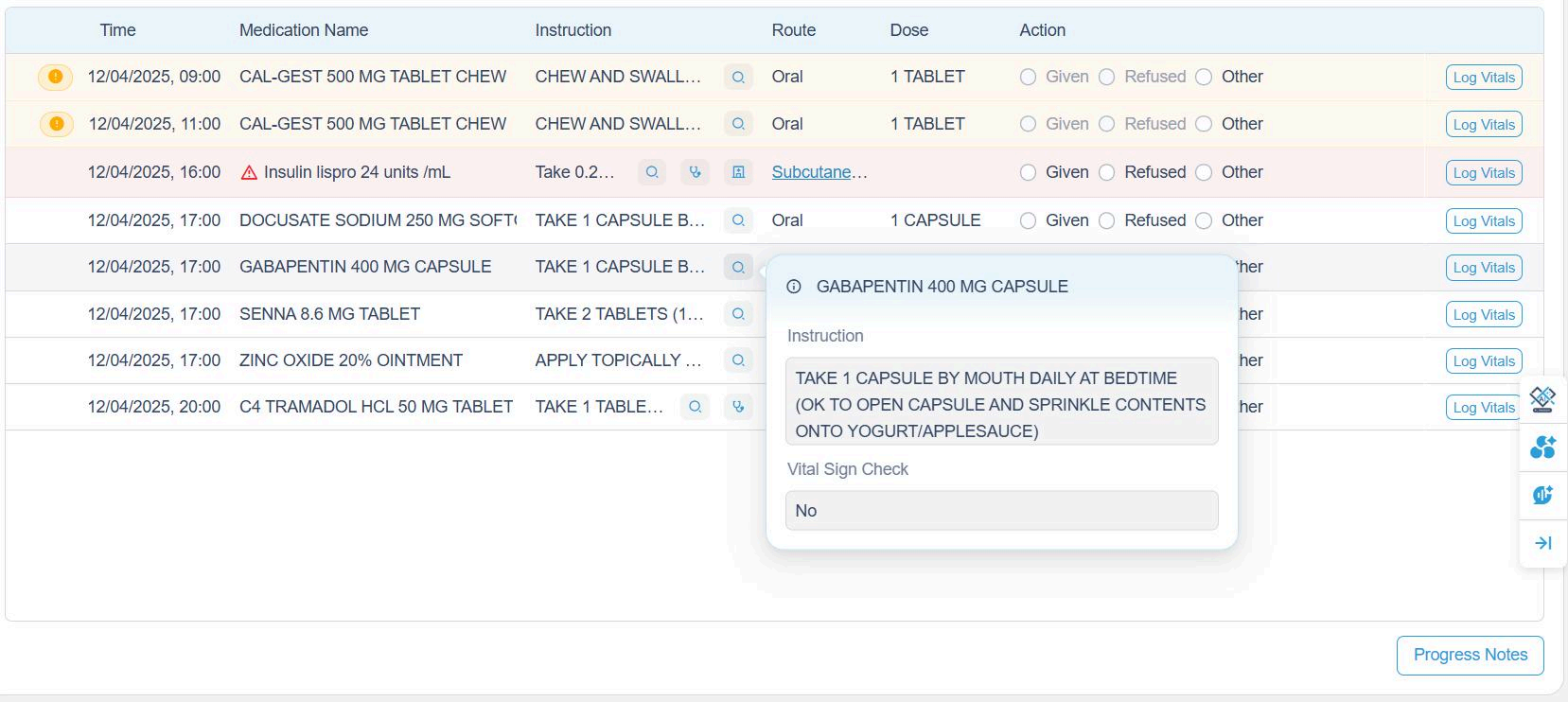
Medication instruction
Instructions entered during medication setup are saved in the system.
- Click the instruction icon to view full directions.
- This ensures caregivers always have access to accurate dosing instructions.
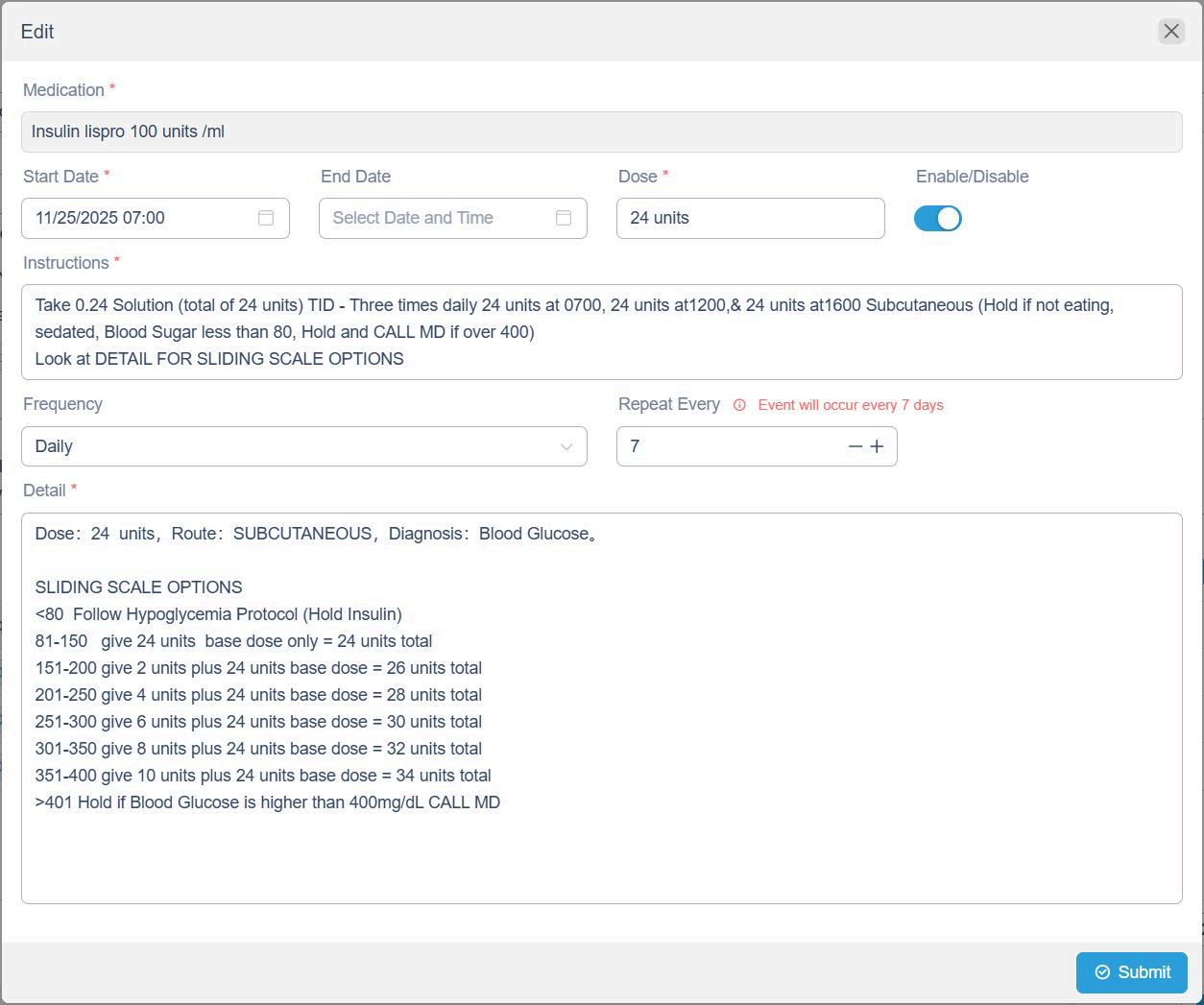
Sliding Scale
For medications using sliding scale dosing:
- All sliding scale information is stored in the system automatically.
- Clicking the instruction icon displays the detailed scale.
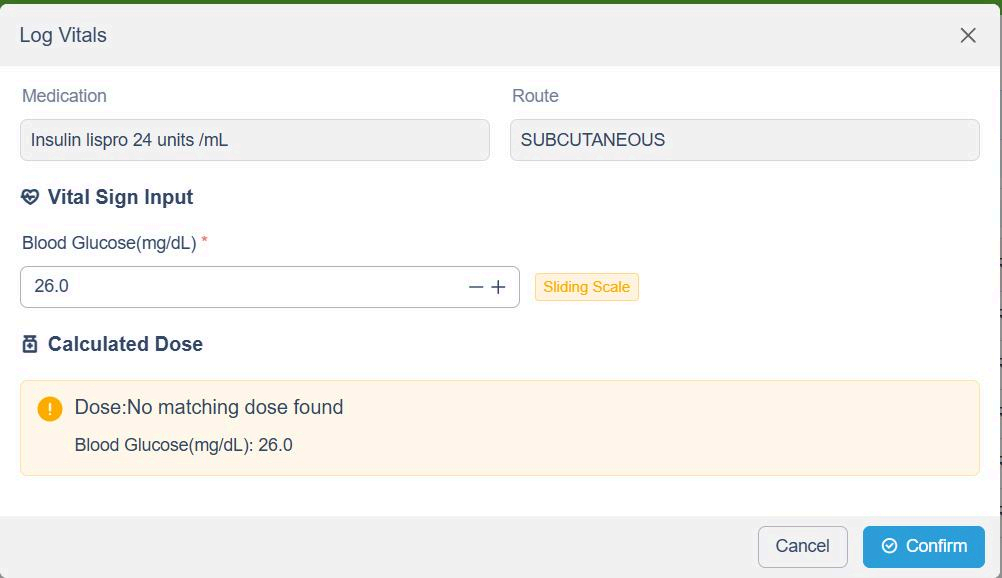
- When administering the medication, the caregiver must enter the resident's vital sign.
- The system automatically calculates and displays the correct dose based on the sliding scale.
Vital sign check required
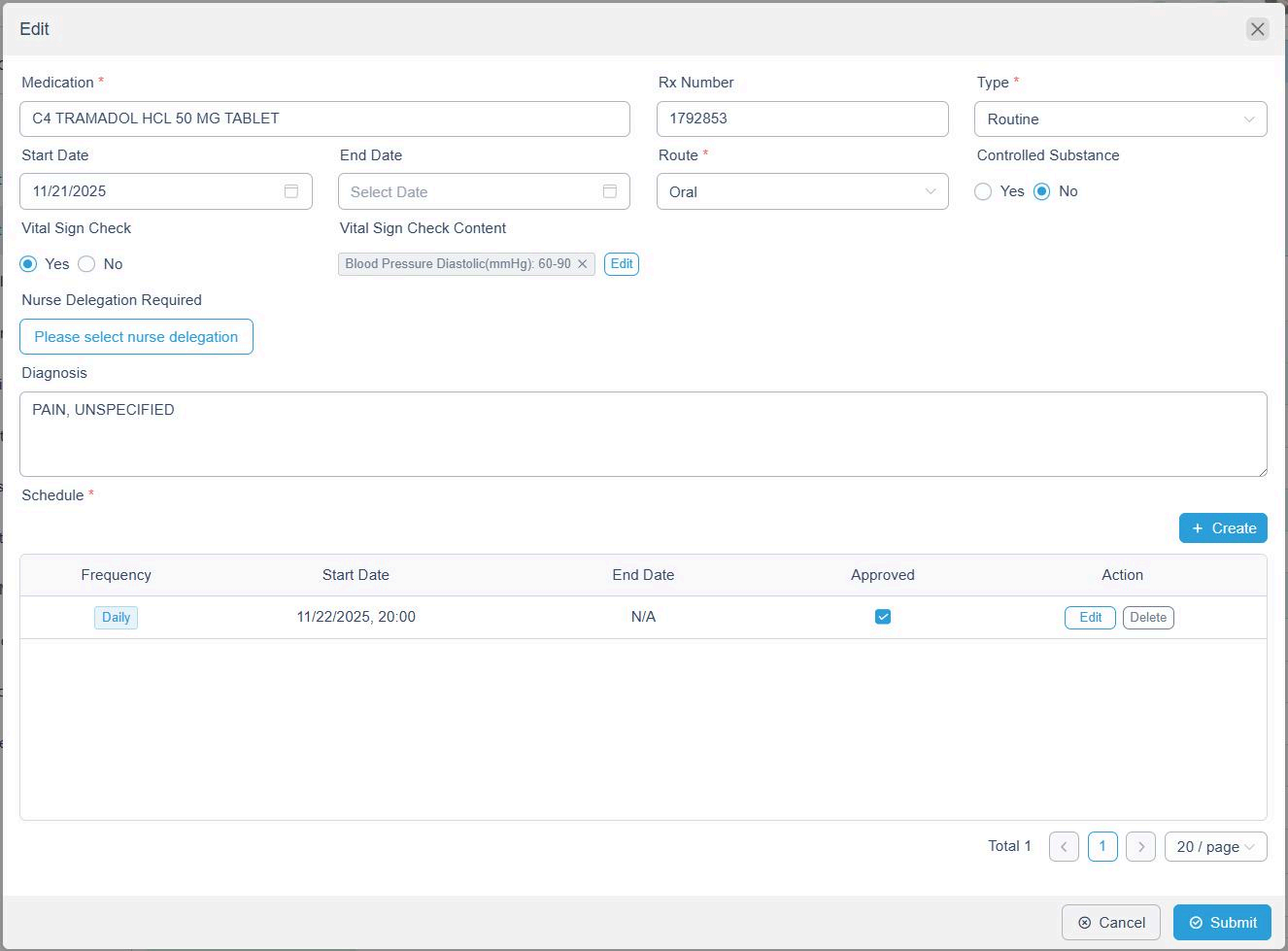
When vital sign monitoring is required:
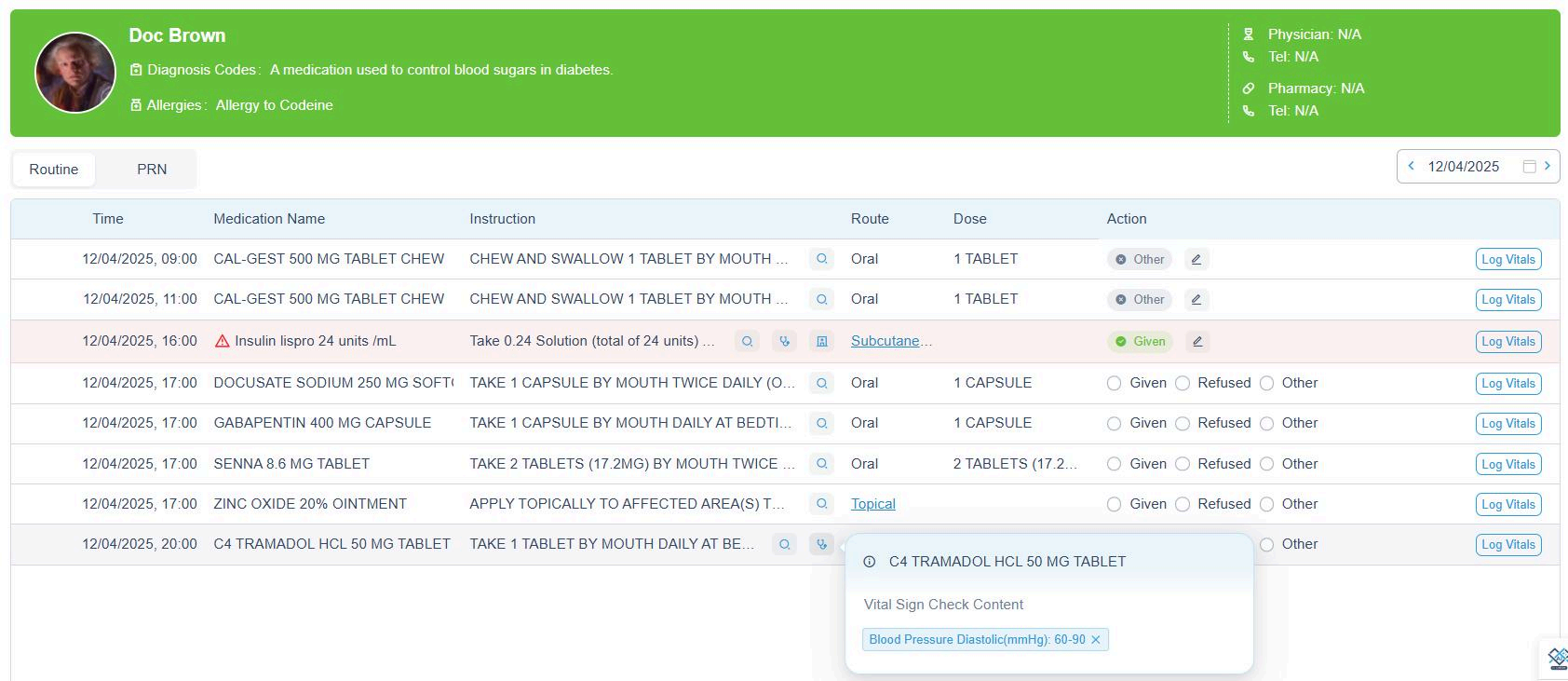
- A ️ icon appears on the Med Schedule.
- Clicking the icon shows the safe range set during medication setup.
- If the entered vital sign falls outside the safe range, the system redirects the user to recheck and confirm the vital sign.
This ensures accurate monitoring before administering the medication.
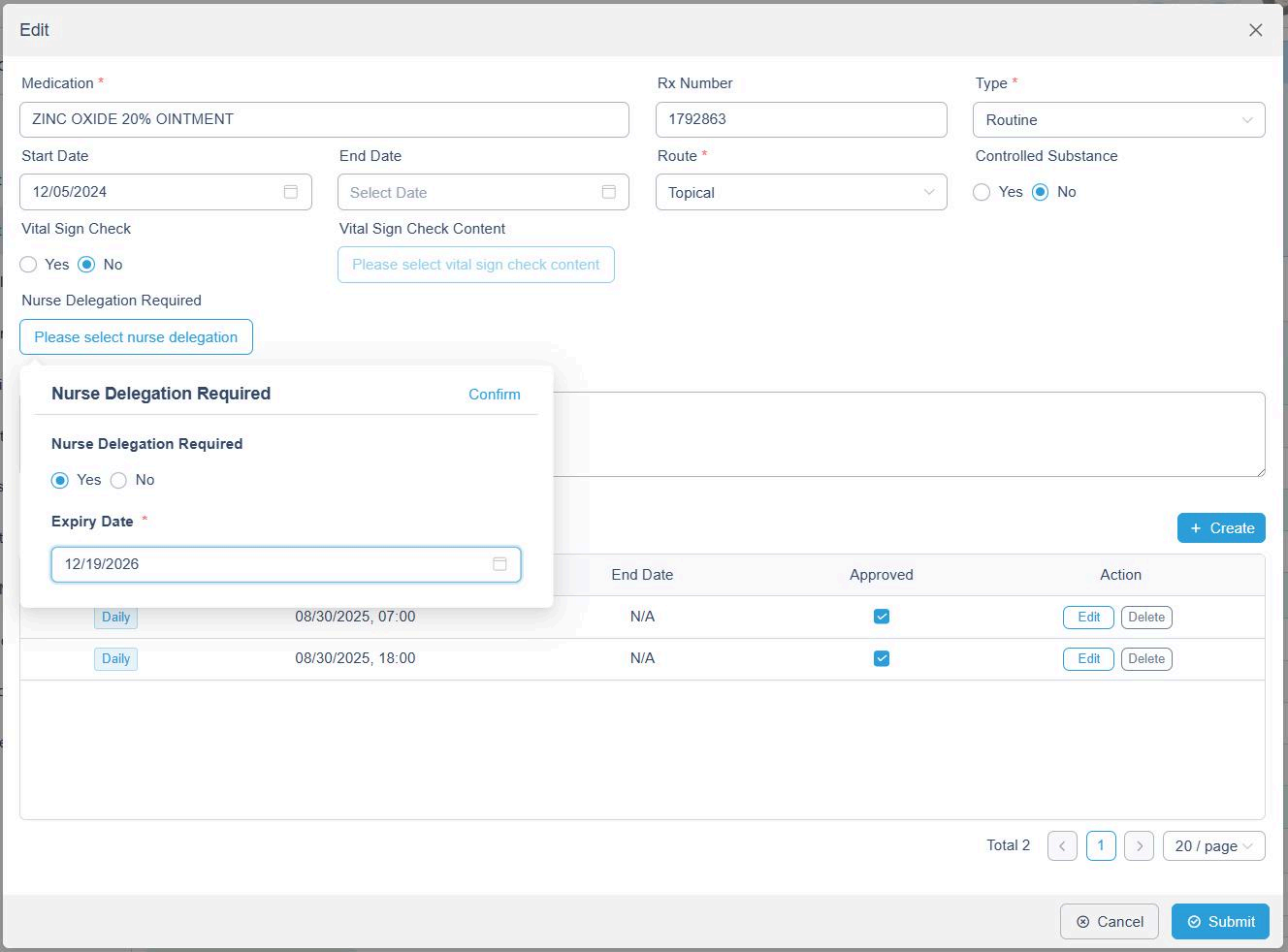
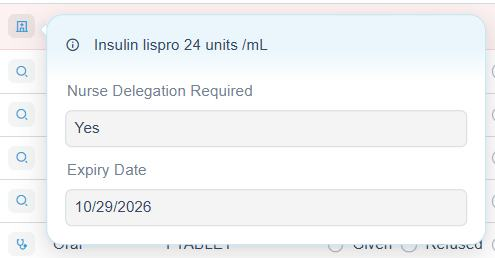
Nurse delegation required
If a medication requires nurse delegation:
- A icon appears.
- Clicking the icon displays the delegation expiration date. This helps ensure caregivers comply with delegation requirements.
Medication Disposal
If a resident refuses a medication or if there is any other reason the medication must be disposed of, the system provides two ways to record the disposal. Proper disposal documentation ensures compliance and maintains accurate medication records.
Option 1: Record Disposal from the Med Schedule Page
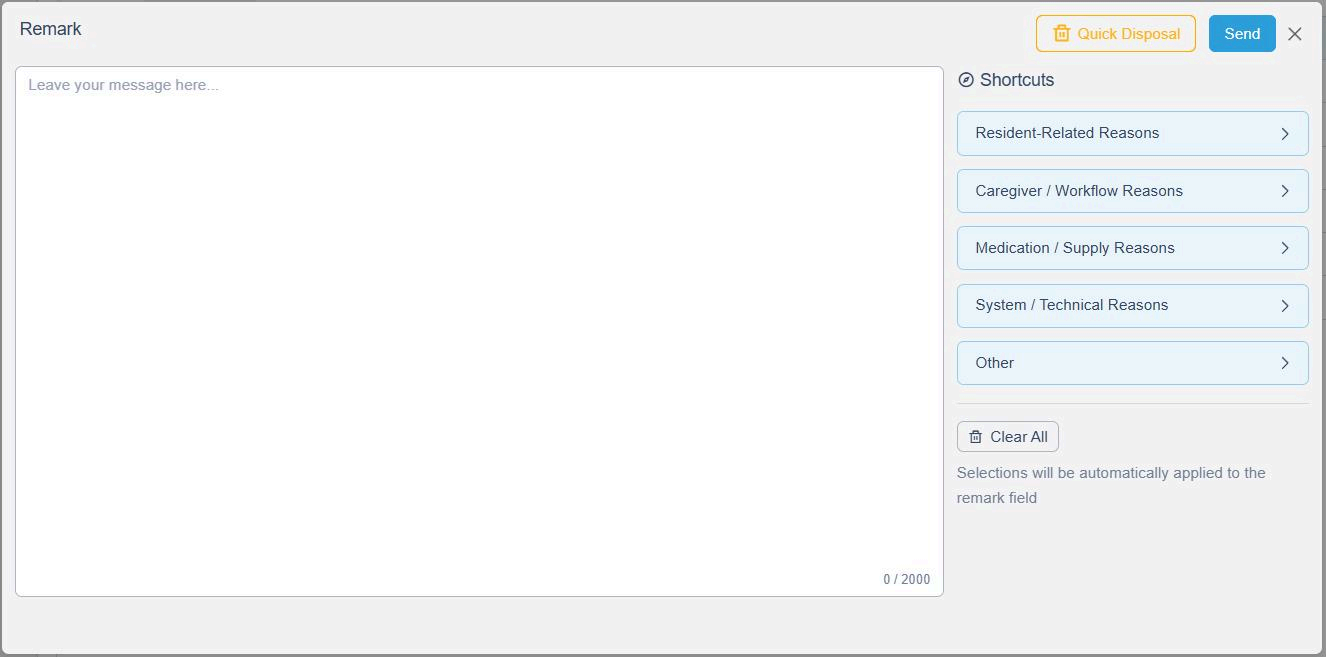
- On the Med Schedule page, click Refused or Other for the medication.
- In the Remark window, click the Disposal button located at the top right.
- Use the drop-down list to complete the disposal form.
- Save the entry to finalize the disposal documentation.
This method is ideal for documenting disposal immediately at the time of administration.
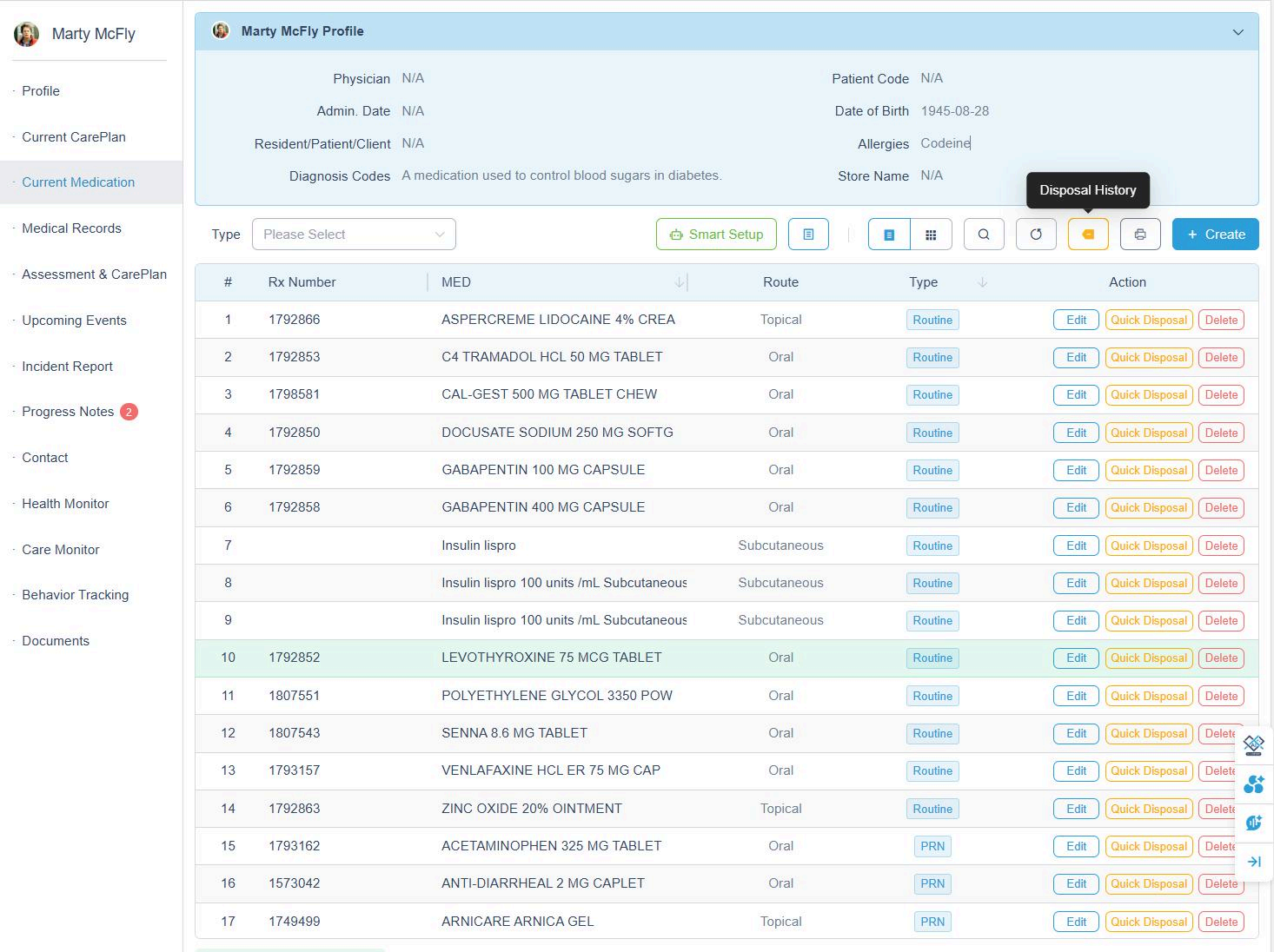
Option 2: Record Disposal from the Resident's Current Medication Page
- Go to the Resident Page and select Current Medication.
- Click the Disposal icon on the right side of the specific medication.
- Fill out the disposal form and submit.
Batch Disposal
This page also allows you to complete batch disposal entries if multiple medications require disposal at once.
Viewing Disposal History
At the top of the Current Medication page, click the Disposal History button to:
- View all recorded disposal entries
- Print the complete disposal history for documentation or audit purposes
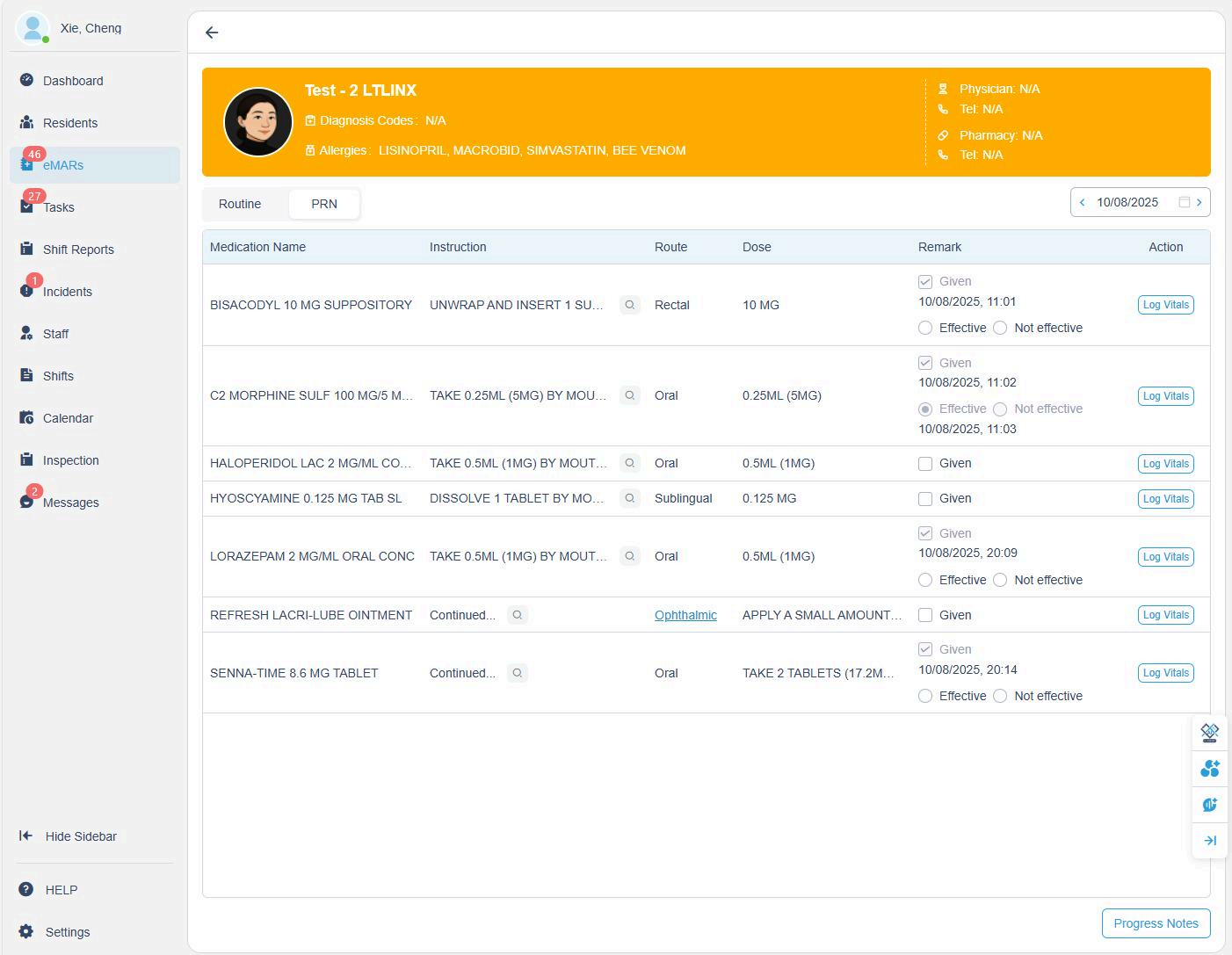
4. Recording PRN Medications
When a PRN medication is administered:
- The system automatically creates a timestamp showing when the medication was given.
- A second timestamp is recorded after the effectiveness check is completed.
- PRN medications remain yellow until the effectiveness status (Effective / Not Effective) is logged.
This ensures that all PRN medications are properly followed up and documented.
5. Handling Overdue Medications
Once a medication becomes overdue, the system does not allow the user to simply mark it as "Given" or "Refused."
Instead:
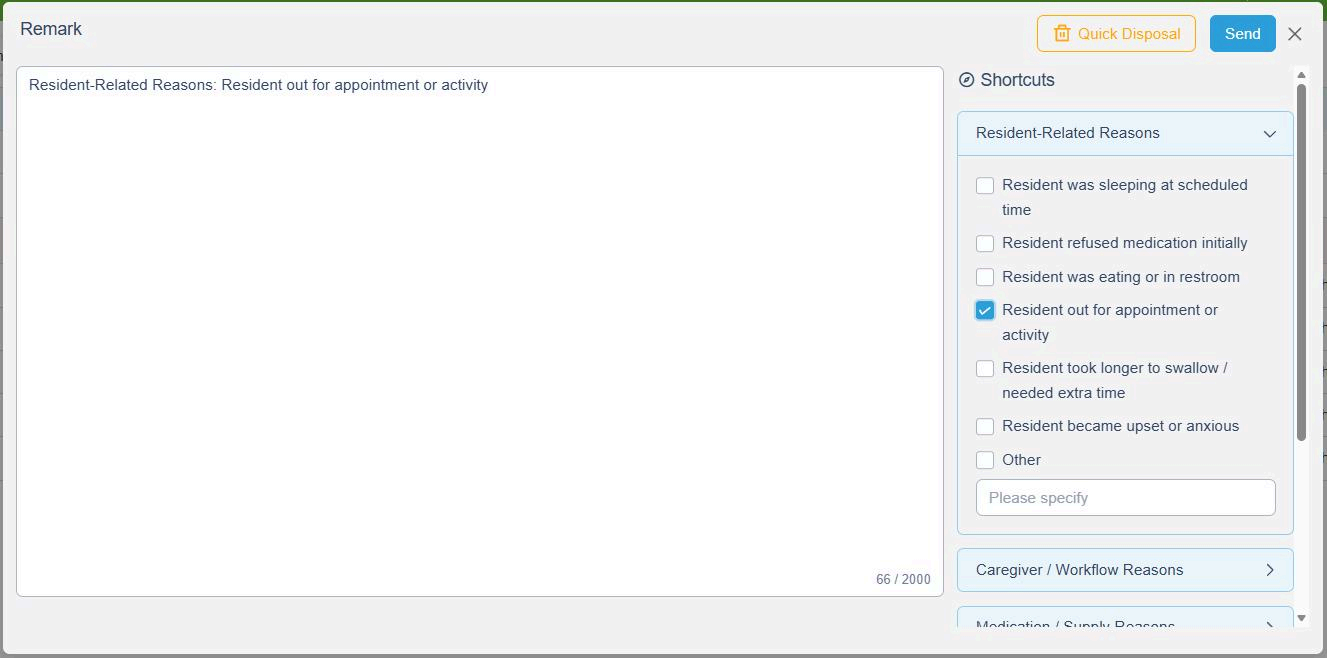
- The user is required to enter a remark explaining the reason for the delay or missed dose.
- Shortcut remark options appear on the right side for quick documentation.
- This helps maintain accurate compliance documentation and accountability.