Caregiver's User Guide
Calendar Guide
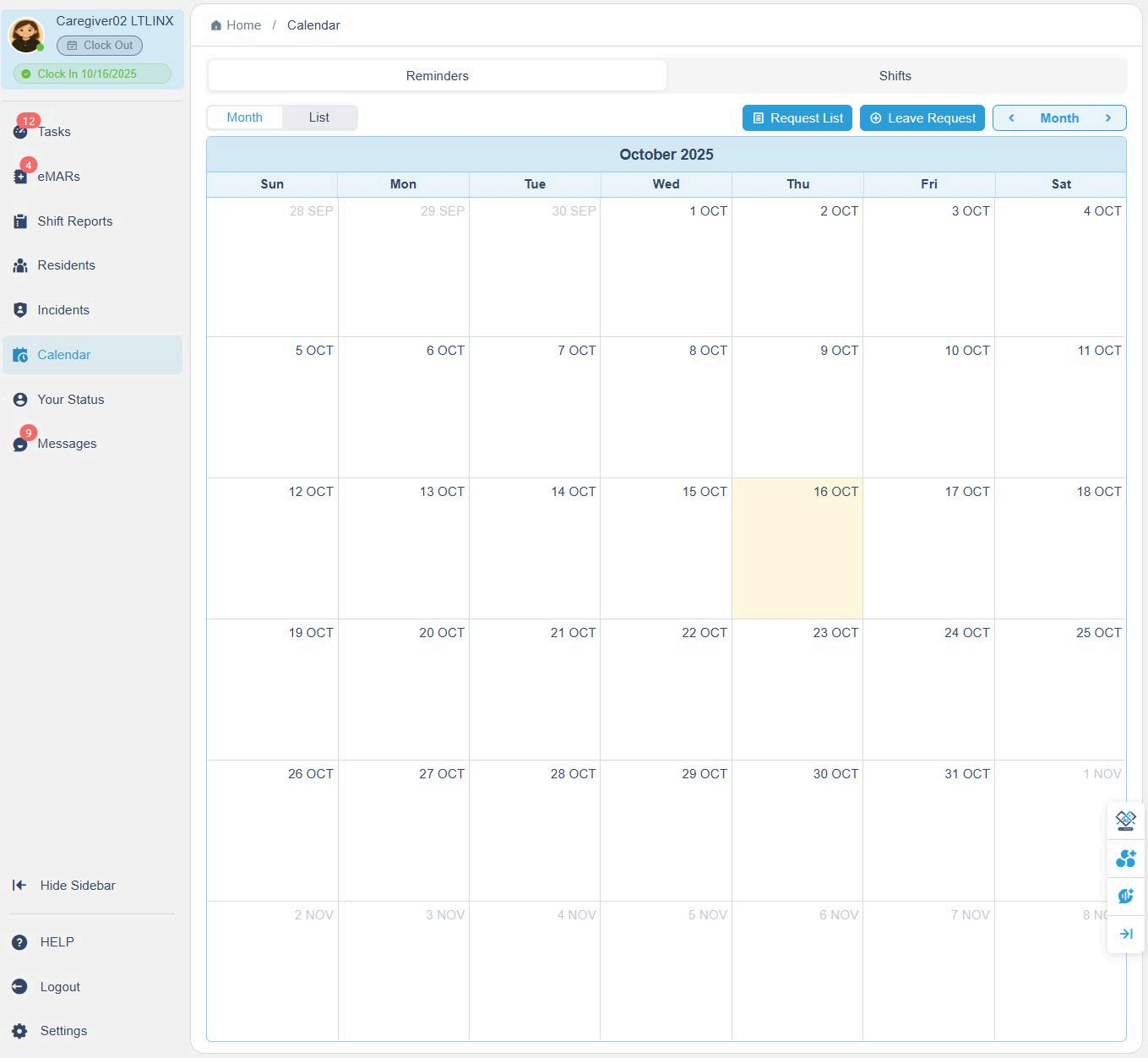
1. Accessing the Calendar
To open your calendar:
- Click Calendar on the left sidebar.
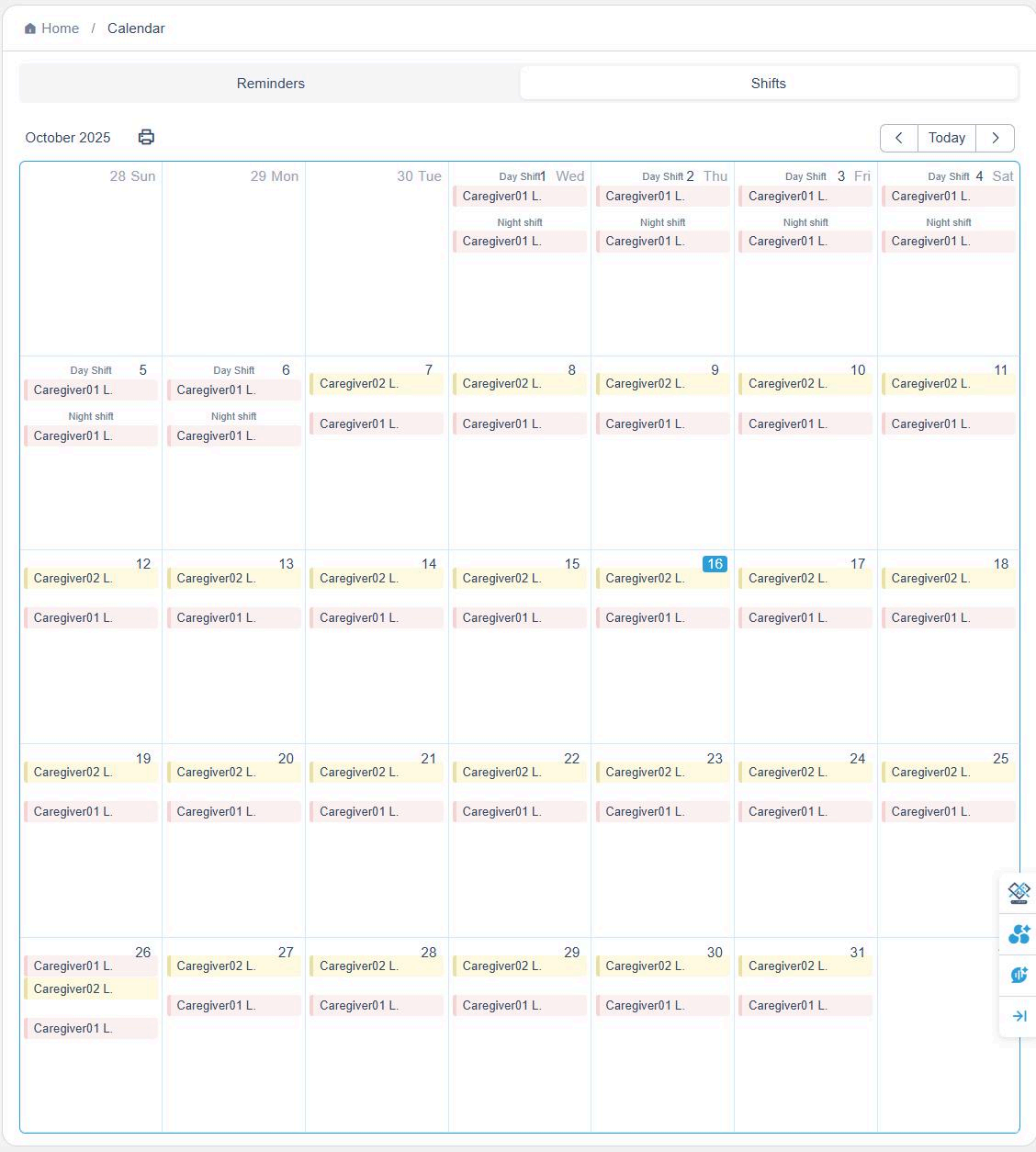
At the top of the page, you will find two tabs:
- Reminders Calendar – for personal notes or events and leave requests.
- Shift Calendar – for viewing scheduled shifts.
💡 The calendar view helps you track your personal reminders, assigned shifts, and team schedules all in one place.
2. Adding or Editing Events
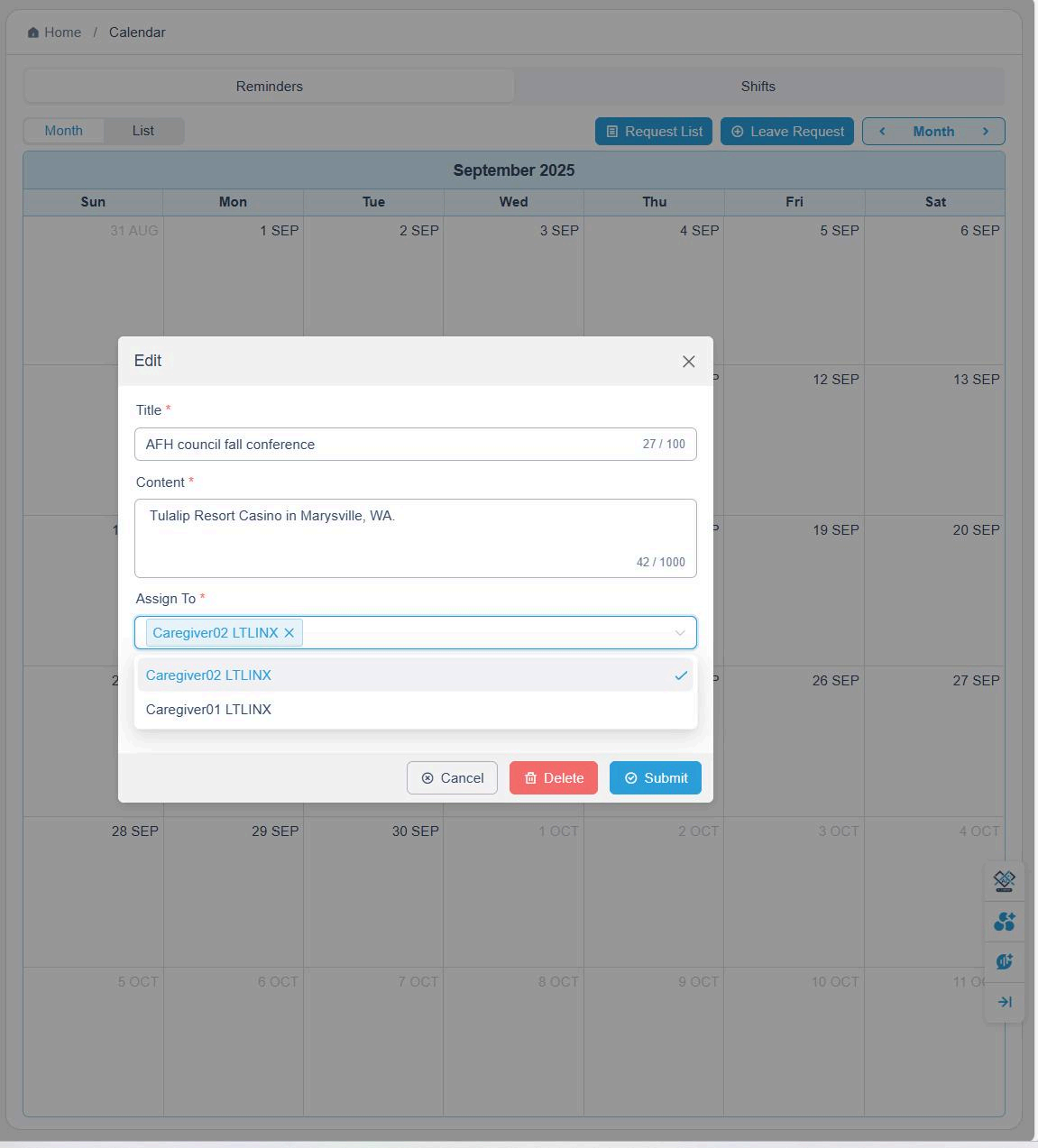
You can add personal events to your Reminders Calendar.
Only you can view your own reminders — they are not visible to others.
To add or edit an event:
- Click a date on the calendar.
- Enter the Title, Details, and Time.
- Choose whether the event repeats (e.g., Daily, Weekly, Bi-weekly).
- Click Submit to save.
If you want to share the event with others:
- Use the Assign To field to select one or more coworkers.
- The event will automatically sync to their calendars as well.
3. Submitting Leave or Shift Adjustment Requests
You can submit Leave Requests or Shift Adjustment Requests directly from the Calendar.
To request leave:
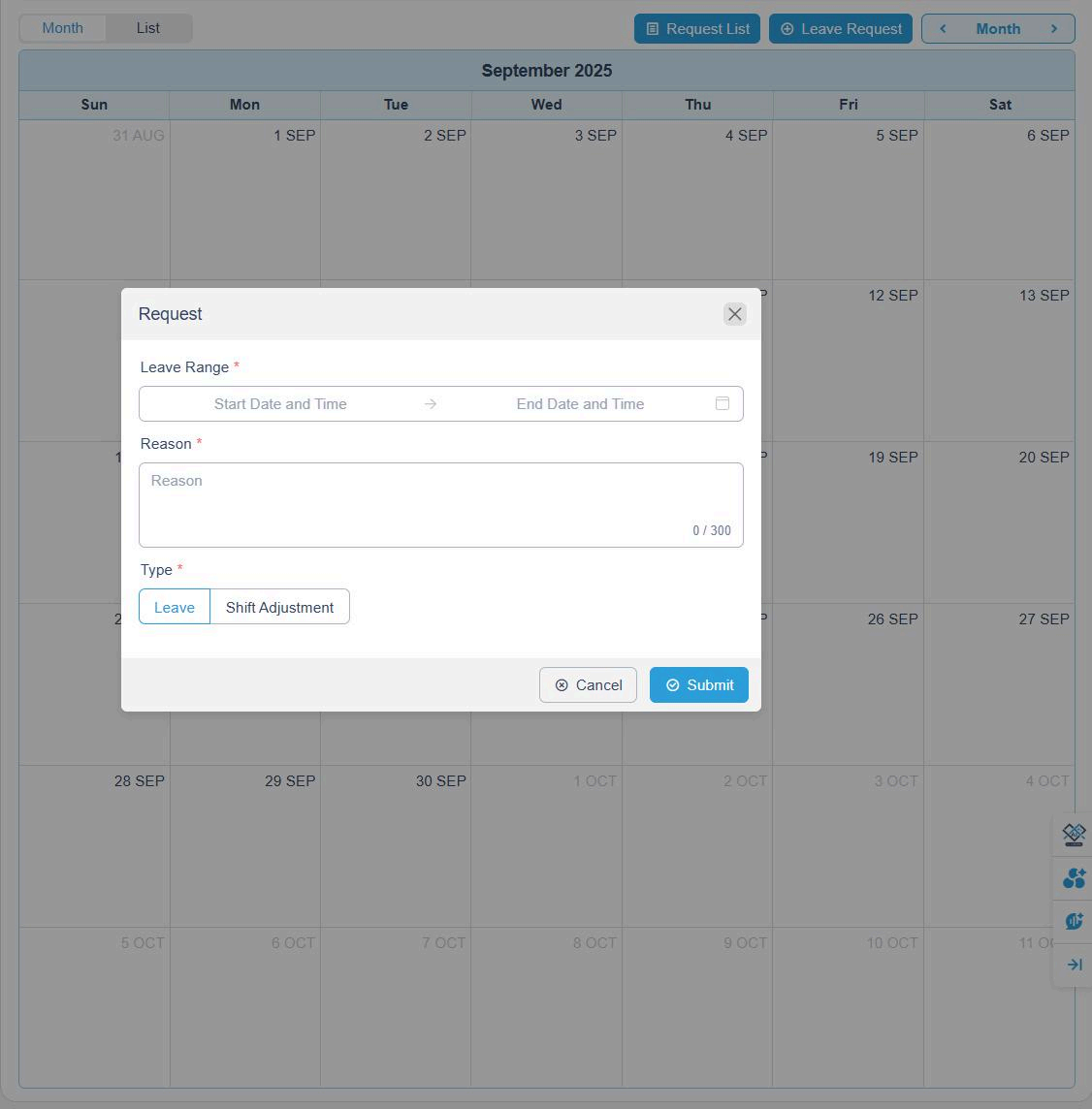
- Click + Leave Request at the top of the page.
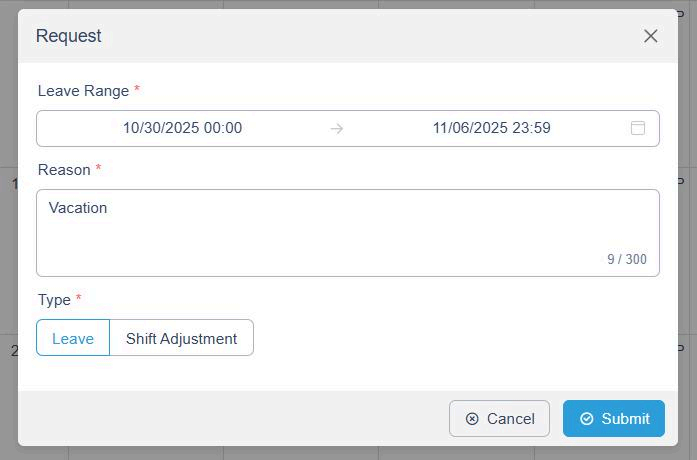
- Fill in the following information:
- Leave Range: Start and End Dates/Times
- Reason: e.g., Vacation, Personal Leave, Sick Day
- Type: Select Leave or Shift Adjustment
- Click Submit to send your request to the Admin.
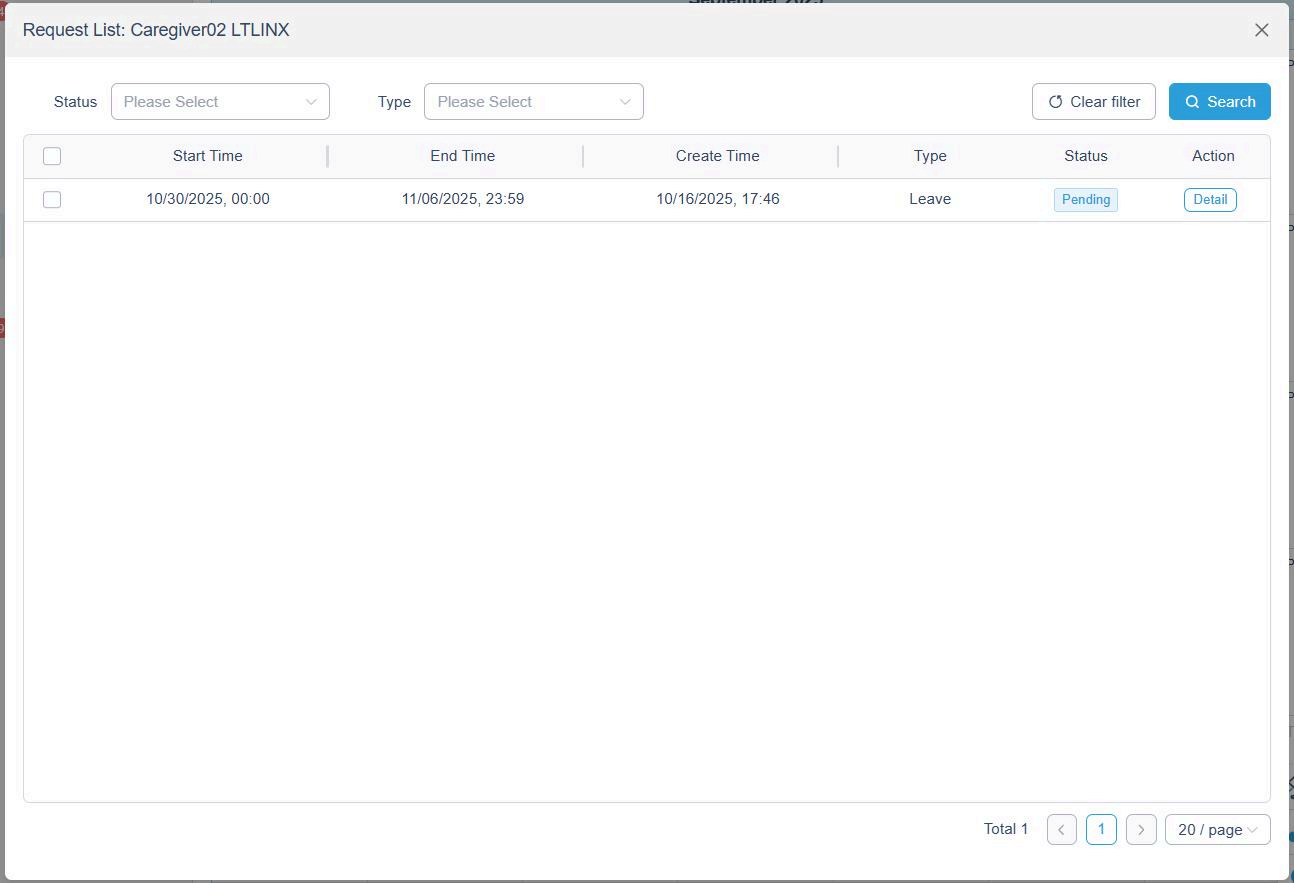
To monitor your requests:
- Click Request List at the top of the page.
- The list displays all submitted requests with their status (e.g., Pending, Approved, Rejected).