Caregiver's User Guide
Incident Report Guide
Step 1: Select Incident Type and Resident
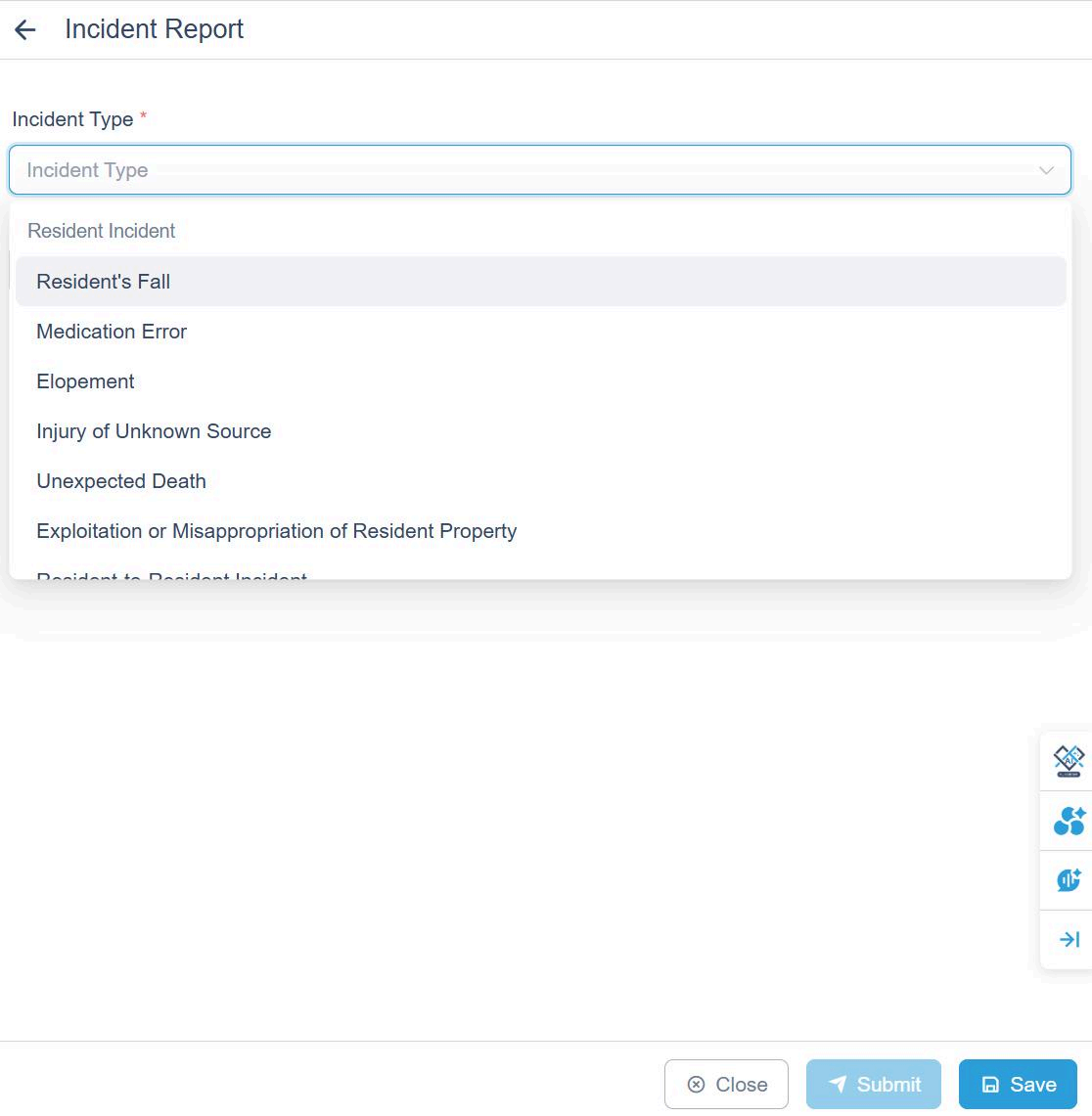
- Use the Incident Type drop-down to select the correct type of incident (e.g., Resident's Fall, Medication Error, Elopement, Unexpected Death, etc.).
- Select the Resident involved in the incident.
Important:
The system only allows you to record incidents that occurred within the last two days.
Step 2: Enter Date and Time
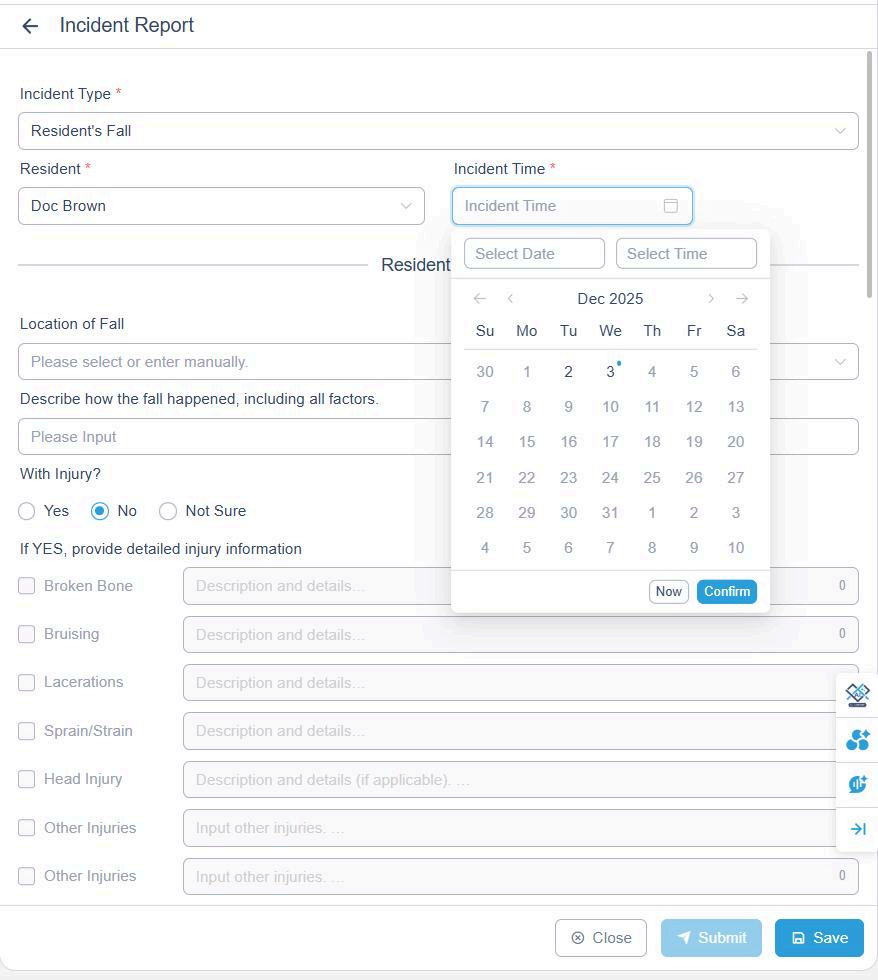
Enter the date and time of the incident using the calendar and time selector.
Screenshot Description:
- Incident Time field with time selector (e.g., 12:30).
- Resident Date selector showing December 2025 calendar (Su Mo Tu We Th Fr Sa, dates 30-6).
- Selected date: December 3, 2025.
Step 3: Enter Incident Details
Continue entering Incident Details, including location, description, and injury information if applicable.
Save vs. Submit
Save
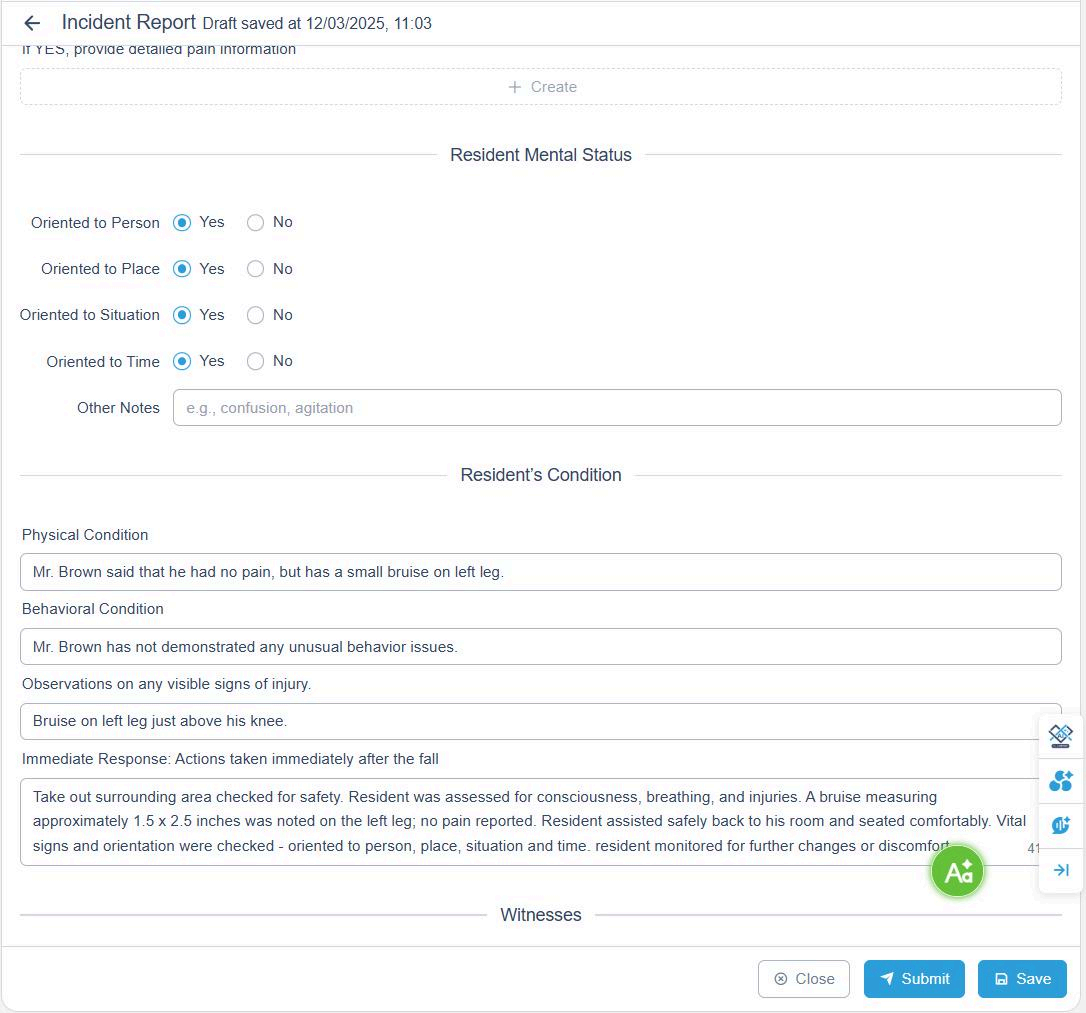
- Click Save to store the report as a draft.
- Saving does not submit the report to anyone.
- You can return and edit the report at any time before submission.
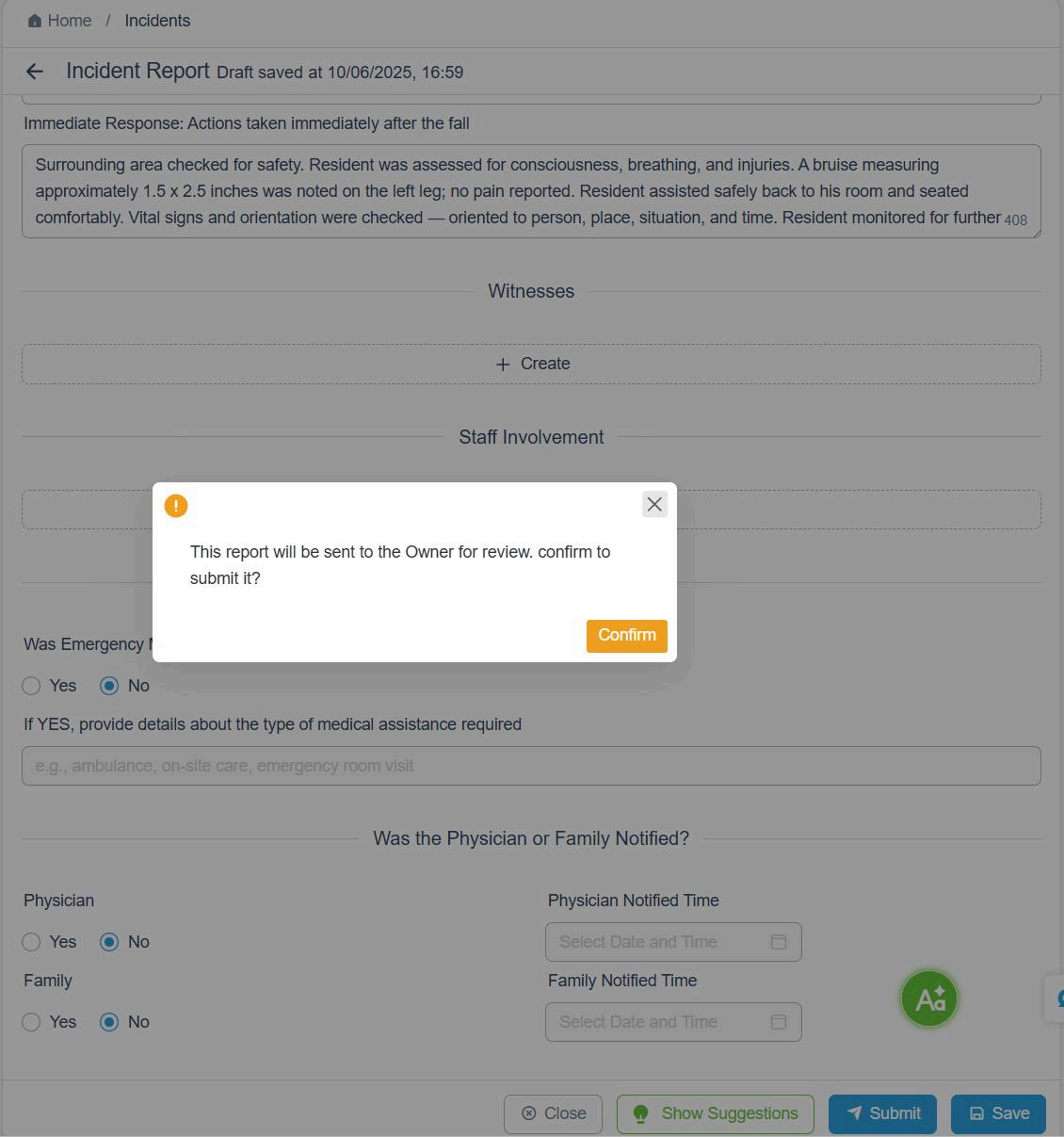
- After saving, a green AI button will appear at the bottom-right corner of the page.
Submit
- Click Submit to send the incident report to your facility administrator (or owner) for review.
- A confirmation popup will appear asking you to confirm submission.
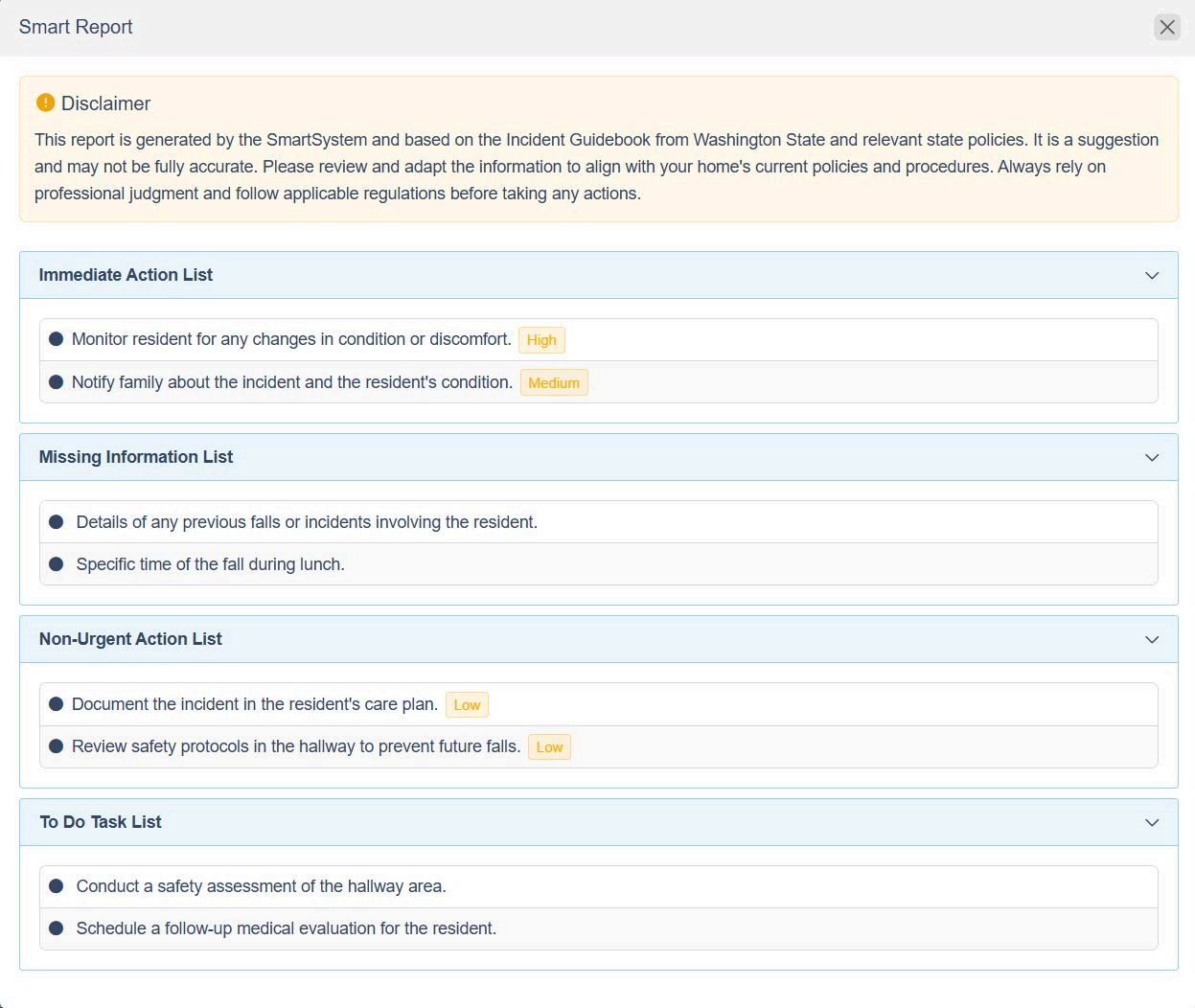
Use the AI Smart Report (Optional)
- After saving the report, click the green AI button to generate your AI Smart Report.
- The Smart Report includes: Action needs to be taken and missing information for the incident report.
- The Smart Report is generated based on Washington State Incident Guidebook and relevant policies. It is a guide only—always follow your facility's policies and use professional judgment.